























Install GIMP on a Smartphone! A Portable Digital Darkroom in Your Pocket
Feb 4, 2026
David Prochnow
Our resident “how-to” project editor, David Prochnow, lives on the Gulf Coast of the United States in Ocean Springs, Mississippi. He brings his expertise at making our photography projects accessible to everyone, from a lengthy stint acting as the Contributing How-To Editor with Popular Science magazine. While you don’t have to actually build each of his projects, reading about these adventures will contribute to your continued overall appreciation of do-it-yourself photography. A collection of David’s best Popular Science projects can be found in the book, “The Big Book of Hacks,” Edited by Doug Cantor.
Share:
Are you sick of subscriptions? Tired of never really owning any of your software? Thank goodness for software, like GIMP, that deliver a free, open-source option for handling your photographic tasks.
Unfortunately, GIMP is only available for Linux, MacOS, and Windows operating systems. There is NOT a smartphone app for GIMP. Rather, those smartphone apps that “claim” to be GIMP are not the real McCoy.
[Related Reading: How to turn GIMP into Photoshop (sort of) using PhotoGIMP]
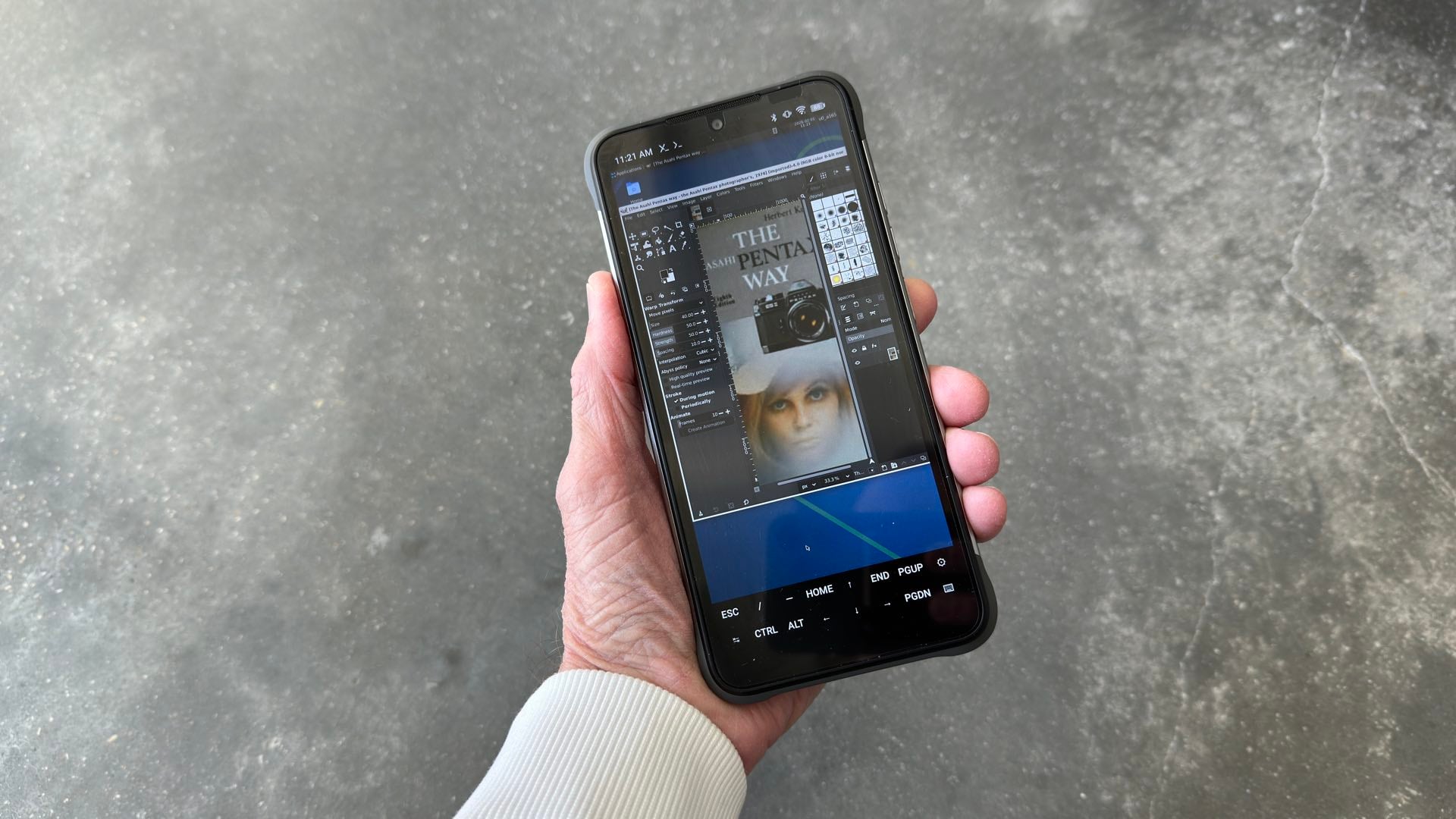
Wouldn’t it be wonderful, however, if you were able to “magically” install GIMP on your smartphone? Imagine being able to upload a photograph from your camera to your smartphone, enact one of your favorite GIMP manipulation tool-sets, save the resultant image, and then send it to your client…all while casually eating lunch in a restaurant.
Well, reality just heard your wishful dreams and today you can install the bona fide desktop version of GIMP on your smartphone. That’s right. A free, professional-grade photo manipulation program in the palm of your hand.
Before we begin, please realize that this installation procedure is a software project. The first two installation steps are the hardest. Luckily, there’s no need to panic. After that installation, the rest of the work is clear sailing. In other words, if you can follow a cooking recipe, then you’ll have no trouble installing GIMP on your smartphone. Let’s begin.
From Zero to GIMP in 3 Easy Steps
[Please note: This project is derived from the work of LinuxDroidMaster. Thank you for this incredible contribution to GIMP lovers.]
Before you jump into this project, ensure that your smartphone meets the following requirements:
- At least 4GB for RAM
- At least 64GB of internal storage
- Android 11 or newer
- ARM64-v8a CPU architecture (other architectures might work, but weren’t tested) [See CPU Test (Step 2), below, for determining your CPU architecture.]
- Optional – an internal microSD card (for holding your photographs)
This entire procedure was tested on a UMIDIGI Bison X10 smartphone.
Step 1. If your smartphone checks out OK, there are two apps that must be installed, first. Neither of these apps will be installed through Google Play store. An alternative Android app marketplace, called F-Droid, will be used for downloading the first app, known as Termux. You don’t need to download the F-Droid app. Instead, using the following link, scroll down until you find the latest Termux version and click the “Download APK” link.
Download the Termux app from F-Droid here: https://f-droid.org/en/packages/com.termux/
If the app isn’t installed automatically, locate Termux on your smartphone and install the APK. You might need to grant permission to install an APK from a third-party site. Once installed, open Termux and type each command line and then press ENTER:
- termux-setup-storage [Press Enter] [Grant permission for storage access]
- pkg update [Press Enter]
- pkg upgrade [Press Enter]
- pkg install python python-pip [Press Enter]
- pkg install ffmpeg [Press Enter]
[Related Reading: Master How to Resize Image in GIMP: Desktop, Web & Mobile]
CPU Test
Step 2. Not sure about your smartphone’s CPU architecture, don’t worry. Run this test using Termux, type:
- getprop ro.product.cpu.abi [Press Enter]
The result will be displayed in the Termux app screen. Then go to this Github site and download the APK that includes your architecture in its filename:
https://github.com/termux/termux-x11/releases/tag/nightly
Open this Termux:X11 app and leave both it and Termux running during the last, and final, step.
Step 3. In the Termux app, type the following command lines. Be patient during this final step. You’ll be downloading and installing a lot of software on your smartphone.
- pkg install x11-repo [Press Enter]
- pkg install termux-x11-nightly [Press Enter]
- pkg install pulseaudio [Press Enter]
- pkg install wget [Press Enter]
- pkg install xfce4 [Press Enter]
- pkg install tur-repo [Press Enter]
- pkg install gimp [Press Enter]
- cd ~ [Press Enter]
- wget https://raw.githubusercontent.com/LinuxDroidMaster/Termux-Desktops/main/scripts/termux_native/startxfce4_termux.sh [Press Enter]
- bash ~/startxfce4_termux.sh [Press Enter]
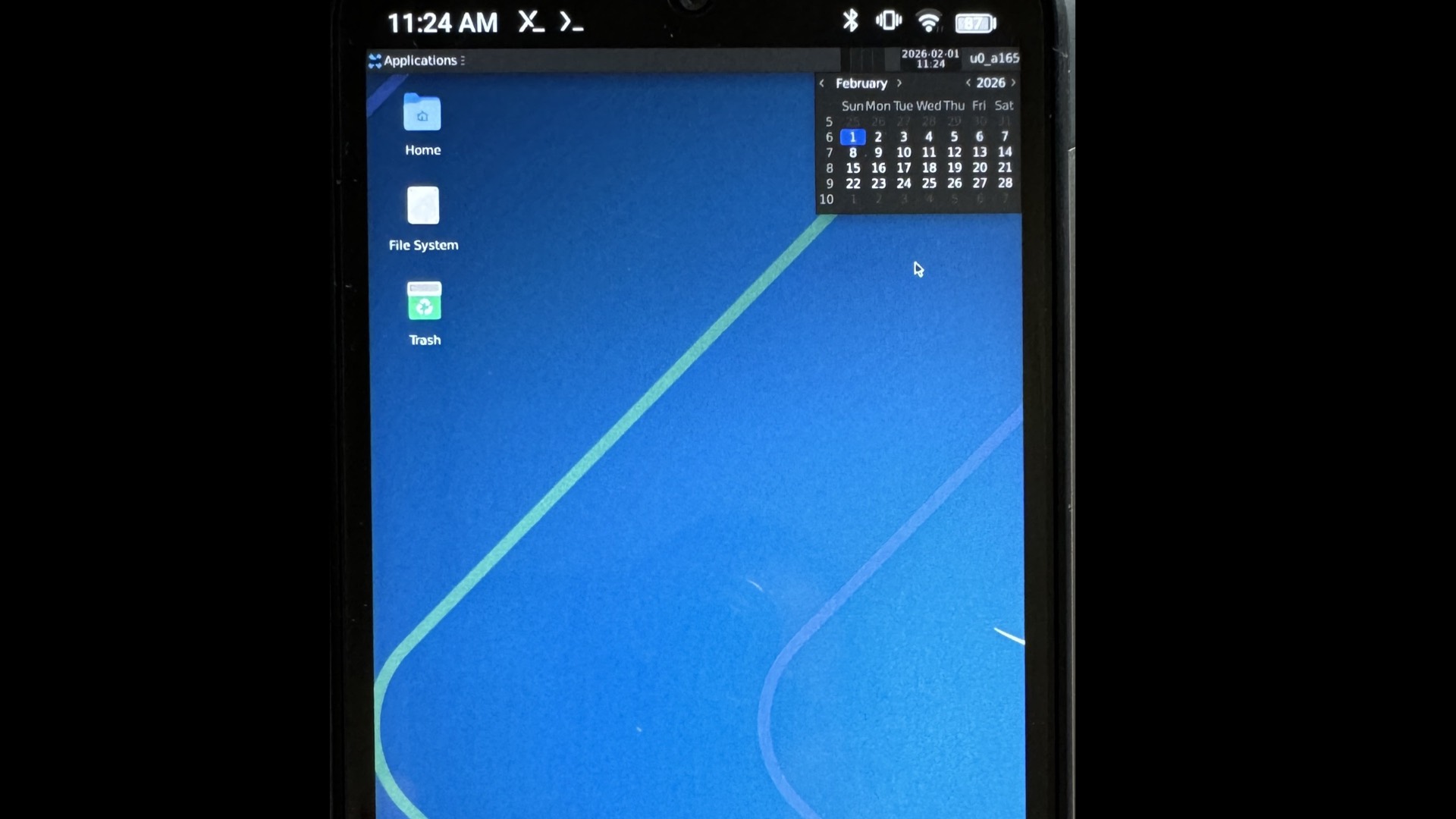
After you’ve entered that final command script line, you should see the X11 server begin and display the XFCE desktop. [There could be slight delay before the desktop pops up.] You can move the mouse pointer around the screen by pushing your finger on the smartphone display.
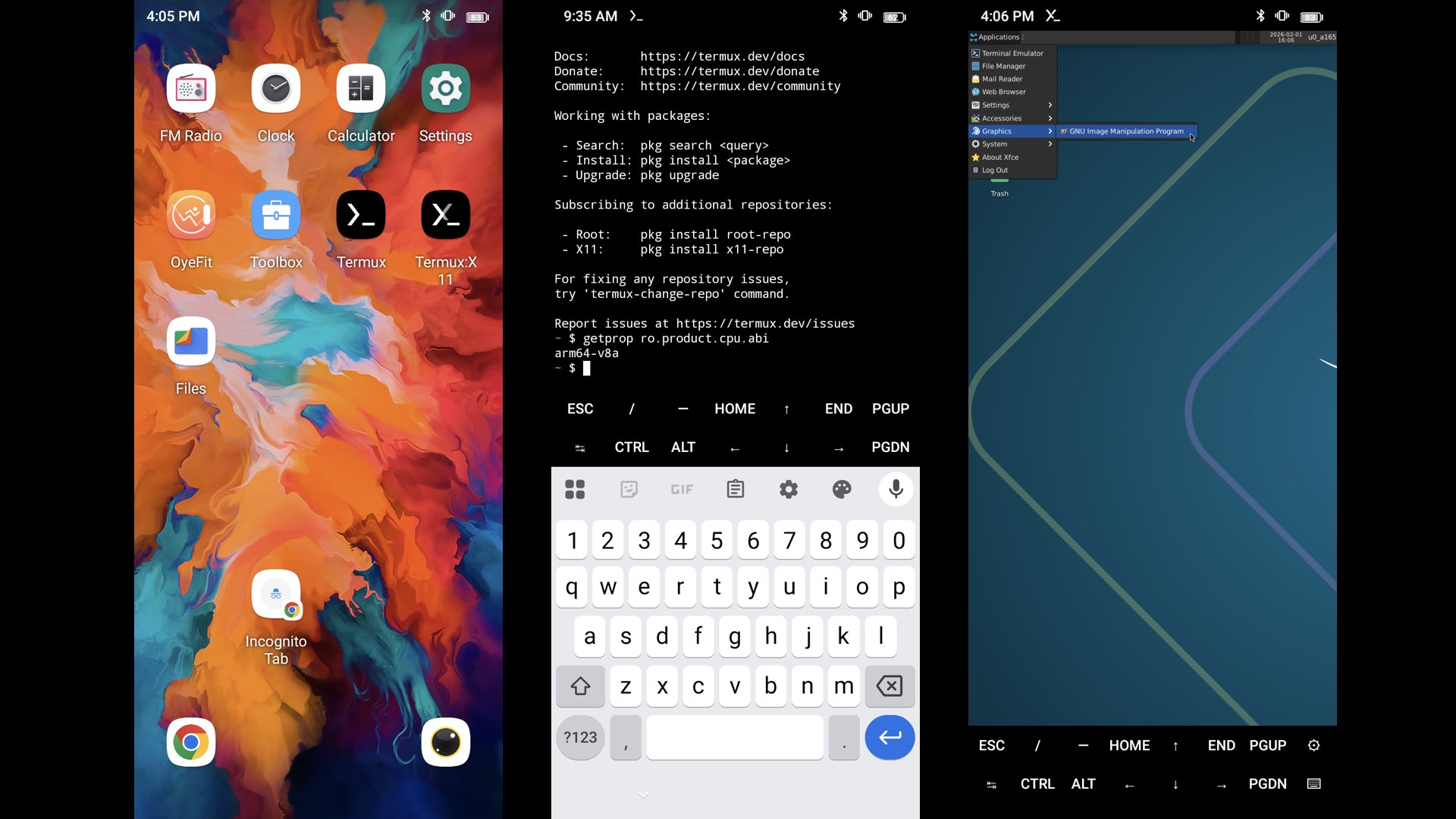
Move up to the Applications menu, tap the screen, move to the Graphics submenu, tap, and GNU Image Manipulation Program (GIMP) should be displayed. Tap this GIMP entry and behold the magic of a Linux program running on your smartphone.
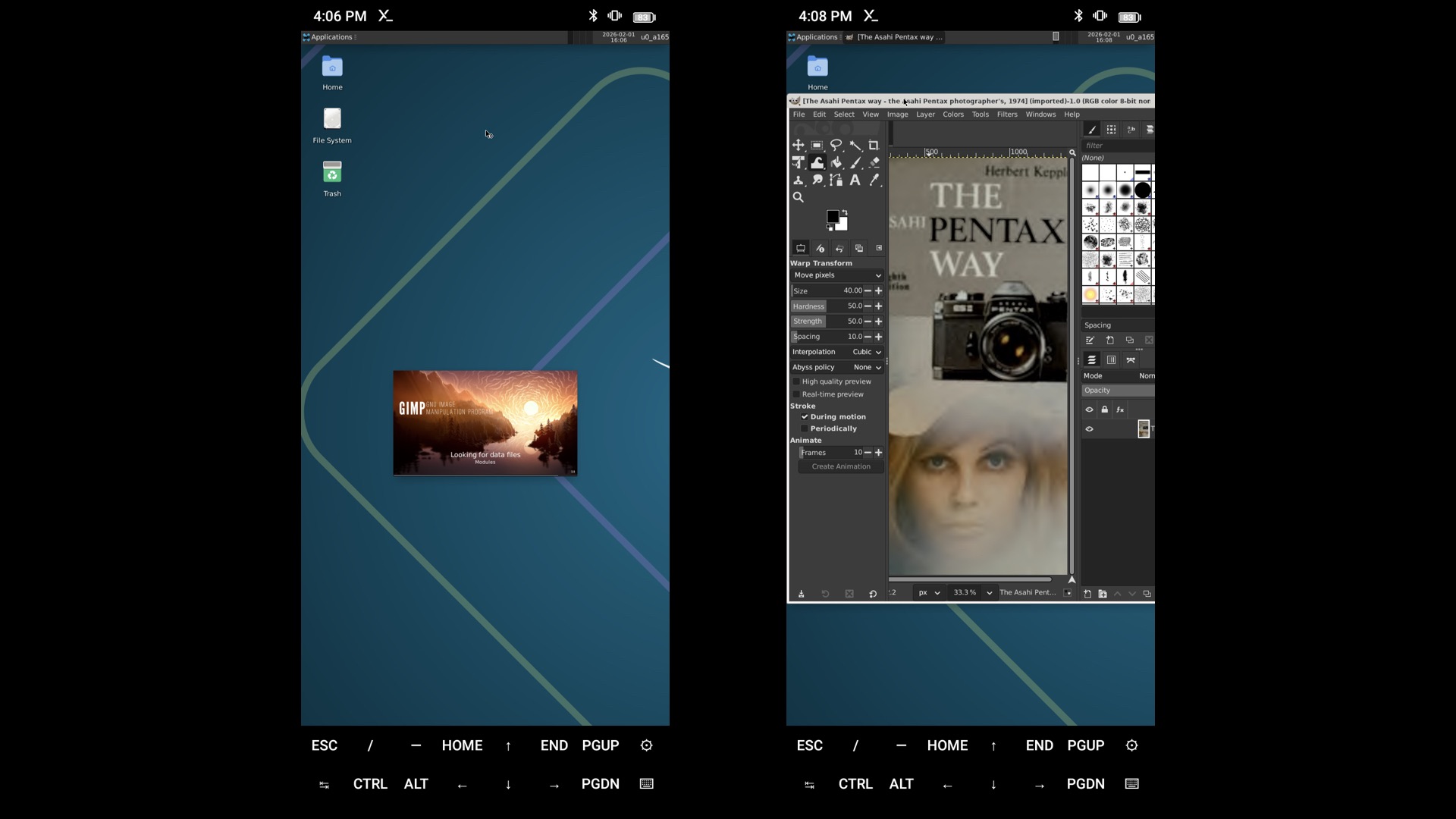
Anytime you want to return to GIMP, just open the Termux:X11 app and you’ll be immediately greeted by the XFCE desktop. The productive possibilities of having this Linux program on your smartphone are limitless. Also, just look at all of the savings you’ll recover from dismissing those high-cost photography app subscriptions.
Enjoy.
See more from DIYPhotography.net on Google
Add DIYPhotography.net as a trusted source. This makes
our stories more likely to appear in your Google Search results.
 Add as a preferred source on Google

David Prochnow
Our resident “how-to” project editor, David Prochnow, lives on the Gulf Coast of the United States in Ocean Springs, Mississippi. He brings his expertise at making our photography projects accessible to everyone, from a lengthy stint acting as the Contributing How-To Editor with Popular Science magazine. While you don’t have to actually build each of his projects, reading about these adventures will contribute to your continued overall appreciation of do-it-yourself photography. A collection of David’s best Popular Science projects can be found in the book, “The Big Book of Hacks,” Edited by Doug Cantor.


Join the Discussion
DIYP Comment Policy
Be nice, be on-topic, no personal information or flames.