













Top Hidden Smartphone Camera Features Most Users Never Use
Jan 11, 2026
Darlene Lleno
Darlene Lleno brings a unique perspective to DIY Photography as someone who grew up surrounded by camera gear but chose words over lenses. With five years of writing experience, she specializes in photography content that’s both technically informed and genuinely passionate. Growing up with a photographer twin brother meant camera talk was everyday conversation in her household. While he mastered capturing moments, Darlene discovered she preferred being the subject and the storyteller behind the scenes. As a travel enthusiast and mother of two, she understands the importance of preserving life’s precious moments. When not exploring new destinations or writing for DIY Photography, you’ll find her reading or tending to her garden. Her approach to photography writing is refreshingly authentic, she may not be behind the camera, but she knows exactly what it takes to help others capture the shots that matter most.
Share:
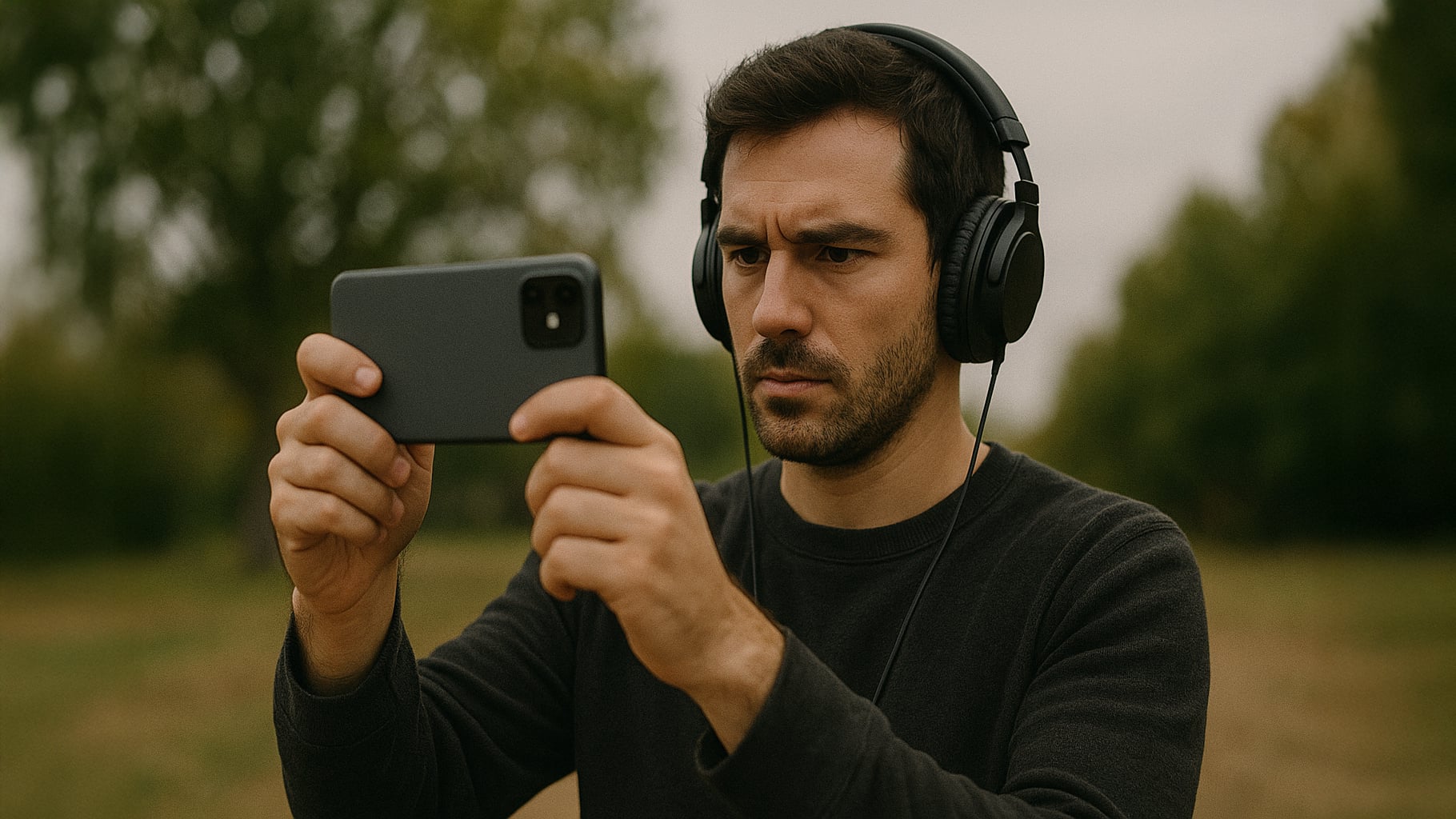
Hidden smartphone camera features exist in nearly every modern phone camera app. Most people tap the shutter button and call it done. They miss powerful tools that could transform their mobile photography. Exploring these hidden smartphone camera features opens new creative possibilities.
Your phone probably has professional-grade capabilities hiding in plain sight. These hidden smartphone camera features can match results from dedicated cameras in many situations. The catch is finding them in the first place.
This guide reveals the tools already living inside your camera app. You won’t need expensive accessories or third-party apps. Just a willingness to dig a little deeper than usual.
Manual Camera Controls: Hidden Smartphone Camera Features for Pros
Pro mode sits buried in most camera apps. Many users never discover these hidden smartphone camera features exist at all. This single feature changes everything about smartphone photography.
Android phones typically list Pro mode under the “More” menu option. Samsung devices place it alongside their standard shooting modes. Google Pixel phones require third-party apps since Google removed native manual controls.
iPhone users need to enable ProRAW settings in their camera preferences first. Then manual controls become available in the main camera interface. PetaPixel’s guide explains the complete process clearly.
Hidden Smartphone Camera Features: Taking Control of ISO Settings
ISO controls how sensitive your camera sensor becomes to light. Lower numbers mean less sensitivity but cleaner images. Higher numbers brighten dark scenes but add visible noise.
Pro mode lets you lock ISO at specific values. Keep ISO at 100 for crisp daylight shots. Low-light situations need higher ISO values like 800 or 1600. Understanding ISO helps you make better exposure decisions every time.
Adjusting Shutter Speed for Motion
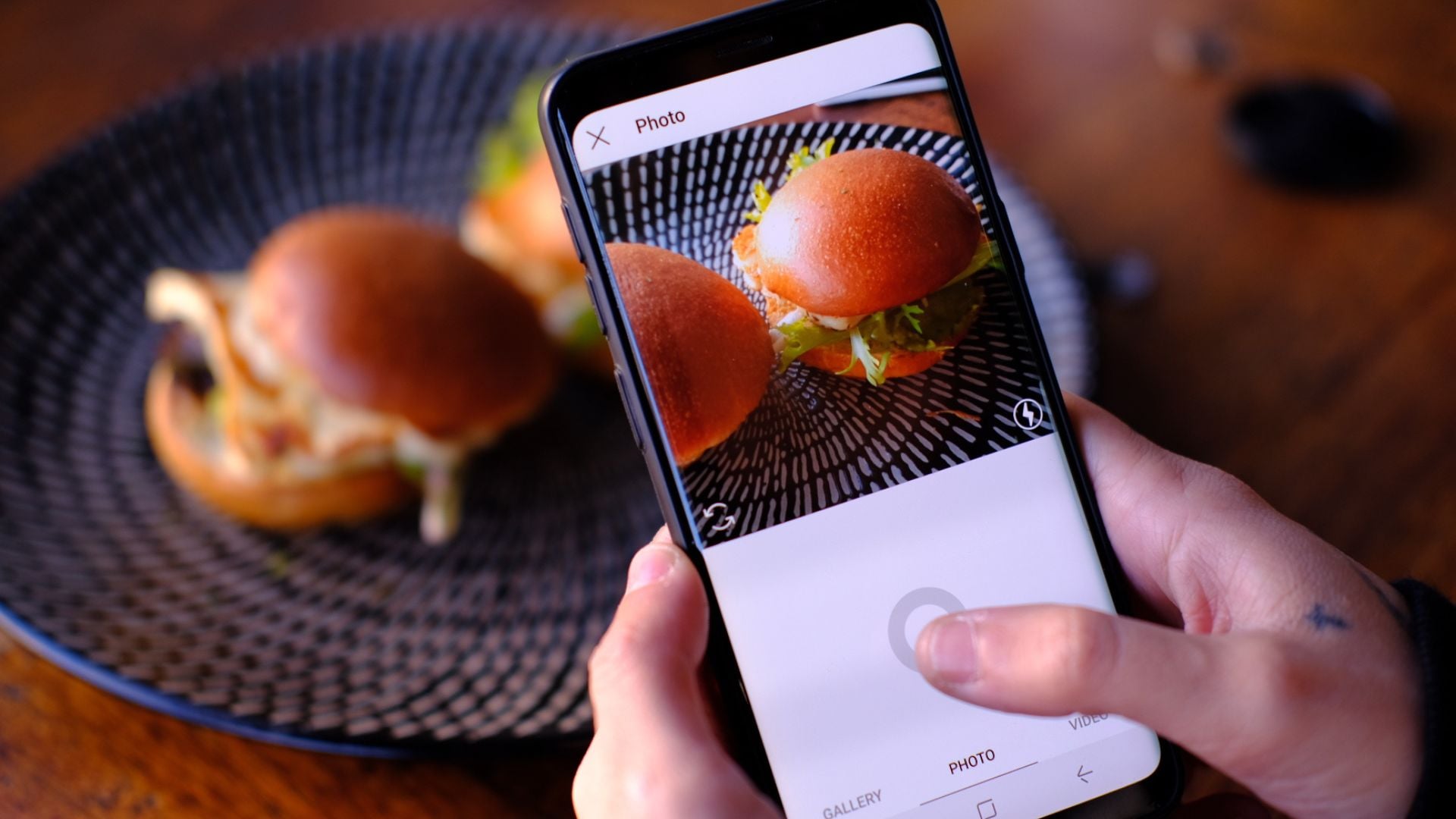
Shutter speed determines how long light hits your sensor. Fast speeds freeze action in sports or wildlife. Slow speeds create intentional motion blur for creative effects.
Most phones let you adjust from 1/8000 second to 30 seconds. Use 1/500 second or faster for moving subjects. Try multiple seconds for light trails or smooth water. Mastering shutter speed opens up entirely new creative possibilities.
Unlocking Hidden Smartphone Camera Features for White Balance Control
White balance affects the overall color temperature of your images. Automatic settings often guess wrong in mixed lighting. Manual control fixes this instantly.
Different light sources have different color temperatures. Tungsten bulbs create warm tones around 3200K. Daylight produces neutral colors around 5500K. Set white balance manually to match your lighting. Your photos will show accurate colors without editing.
Hidden Smartphone Camera Features in RAW Format
RAW files capture unprocessed data straight from your sensor. These files contain way more information than standard JPEGs. Professional photographers rely on RAW for serious editing work.
Android phones enable RAW in their camera settings menu. Look for options labeled “RAW copies” or “RAW + JPEG.” Samsung devices offer both standard RAW and Expert RAW mode.
iPhones running iOS 14 or later support Apple ProRAW. Navigate to Settings > Camera > Formats to enable it. ProRAW combines computational photography with RAW flexibility.
Why RAW Files Matter for Editing
JPEG compression throws away image data to save space. RAW files preserve everything your sensor captured originally. You can recover blown highlights or crushed shadows easily in RAW.
Color adjustments stay smooth without banding artifacts. RAW files do require more storage space. They also need processing with apps like Lightroom Mobile. The editing flexibility makes this worthwhile for important shots.
Expert RAW Mode on Samsung Devices
Samsung flagship phones include a separate Expert RAW app. Download it free from the Galaxy Store if you own compatible devices. This app provides advanced controls beyond standard Pro mode. Android Authority’s comprehensive guide covers all Expert RAW features.
Expert RAW captures multi-frame compositions automatically. It blends several RAW exposures into one detailed file. The app includes histogram displays for precise exposure control. Astrophotography mode enables long exposures up to several minutes.
Advanced Focus Features Transform Your Images
Focus determines which parts of your image appear sharp. Automatic focus works fine for simple snapshots. Hidden smartphone camera features provide manual control that lets you make precise creative decisions.
Most camera apps let you tap the screen to set focus. This basic feature already improves many photos significantly. Hidden features take focusing much further than tapping alone.
Focus Lock Prevents Unwanted Shifts
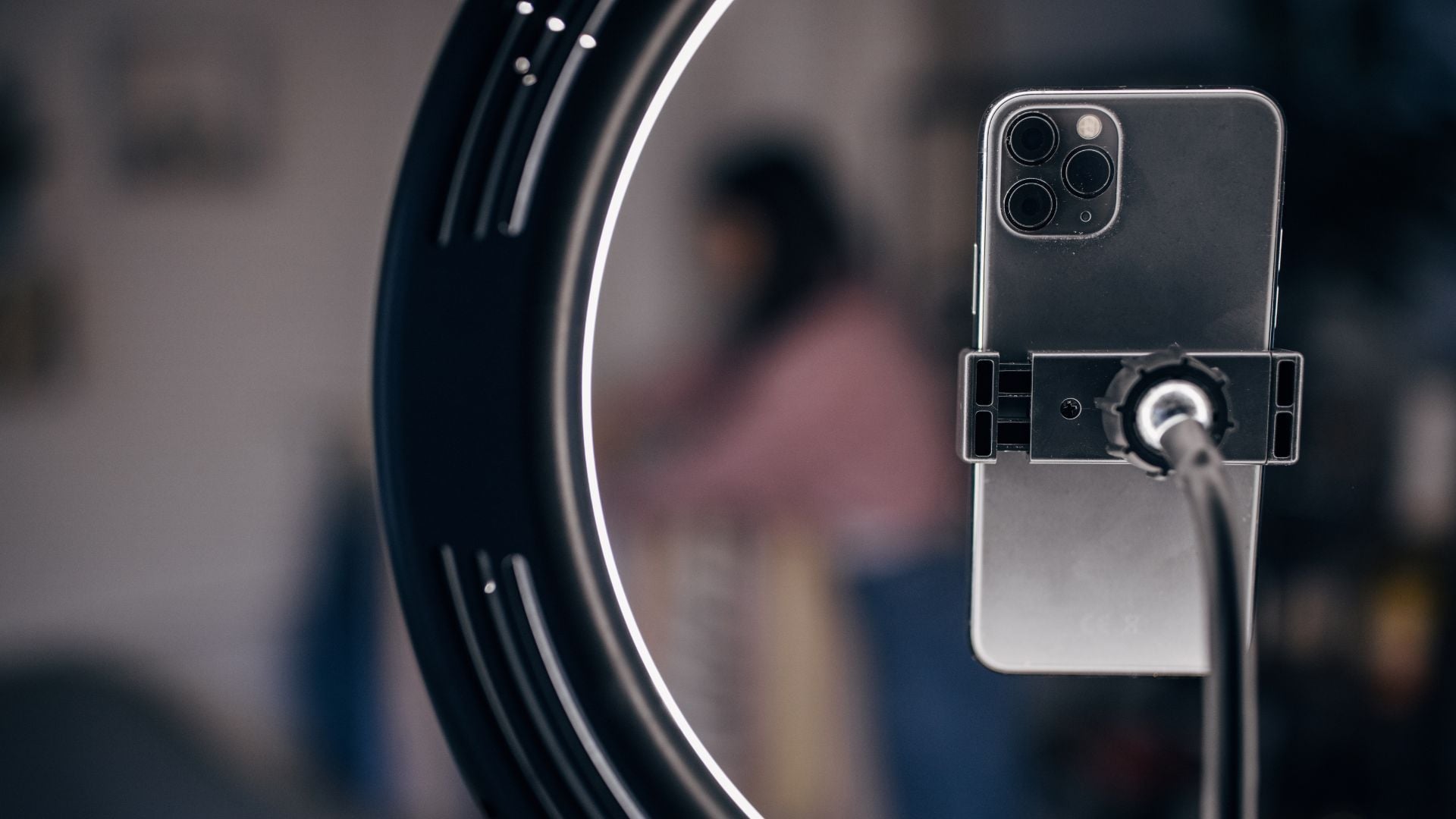
Focus lock keeps your chosen focus point fixed in place. Tap and hold on your subject instead of just tapping. The focus won’t wander when you recompose your shot.
This feature helps when automatic focus hunts between multiple subjects. Lock focus on what matters most in your frame. Then compose your shot however you want without losing sharpness.
Portrait photographers use focus lock constantly for better results. Portrait photography demands precise focus on the subject’s eyes. Lock focus before adjusting your framing or angle.
Focus Peaking Shows Sharp Areas
Focus peaking highlights in-focus areas with colored overlays. Sharp edges get colored outlines so you know exactly what’s in focus. Samsung and some Android phones offer focus peaking in Pro mode.
Macro photography becomes significantly easier with focus peaking enabled. Landscape shooters use it to ensure foreground and background sharpness. Third-party camera apps add this feature to iPhones too.
Hidden Smartphone Camera Features for Better Exposure
Exposure controls how bright or dark your final image appears. Automatic exposure gets confused in tricky lighting situations. Manual tools put you back in complete control.
Most people never touch exposure compensation at all. This simple slider fixes most exposure problems instantly. It lives right in your default camera app already.
Exposure Compensation Adjusts Brightness
Exposure compensation adds or subtracts brightness from automatic settings. Find it by tapping the sun icon in your camera app. Slide up to brighten or down to prevent blown highlights.
Use negative compensation for backlit subjects. Add positive compensation for dark scenes. Small adjustments of plus or minus one stop usually work best. This works even when shooting in automatic mode.
AE/AF Lock Maintains Consistent Exposure
AE/AF Lock freezes both automatic exposure and autofocus together. This is one of the most useful hidden smartphone camera features for consistent results. Tap and hold your subject until “AE/AF Lock” appears. Exposure and focus stay locked until you tap again to release.
This tool shines when lighting conditions vary across your scene. Meter for the most important area then lock those settings. Move your phone to recompose without changing exposure or focus.
Studio photographers use exposure lock to maintain consistent lighting across multiple shots. Event photographers rely on it when subjects move through different lighting zones. It’s essential for harsh sunlight photography conditions.
Manual Metering Modes Control Light Reading
Metering determines which parts of your scene influence exposure calculations. Spot metering reads light from a tiny area only. Center-weighted metering emphasizes the middle of your frame.
Matrix or evaluative metering analyzes the entire scene for balanced exposure. Switch metering modes to match your lighting challenges. Use spot metering for high-contrast scenes.
Composition Tools Most People Overlook
Composition determines how viewers experience your photographs. Hidden smartphone camera features like grid lines and level indicators improve composition instantly. These simple tools make professional-looking shots much easier to achieve.
Camera apps hide these features in settings menus by default. Most users never enable them at all. Turning them on takes 30 seconds but improves every photo you take afterward.
Grid Lines Enable Better Framing
Grid lines divide your viewfinder into nine equal sections. This creates the classic rule of thirds pattern. Place important subjects along these lines for more dynamic compositions.
Enable grid lines in your camera settings. The lines appear as an overlay on your viewfinder. They don’t appear in your final photos. Composition techniques improve dramatically with this simple guide.

Level Indicators Straighten Horizons
Level indicators show whether your camera tilts left or right. Crooked horizons ruin otherwise great landscape photos. This tool prevents that problem before you press the shutter.
Most phones display level as a horizontal line across your screen. When your phone sits perfectly level, the line turns yellow or green. Architecture photography demands perfectly level shots. Even street photography benefits from intentionally level framing.
Aspect Ratio Options Change Your Frame
Aspect ratio determines the shape and proportions of your photos. Most phones default to 4:3 ratio. Square 1:1 ratio works perfectly for Instagram posts. Widescreen 16:9 ratio suits landscape photography.
Switch aspect ratios before shooting rather than cropping afterward. You’ll waste fewer megapixels and see your final composition immediately.
Video Features Hiding in Plain Sight
Video capabilities on smartphones often surpass basic photography features. Hidden smartphone camera features like cinematic modes and manual video controls remain largely unknown. Most users stick with automatic video settings exclusively.
Professional video features exist in flagship phones from every major manufacturer. These tools give you control over frame rates, resolution, and advanced effects. Finding them requires digging into video settings menus.
Frame Rate Control for Different Looks
Frame rate determines how many images your video captures per second. 24fps produces cinematic motion that matches theatrical films. 30fps looks smooth for general video. 60fps enables super-smooth playback or slow-motion effects.
Higher frame rates like 120fps or 240fps create dramatic slow-motion sequences. Choose frame rates based on your intended final result.
Video Resolution Beyond Default Settings
Most phones default to 1080p video for everyday recording. Your camera probably supports 4K or even 8K resolution. Higher resolutions capture more detail but fill storage faster.
4K video provides four times the resolution of 1080p footage. This extra detail helps when cropping or stabilizing video. Some phones offer ProRes or LOG formats for professional workflows.
Voice Commands and Gesture Controls
Voice activation lets you trigger the shutter hands-free completely. This feature helps with group photos or self-portraits using timers. Most people have no idea these hidden smartphone camera features respond to voice commands.
Gesture controls detect hand movements to trigger the camera remotely. Wave your hand or make specific gestures to start countdown timers. These features work through your front-facing camera sensors.
Saying Cheese Actually Works
Most Android and Samsung phones respond to voice commands like “cheese” or “capture.” Enable voice control in your camera app settings first. Then speak clearly when you want to take a photo.
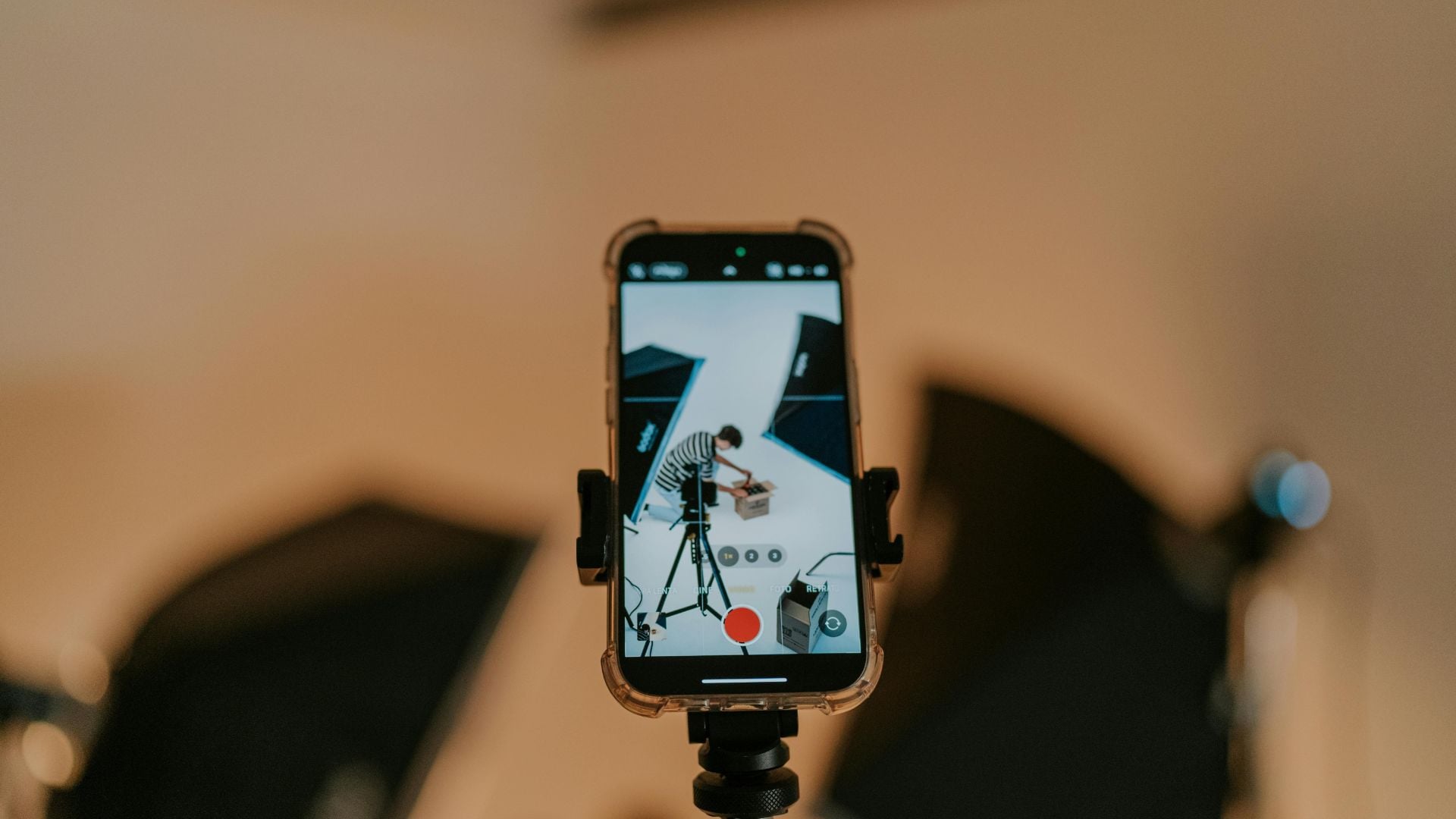
Group photos become much easier with voice activation. Set up your phone on a tripod. Position yourself in the frame and simply say “cheese” to capture.
Hand Gestures Trigger Self-Timers
Front-facing cameras detect your palm or hand gestures to start timers. Raise your palm toward the camera or make a fist. The camera recognizes the gesture and starts a countdown automatically.
Google Pixel phones offer hands-free photography through gesture recognition. These features work best in good lighting. Gesture controls eliminate the need to touch your phone.
Burst Mode and Time-Lapse Settings
Burst mode captures dozens of photos in rapid succession. This hidden smartphone camera feature freezes split-second action you’d otherwise miss completely. Sports photographers and parents rely on burst mode constantly.
Time-lapse condenses long periods into short, watchable videos. Clouds race across the sky or flowers bloom in seconds. These creative tools hide in most camera apps by default.
Activating Hidden Burst Mode
iPhone users hold the volume-up button to trigger burst mode. Android phones often use holding the shutter button. Burst mode works best for unpredictable action like jumping kids or flying birds.
Take 20 or 30 shots and pick the sharpest one later. The feature captures full-resolution images at several frames per second.
Time-Lapse for Creative Motion
Time-lapse mode captures one frame every few seconds automatically. The camera compiles these into a video showing accelerated motion. Most camera apps include time-lapse in their video mode options.
Set your phone on a stable surface or tripod first. Let the camera record for several minutes or hours. Longer recording times create more dramatic motion compression. Long exposure photography shares similar concepts.
Night Mode and Low-Light Features
Night mode transforms dark scenes into usable photographs automatically. This computational photography feature represents one of the most impressive hidden smartphone camera features available. The camera combines multiple exposures into one bright image. The results often shock people when they first try it.
Astrophotography modes take night shooting even further with extremely long exposures. You can capture stars and the Milky Way using nothing but your smartphone. These features rival dedicated camera equipment in capable hands.
Automatic Night Mode Brightens Darkness
Night mode activates automatically when your camera detects low light. Some phones let you trigger it manually. The feature captures several frames at different exposures rapidly.
Your phone’s processor combines these frames into one well-exposed image. Hold your phone steady or use a tripod for best results. Night mode works best for static subjects.
Astrophotography Captures the Stars
Dedicated astrophotography modes enable exposures lasting several minutes. Your camera needs absolute stability during these long captures. Mount your phone on a tripod pointing at the night sky.
Google Pixel phones automatically detect when conditions suit astrophotography mode. Samsung’s Expert RAW app includes manual settings. Both systems produce stunning results in dark sky locations. Travel to rural areas for best results away from light pollution.
Photographic Styles and Filters
Photographic styles apply consistent looks across all your photos automatically. These differ from simple filters by adjusting specific colors and tones intelligently. These hidden smartphone camera features help develop a signature look. iPhone users get extensive style customization options built into their camera app.
Android phones offer similar features through different names like Scene Optimizer or Creative Modes. These tools help develop a signature look without manual editing every single photo.
iPhone Photographic Styles Customize Colors
Photographic Styles on iPhone let you adjust tone, warmth, and color intensity. Rich Contrast, Vibrant, Warm, and Cool styles each create distinctive looks. These adjustments apply during capture rather than in post-processing.
Swipe up in your camera app to access Photographic Styles options. Adjust the sliders until the preview matches your vision. Your settings persist across shooting sessions automatically.
Android Scene Optimization Tools
Samsung, Google, and other Android manufacturers include AI-powered scene detection. The camera identifies what you’re photographing and optimizes settings automatically. Food, landscapes, and portraits each get specialized processing.
Scene optimizer can oversaturate colors or apply heavy processing sometimes. Toggle scene optimizer on or off depending on your subject and personal preference.
Your Phone’s Full Potential Awaits
Hidden smartphone camera features unlock professional capabilities you already own. The tools exist in your camera app right now. Spending time learning these features transforms your photography permanently.
Start with manual controls and RAW capture for immediate improvements. Add composition aids like grid lines next. Experiment with advanced focus features as you gain confidence.
Your smartphone camera rivals dedicated equipment in many situations. Professional photographers increasingly use phones for serious work. The gap between phone cameras and pro gear keeps shrinking.
Don’t let automatic settings limit your creative vision anymore. These hidden smartphone camera features exist right now in your camera app. Dive into those settings and discover what your phone can really do.Master these tools and watch your mobile photography evolve. Why use a camera when your phone packs this much power already. The choice is yours now.
See more from DIYPhotography.net on Google
Add DIYPhotography.net as a trusted source. This makes
our stories more likely to appear in your Google Search results.
 Add as a preferred source on Google

Darlene Lleno
Darlene Lleno brings a unique perspective to DIY Photography as someone who grew up surrounded by camera gear but chose words over lenses. With five years of writing experience, she specializes in photography content that’s both technically informed and genuinely passionate. Growing up with a photographer twin brother meant camera talk was everyday conversation in her household. While he mastered capturing moments, Darlene discovered she preferred being the subject and the storyteller behind the scenes. As a travel enthusiast and mother of two, she understands the importance of preserving life’s precious moments. When not exploring new destinations or writing for DIY Photography, you’ll find her reading or tending to her garden. Her approach to photography writing is refreshingly authentic, she may not be behind the camera, but she knows exactly what it takes to help others capture the shots that matter most.



Join the Discussion
DIYP Comment Policy
Be nice, be on-topic, no personal information or flames.