




















6 New AI Tricks to Supercharge Your Google Photos
Nov 26, 2025
Alysa Gavilan
Alysa Gavilan has spent years exploring photography through photojournalism and street scenes. She enjoys working with both film and mirrorless cameras, and her fascination with the craft has grown over the decades. Inspired by Vivian Maier, she is drawn to capturing everyday moments that often go unnoticed.
Share:
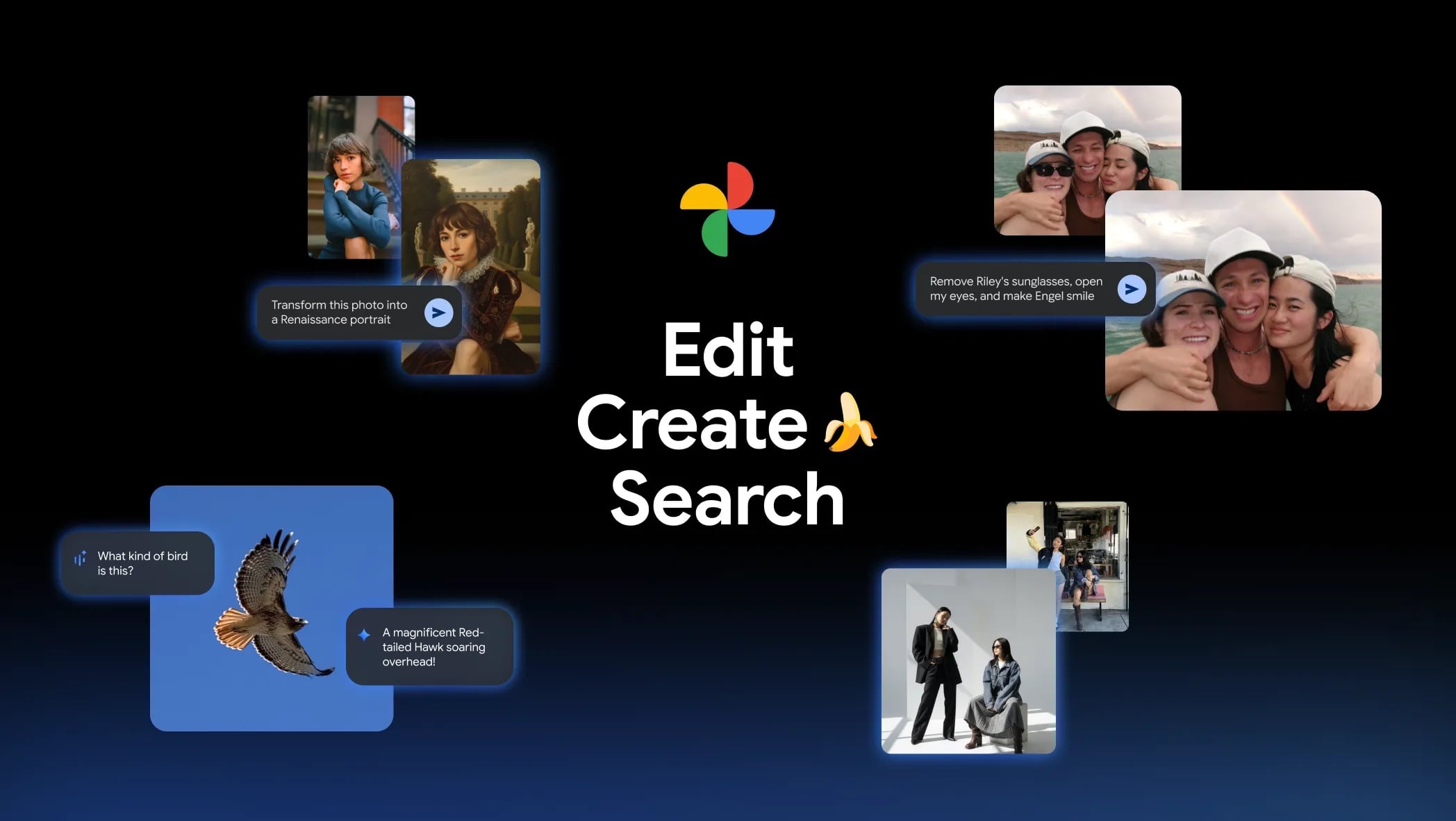
If you use Google Photos, you’re about to encounter a noticeable step forward in how AI can help you manage, edit and re‑imagine your images. Google says its latest update introduces six new ways to use AI in Google Photos, spanning photo editing by natural language, creative transformations, template‑based generation and enhanced search within your library.
These changes reflect a shift toward making powerful tools more accessible throughout your photo workflow.
1. Request Personalized Edits: Remove Sunglasses, Adjust Your Smile, and More
One of the most direct new features is this: open a photo in Google Photos, tap “Help me edit,” then type or speak a request like “Remove Riley’s sunglasses, open my eyes, make Engel smile and open her eyes.”
Google Photos uses your private face groups from the library to generate accurate edits of people in your photos.
This means you don’t have to hunt through sliders and layers to correct closed eyes or unwanted accessories. For many casual editors or creators on the go, this natural‑language prompt method can make finalizing a photo much faster and more intuitive.

2. Edit Just by Asking – Now Available on iOS
Previously, some of the editing features were limited to Android. With the latest rollout, Google Photos is bringing this natural‑language editing capability and a redesigned photo editor with gestures and one‑tap suggestions to iOS users in the US. You can describe the edit you want using either text or voice.
For users who switch between devices, this helps bring parity and consistency across platforms. If you often edit on your phone while commuting or travel with mixed devices, this improves flexibility.
3. Transform Your Photos with Nano Banana’s Restyle Options
Google introduces Nano Banana, a generative model for image editing in Google Photos. You can open an image, tap “Help me edit” and describe an entirely new style for the image—for example asking to make your photo look like a Renaissance portrait, a colorful tile mosaic, or a children’s‑storybook illustration.
For creative projects, social posts or even just playful retouches, this feature offers a fast way to experiment with style. Instead of manually applying filters or trying to replicate an effect, you describe the transformation and the AI handles the heavy lifting.

4. Reimagine Your Photos Using AI-Powered Templates
If coming up with a prompt feels intimidating, Google Photos now provides ready‑made AI templates under the “Create with AI” section (on Android in the US and India). These templates are powered by Nano Banana and help you create images like “put me in a high fashion photoshoot,” “create a professional headshot,” or “put me in a winter holiday card.”
In the coming weeks Google says it will roll out personalized templates in the U.S. that use insights from your photo library (like your hobbies or travel history) to generate edits unique to you. This lowers the barrier to creative editing for users who might not feel confident writing prompts from scratch.
5. Access Ask Photos in Over 100 Countries and 17 New Languages
Search in your photo library just got smarter. The Ask Photos tool helps you locate specific photos or information by letting you ask natural‑language queries like “Find pictures from the beach last summer with my dog.” Google Photos will surface relevant photos and context. This tool is now rolling out to more than 100 new countries and supports 17 additional languages.
This expansion means more users around the world can take advantage of the feature, and it underscores Google’s push to make AI‑driven search more globally accessible.

6. Explore Photos in Depth with the New ‘Ask’ Button
Beyond searching your library, the new “Ask” button in Google Photos allows you to interact with an individual image. While viewing a photo, you can tap “Ask” and either type or select suggestion chips to start a conversation about the image’s content, discover related moments or describe edits you want the AI to apply.
For example, you might ask “What other photos did I take at this place?” or “Turn this into a sketch style” while viewing an image. This makes each photo an entry point for deeper exploration or creative output, rather than just a static memory.
How These Updates Affect Your Workflow
Collectively, these six features change how you might approach your photo library and creative process. Instead of limiting yourself to manual edits or basic filters, you now have tools that let you:
- Use natural language commands to handle common editing tasks
- Transform images into new styles without complex manual work
- Choose from templates to jump‑start creative output
- Search and explore your collection using conversational queries
- Interact with individual photos in ways that go beyond viewing
If you’re a content creator, these features offer faster ways to polish visuals, produce stylized images for social platforms and manage a large archive. If you’re a casual user, the updates make it easier to fix flaws, find memories and play with creative edits without needing advanced editing skills.
While these tools are powerful, it’s important to note some conditions. The blog post states that the new AI features are rolling out now and availability may vary by region, device and eligibility status.
For example, to access the “Create with AI” section or personalized templates, you must be 18 or older in eligible regions, and some features require Gemini features in Photos to be enabled.
Moreover, despite the natural‑language interface, creative prompts may still require experimentation to get the results you want. Generative results will vary based on the prompt clarity, the original image and other factors. As always with AI‑driven tools, it’s helpful to review results and adjust accordingly rather than expect perfection on the first try!
See more from DIYPhotography.net on Google
Add DIYPhotography.net as a trusted source. This makes
our stories more likely to appear in your Google Search results.
 Add as a preferred source on Google

Alysa Gavilan
Alysa Gavilan has spent years exploring photography through photojournalism and street scenes. She enjoys working with both film and mirrorless cameras, and her fascination with the craft has grown over the decades. Inspired by Vivian Maier, she is drawn to capturing everyday moments that often go unnoticed.




Join the Discussion
DIYP Comment Policy
Be nice, be on-topic, no personal information or flames.