

















VSCO Upscale: AI Tool Lets You Enlarge Photos Without Losing Detail
Dec 18, 2025
Alysa Gavilan
Alysa Gavilan has spent years exploring photography through photojournalism and street scenes. She enjoys working with both film and mirrorless cameras, and her fascination with the craft has grown over the decades. Inspired by Vivian Maier, she is drawn to capturing everyday moments that often go unnoticed.
Share:
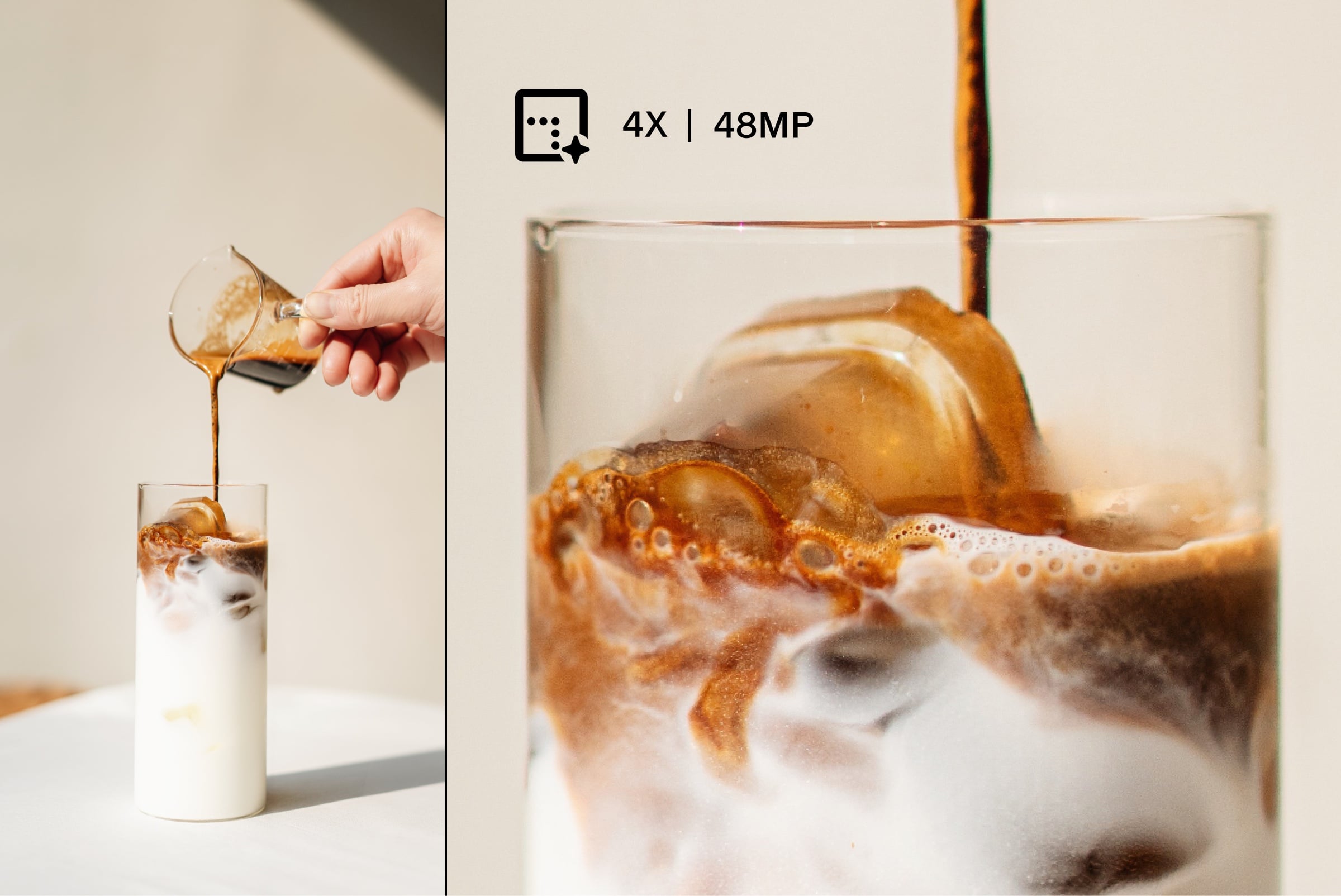
VSCO continues to expand its AI Lab with the introduction of Upscale, a new tool designed to increase image resolution while preserving detail and character.
Built directly into the VSCO editing environment, Upscale allows you to enlarge photos up to four times their original resolution, offering more flexibility for cropping, reframing, and preparing images for print.
Rather than positioning itself as a creative shortcut, Upscale functions as a practical utility aimed at photographers who want more control over their final output.
What Upscale Does
At its core, Upscale increases the pixel dimensions of an image by 2x, 3x, or 4x.
This matters when you want to push an image beyond its original constraints. Older files, mobile photos, or tightly framed shots often limit how far you can crop or enlarge without visible degradation.
Upscale addresses that limitation by generating a higher resolution version that reduces pixelization and improves perceived sharpness.
For photographers who print their work, resolution remains a critical factor. Enlarging images traditionally meant starting with a high megapixel camera or accepting quality loss.
Tools like Upscale shift that balance by allowing you to revisit existing images and prepare them for larger formats with more confidence.
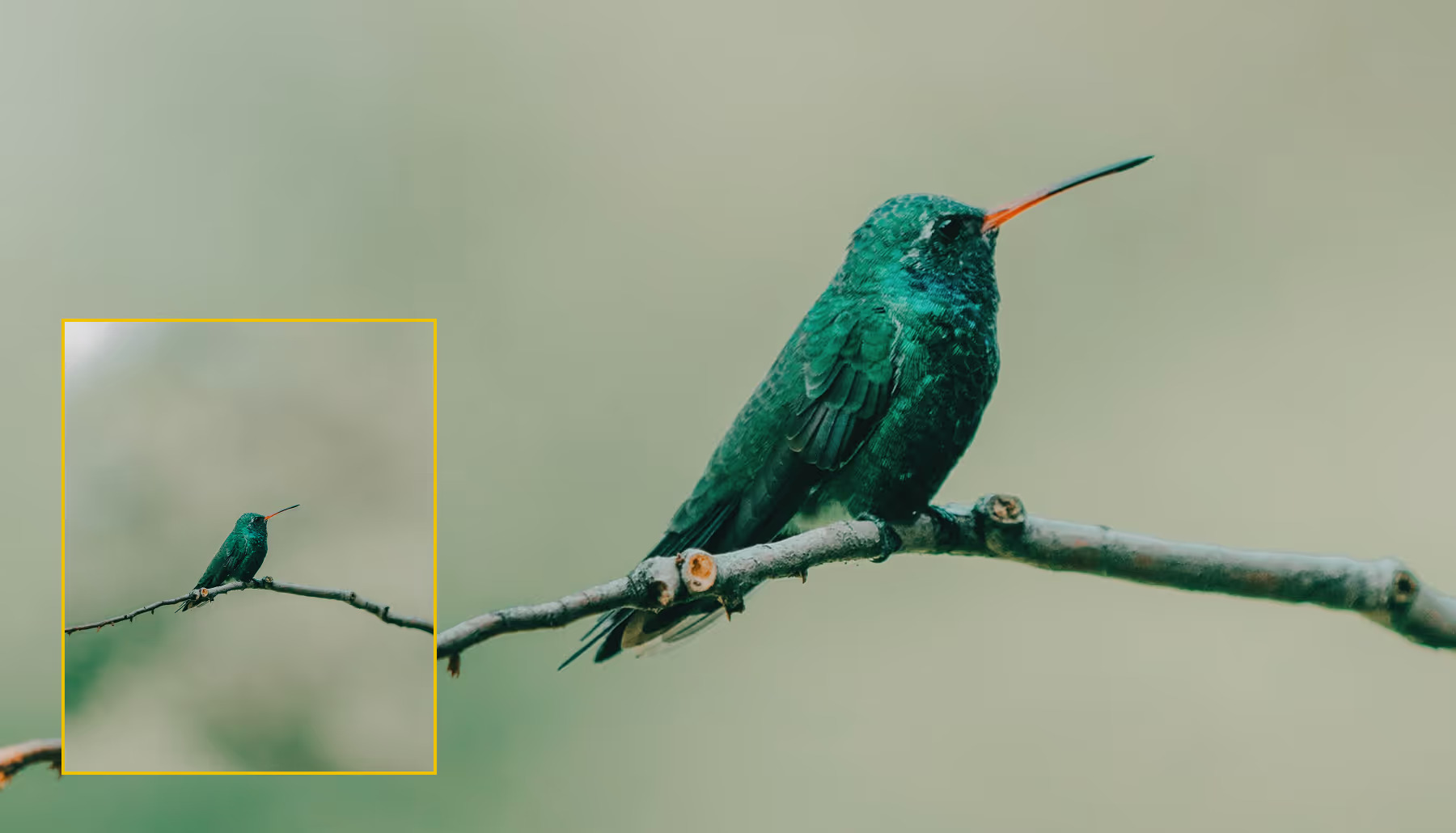
How Upscale Fits Into VSCO’s AI Lab
Upscale lives within VSCO’s AI Lab, which houses a growing set of machine learning powered tools aimed at extending editing possibilities rather than replacing them.
Once you select an image, you choose a scaling option and the tool generates a new, higher resolution version of the photo.
The process is straightforward. You select the desired scale, tap Upscale, and wait while the image is processed. Afterward, you can continue editing using VSCO’s presets and tools or move on to other AI Lab features.
The experience feels integrated rather than bolted on, which makes it easier to incorporate into an existing workflow.
Image Requirements and Limitations
There are some practical boundaries to keep in mind. The original image must be at least one megapixel and no larger than 50 megapixels. This helps maintain consistent performance and predictable results. Upscale creates a new high resolution file, meaning it does not overwrite the original image.
One notable limitation is the lack of a built in comparison view. You cannot toggle between before and after versions within the Upscale tool itself.
If you want to revisit the original, you need to return to it separately in your Studio. This may feel restrictive for photographers who prefer side by side evaluation, especially when assessing fine detail.
Who Benefits Most From Upscale
Upscale is particularly useful if you work with mobile photography, social media content, or legacy files that were never intended for large format use. It gives you more freedom to crop aggressively or adjust compositions without worrying as much about resolution ceilings.
It can also be helpful for photographers experimenting with different outputs. If you are unsure whether an image might end up as a print, a digital portfolio piece, or a cropped detail shot, Upscale provides additional headroom without requiring you to reshoot.
[Images via VSCO]
See more from DIYPhotography.net on Google
Add DIYPhotography.net as a trusted source. This makes
our stories more likely to appear in your Google Search results.
 Add as a preferred source on Google

Alysa Gavilan
Alysa Gavilan has spent years exploring photography through photojournalism and street scenes. She enjoys working with both film and mirrorless cameras, and her fascination with the craft has grown over the decades. Inspired by Vivian Maier, she is drawn to capturing everyday moments that often go unnoticed.



Join the Discussion
DIYP Comment Policy
Be nice, be on-topic, no personal information or flames.