







These Hidden iPhone Camera Settings Can Seriously Improve Your Photos
Aug 7, 2026
Alysa Gavilan
Alysa Gavilan has spent years exploring photography through photojournalism and street scenes. She enjoys working with both film and mirrorless cameras, and her fascination with the craft has grown over the decades. Inspired by Vivian Maier, she is drawn to capturing everyday moments that often go unnoticed.
Share:
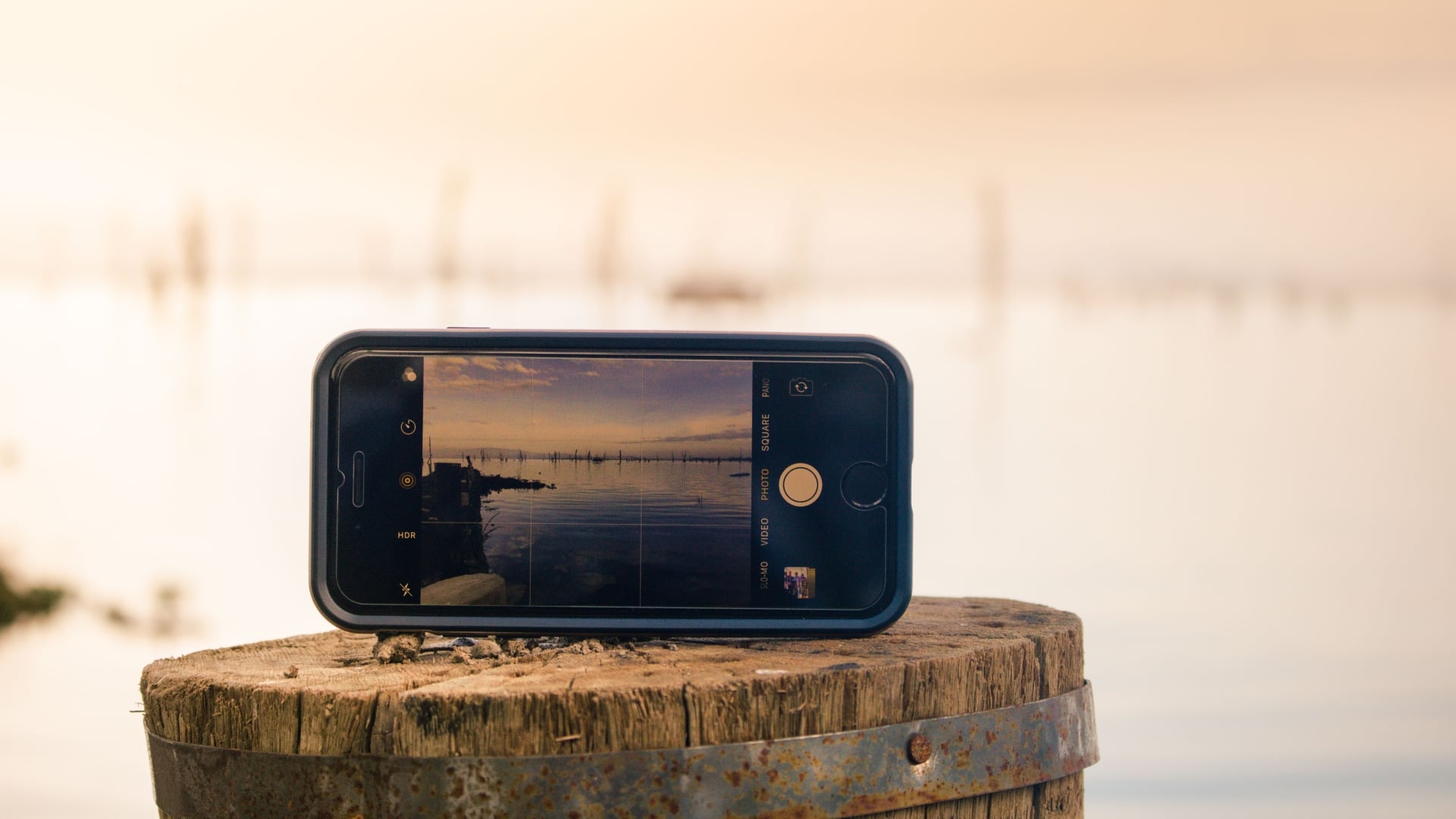
You’d think that after years of using an iPhone, you’d know everything the Camera app can do. Then someone casually mentions a setting buried three menus deep, and suddenly your photos look better with almost no extra effort.
Apple has quietly added plenty of photography tools over the years, but many of them are tucked away inside Settings instead of the Camera app itself. As a result, even experienced iPhone photographers often miss features that can make shooting faster, more consistent, and a little less frustrating.
If you’ve never explored your camera settings beyond turning on the flash, here are five hidden iPhone photography features worth checking out.
Preserve Your Camera Settings
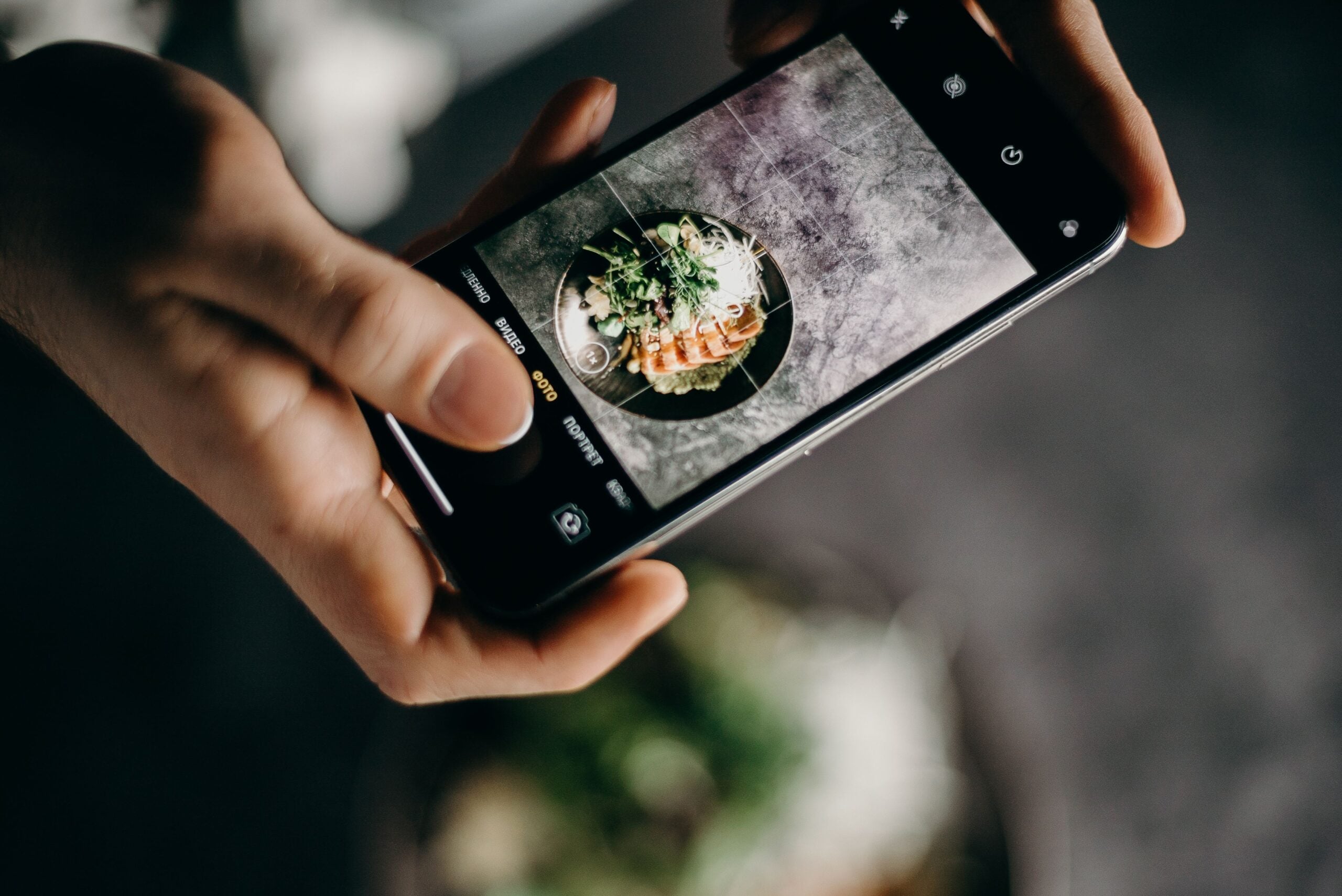
One of the most annoying habits of the iPhone camera is resetting itself every time you close the app. You carefully turn off Live Photos, dial in exposure compensation, or switch to a specific shooting mode, only to repeat the process the next time you open the camera.
Fortunately, you can stop that from happening.
Go to Settings > Camera > Preserve Settings, where you’ll find options to remember your preferred shooting mode, exposure adjustment, macro controls, Creative Controls, and Live Photo settings.
This is especially useful for photographers who regularly shoot in the same style. If you always disable Live Photos or prefer a certain exposure adjustment, your iPhone will remember those choices instead of forcing you to start from scratch every time.
Turn On Prioritize Faster Shooting
Timing often matters more than perfect image processing. Street scenes, pets, wildlife, sports, and children’s candid moments can disappear in a split second.
Apple includes a setting called Prioritize Faster Shooting that allows the camera to capture images more quickly by optimizing how photos are processed. You’ll find it under Settings > Camera.
For photographers who value capturing the decisive moment, this small adjustment can make the camera feel noticeably more responsive during burst-like shooting situations. While image processing may differ slightly compared to Apple’s default settings, the tradeoff is often worth it when your subject refuses to stand still.
Take Control of Macro Mode
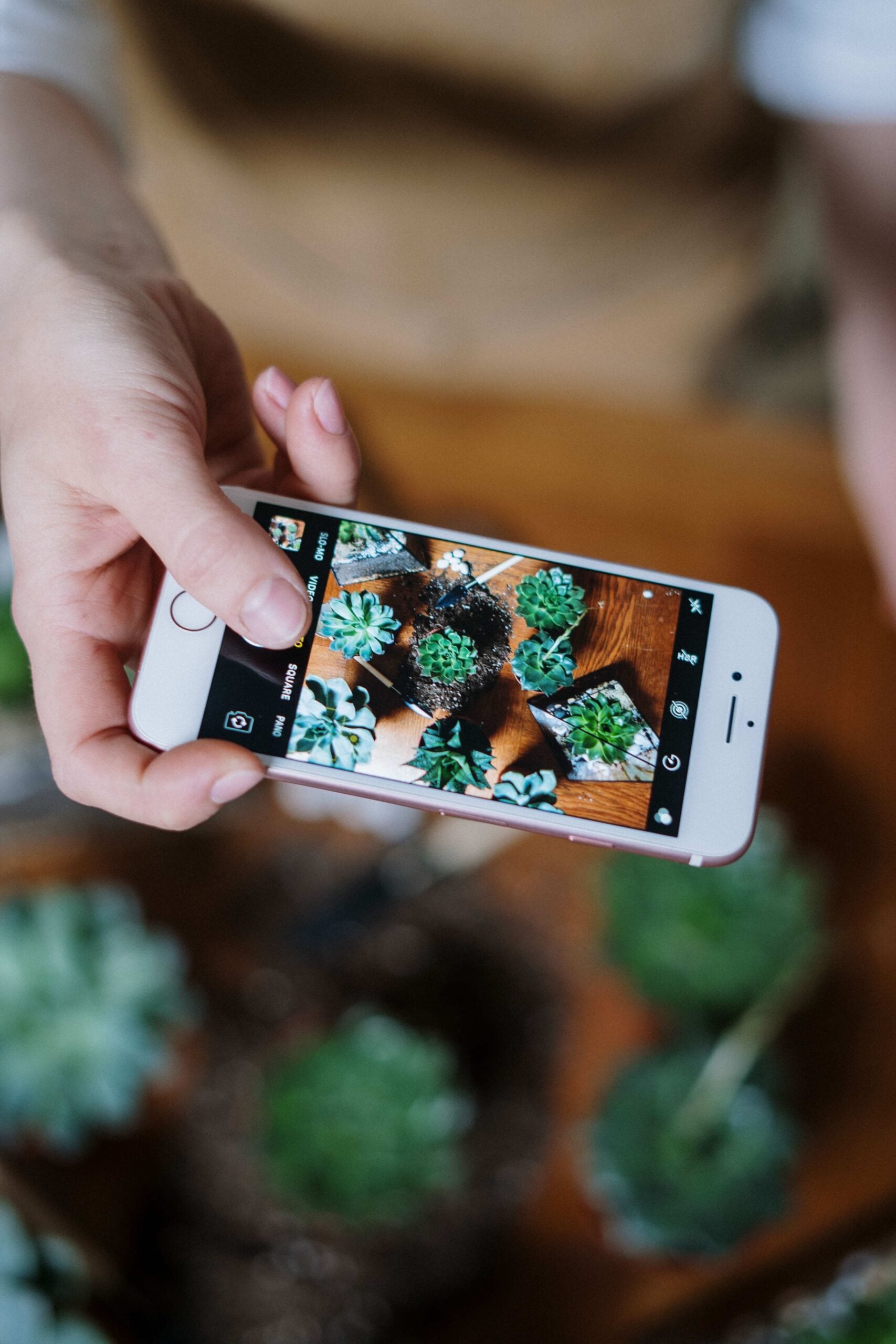
If you’ve ever tried photographing flowers, food, jewelry, or small products, you’ve probably noticed your iPhone suddenly switching lenses as you move closer to your subject. Sometimes it works well. Other times it completely changes your composition.
Supported iPhone models allow you to take manual control of Macro mode.
Enable Macro Control in Settings > Camera, and you’ll see a flower icon appear whenever you’re close enough for macro photography. Instead of letting the phone decide automatically, you can choose when to activate or disable Macro mode.
This gives photographers much more control over framing and focus, especially during close-up work where even a slight change in perspective makes a noticeable difference.
Let Lens Correction Clean Up Your Images
Wide angle lenses naturally introduce distortion, especially around the edges of the frame. Straight lines can begin to curve, and faces near the edges may appear stretched.
Apple quietly addresses this with Lens Correction, another setting found inside Settings > Camera.
When enabled, the iPhone automatically corrects distortion from compatible Ultra Wide and front-facing cameras, producing straighter lines and more natural-looking images.
The correction is subtle, but it can improve architectural photography, interiors, travel shots, and group photos without requiring any editing afterward.

Mirror the Front Camera
Have you ever taken a selfie that looked perfect in the preview, only to discover the final image was flipped?
That’s because the preview acts like a mirror while the saved image traditionally reverses the orientation. For many people, especially photographers who pay attention to composition, this can feel surprisingly distracting.
Apple lets you change this behavior through Settings > Camera > Mirror Front Camera.
When enabled, your saved selfie matches exactly what you saw while composing the shot. It’s particularly useful when photographing text, logos, or carefully arranged compositions where orientation matters.
Small Settings Can Make a Big Difference
None of these features requires expensive accessories or the latest editing software. They simply unlock capabilities your iPhone already has but many users never discover.
Spending a few minutes exploring the Camera settings menu can make everyday photography smoother and more predictable. You might be surprised how much better your next photo shoot feels after flipping just a few switches.
See more from DIYPhotography.net on Google
Add DIYPhotography.net as a trusted source. This makes
our stories more likely to appear in your Google Search results.
 Add as a preferred source on Google

Alysa Gavilan
Alysa Gavilan has spent years exploring photography through photojournalism and street scenes. She enjoys working with both film and mirrorless cameras, and her fascination with the craft has grown over the decades. Inspired by Vivian Maier, she is drawn to capturing everyday moments that often go unnoticed.


Join the Discussion
DIYP Comment Policy
Be nice, be on-topic, no personal information or flames.