



























ProRes vs H.264 vs H.265: Complete Video Codec Comparison for Editors
Oct 30, 2025
Darlene Lleno
Darlene Lleno brings a unique perspective to DIY Photography as someone who grew up surrounded by camera gear but chose words over lenses. With five years of writing experience, she specializes in photography content that’s both technically informed and genuinely passionate. Growing up with a photographer twin brother meant camera talk was everyday conversation in her household. While he mastered capturing moments, Darlene discovered she preferred being the subject and the storyteller behind the scenes. As a travel enthusiast and mother of two, she understands the importance of preserving life’s precious moments. When not exploring new destinations or writing for DIY Photography, you’ll find her reading or tending to her garden. Her approach to photography writing is refreshingly authentic, she may not be behind the camera, but she knows exactly what it takes to help others capture the shots that matter most.
Share:

ProRes vs H.264 vs H.265 determines how your video files behave during editing and delivery. Each codec serves different purposes in video production workflows. Choosing the right one affects file sizes, editing performance, and final output quality.
Most editors hit a wall when their timeline starts lagging. Or their exported files look terrible. The codec you choose makes or breaks your editing experience. H.264 dominates online delivery but chokes editing software. H.265 offers better compression but demands serious processing power. ProRes keeps things smooth during editing but creates massive files.
Understanding these three codecs helps you make smart choices. You’ll know when to prioritize editing speed versus file size. You’ll understand why your laptop struggles with certain footage. You’ll stop wasting time fighting with incompatible formats.
What Video Codecs Actually Do
Video codecs compress and decompress video data. They work like translation tools between your camera sensor and computer screen. Raw sensor data creates impossibly large files. Codecs shrink that data into manageable sizes while keeping quality intact.
Different codecs use different compression methods. Some throw away information your eyes can’t detect. Others keep everything but organize it more efficiently. The codec you choose affects file size, image quality, and processing demands.
Intraframe vs Interframe Compression
Codecs use two main compression approaches. Intraframe codecs compress each frame individually. Every frame contains complete image information. Your editing software jumps to any frame instantly.
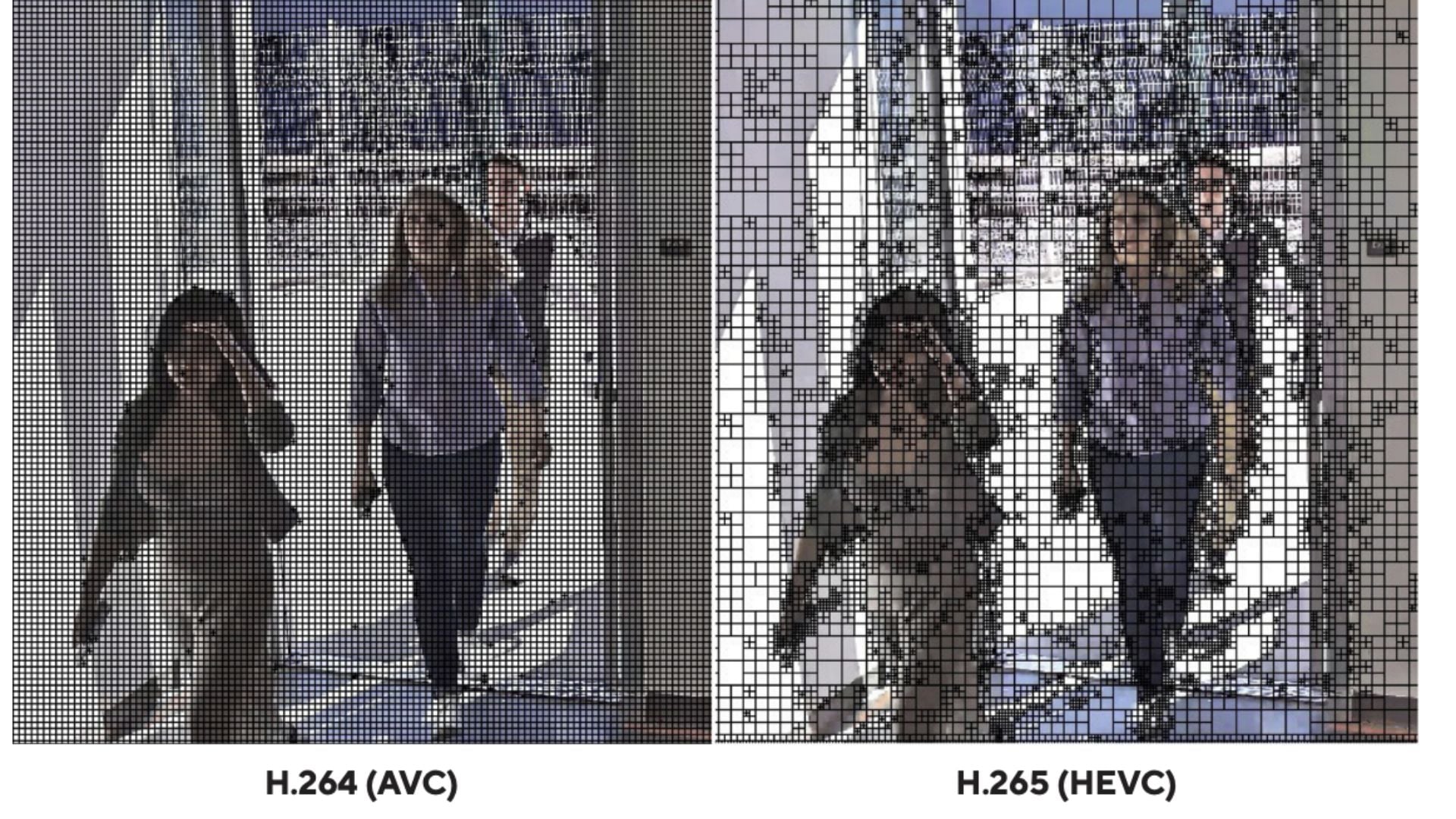
Interframe codecs work differently. They store complete information for some frames only. Then they just track changes for other frames. This creates smaller files because similar frames share data. However, editing requires reconstructing frames by calculating changes.
ProRes uses intraframe compression exclusively. Each frame stands alone with complete data. This makes editing smooth but creates larger files. Your computer processes individual frames without complex calculations.
H.264 and H.265 rely heavily on interframe compression. They analyze motion between frames and store only the differences. This achieves impressive file size reduction. Your computer must work harder during editing to reconstruct each frame.
Bit Depth and Color Sampling
Codecs handle color information differently. Bit depth determines how many color values each pixel can represent. Higher bit depth captures more subtle color gradations. This matters especially when color grading your footage.
Color sampling describes how codecs store color versus brightness information. Your eyes notice brightness changes more than color changes. Codecs exploit this by storing less color data.
ProRes supports various bit depths and color sampling configurations. Professional versions offer 10-bit and 12-bit depth with 4:4:4 sampling. This preserves maximum color information for serious grading work.
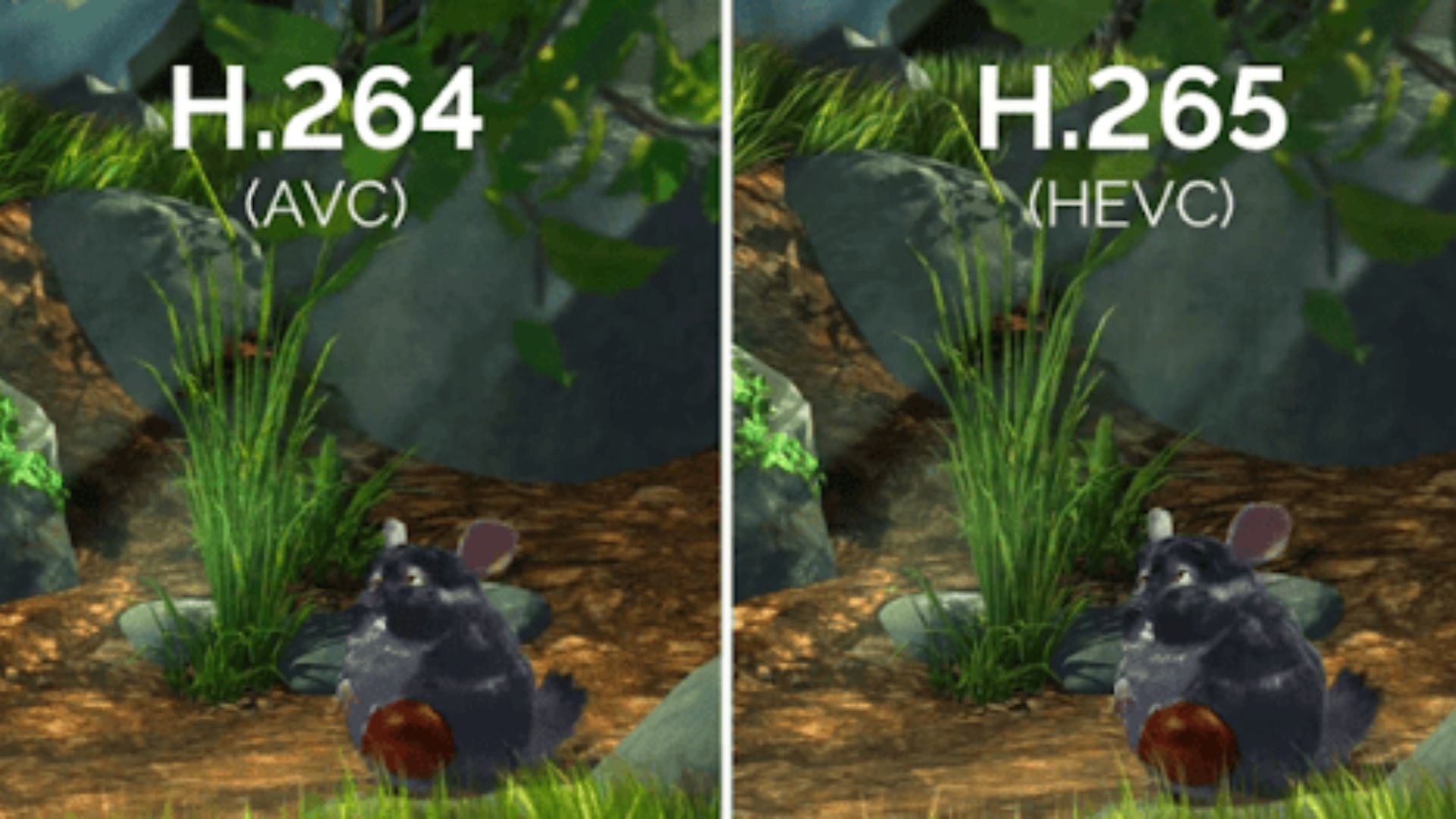
H.264 typically works with 8-bit depth and 4:2:0 color sampling. This suits delivery formats where file size matters more. Some high-end H.264 versions support 10-bit depth but remain less common.
H.265 improves on H.264 with better 10-bit support. The codec handles high dynamic range video better. However, the processing demands increase significantly compared to H.264.
ProRes: The Editing Workhorse
Apple developed ProRes specifically for video editing. The codec prioritizes smooth playback and quick rendering over file size. Professional editors rely on ProRes for projects demanding responsive timelines.
ProRes comes in several variants offering different quality levels. ProRes 422 serves as the standard for most professional work. ProRes 4444 adds alpha channel support for compositing. ProRes RAW provides even more flexibility for high-end production.

ProRes Advantages for Editors
ProRes keeps your timeline running smoothly. Your computer processes each frame independently without complex calculations. Scrubbing through footage feels instant. Adding effects and color corrections doesn’t bog down playback.
The codec handles multiple video layers effortlessly. Stack several clips with effects and your timeline stays responsive. This matters when building complex edits with graphics and multiple camera angles.
ProRes maintains quality through multiple encoding generations. Export your edit as ProRes and you can re-edit that file. You won’t see noticeable degradation. This flexibility helps projects going through multiple revision cycles.
Professional cameras often offer ProRes recording. Shooting in ProRes means your footage arrives ready for editing. No transcoding delays or compatibility issues. Your workflow starts immediately after copying files from cards.
ProRes Limitations and Considerations
File sizes become the main ProRes drawback. A one-minute 1080p ProRes 422 clip consumes roughly 1GB of storage. 4K ProRes files easily reach 3-4GB per minute. Your storage costs multiply quickly on longer projects.
ProRes works best within the Apple ecosystem. Other platforms support it but Mac systems handle ProRes most efficiently. Windows users can work with ProRes but may encounter compatibility quirks.
The codec doesn’t compress as aggressively as H.264 or H.265. Upload speeds suffer when moving large ProRes files. Cloud collaboration becomes slower. Backing up projects takes more time and storage space.
ProRes recording requires fast storage media. Your camera needs cards that handle sustained high write speeds. Budget storage solutions often can’t keep up with ProRes data rates.
H.264: The Universal Standard
H.264 conquered the video world through widespread compatibility. Almost every device and platform supports it. Smartphones, smart TVs, and web browsers all play H.264. This universal support made it the default choice for video delivery.
The codec achieves impressive compression ratios. File sizes stay manageable while maintaining acceptable quality. This balance works perfectly for streaming, social media, and general distribution.
H.264 Strengths and Use Cases
H.264 creates small files that upload and download quickly. Your videos reach audiences faster. Storage costs stay reasonable even for large video libraries. Bandwidth requirements remain modest for streaming.
Every editing platform supports H.264. You can share projects across different software without compatibility headaches. Clients preview files on any device. Collaborators work with your footage regardless of their setup.
The codec delivers good quality at lower bitrates. Your videos look decent even when compressed heavily. This makes H.264 perfect for web delivery where bandwidth varies. Streaming platforms prefer H.264 for its reliable performance.
Camera manufacturers embrace H.264 widely. Most consumer and prosumer cameras record in H.264 by default. You get usable files straight out of camera. The format balances quality and file size for everyday shooting.
H.264 Editing Challenges
H.264 struggles during editing compared to ProRes vs H.264 vs H.265. The interframe compression forces your computer to work harder. Playing back multiple H.264 clips simultaneously taxes your system. Complex timelines stutter and lag.
Scrubbing through H.264 footage feels sluggish. Your editing software must decode frames on the fly. Jump cuts and precise trimming become frustrating. The codec wasn’t designed for constant random access that editing requires.
Color grading H.264 footage reveals limitations quickly. The 8-bit depth and 4:2:0 color sampling restrict adjustments. Banding appears in gradients. Skin tones break apart with aggressive corrections.
Multiple encoding passes degrade H.264 quality noticeably. Edit an H.264 file and export as H.264 again. You’ll see quality loss. The compression artifacts compound with each generation.

H.265: Modern Compression Technology
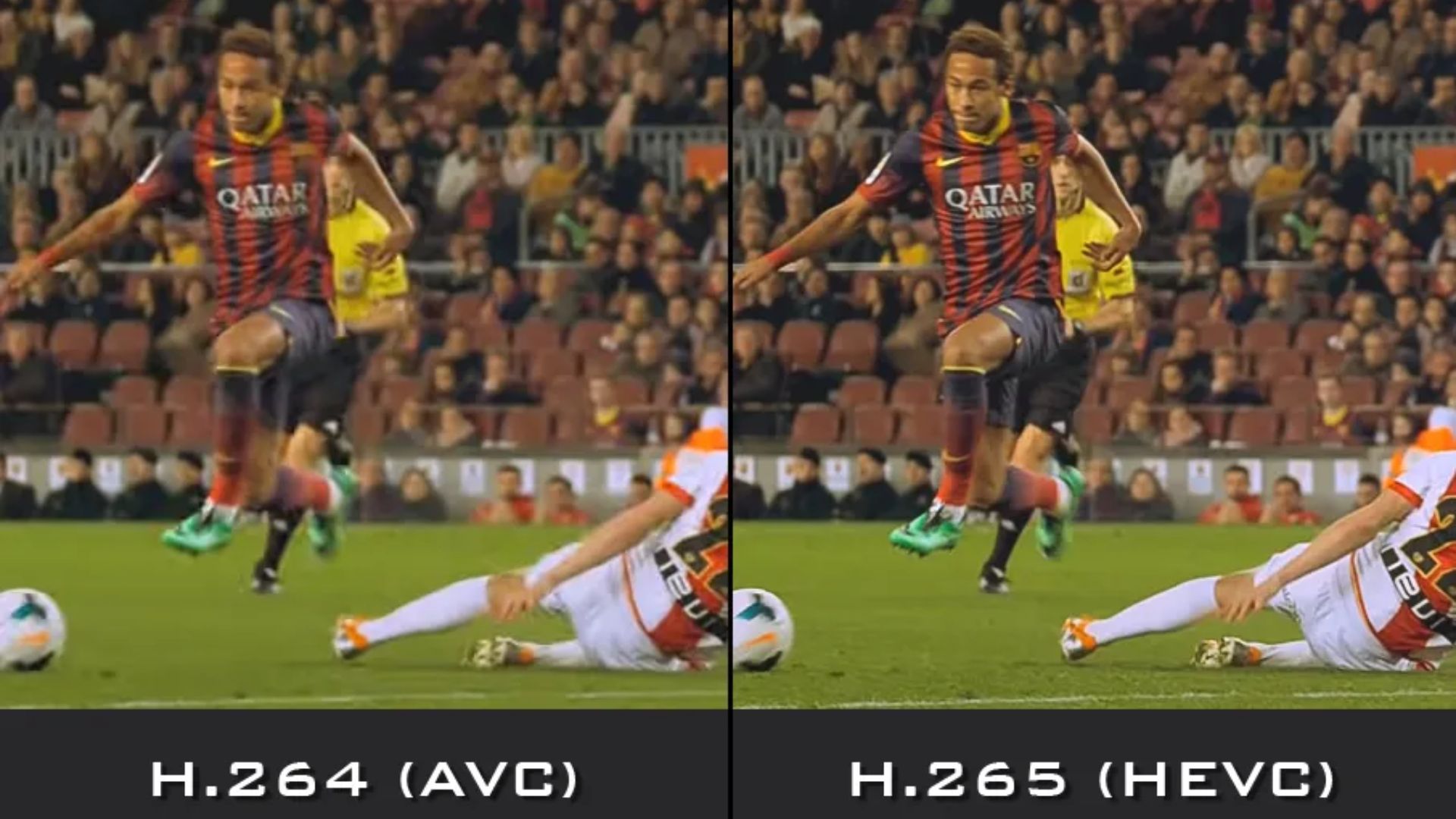
H.265 (also called HEVC) improves on H.264’s compression efficiency. The codec delivers similar quality at roughly half the file size. This advancement matters as 4K and 8K content becomes standard.
Streaming services adopt H.265 to reduce bandwidth costs. Higher resolution content streams smoothly at lower bitrates. Mobile users consume less data watching H.265 videos. The codec handles HDR content better than H.264.
H.265 Benefits and Applications
H.265 cuts file sizes dramatically compared to H.264. Your 4K footage takes up less storage space. Upload and download times decrease. Cloud storage costs drop when archiving H.265 files instead of ProRes.
The codec supports 10-bit color depth more commonly than H.264. This provides better dynamic range and color information. Your footage holds up better during grading. HDR workflows benefit from H.265’s improved color handling.
Modern cameras increasingly offer H.265 recording options. Newer smartphones default to H.265 for video capture. The format future-proofs your content as adoption continues growing.
H.265 maintains quality at lower bitrates than H.264. Your videos look better while using less bandwidth. This matters for live streaming and video conferencing. Professional productions can deliver higher quality within bandwidth constraints.
H.265 Processing Demands
H.265 demands significantly more processing power than H.264. Editing H.265 footage taxes your computer harder than working with H.264. Older systems struggle to play back H.265 clips smoothly. Your editing experience suffers without powerful hardware.
Encoding H.265 takes much longer than H.264. Export times increase substantially. Projects needing quick turnarounds face delays. The codec’s complexity slows down every processing step.
Compatibility issues still exist with H.265. Older devices and software don’t support it. Some clients can’t play H.265 files. You may need to provide H.264 versions as backups. Web browser support varies across platforms.
The codec’s license fees create complications. Some platforms require licensing to decode H.265. This adds costs and complexity to distribution workflows. Open-source alternatives face legal uncertainty.
Choosing the Right Codec for Your Project
ProRes vs H.264 vs H.265 decisions depend on your specific workflow needs. Professional editing projects benefit from ProRes despite storage costs. Delivery and distribution favor H.264 for compatibility. H.265 works well when file size matters more than universal playback.
Consider your entire workflow from capture through delivery. Shooting ProRes and delivering H.264 provides the best of both worlds. Edit with smooth performance then compress for distribution. This approach costs storage space but saves editing time.
Production Stage Recommendations
Shoot in the highest quality format your budget allows. ProRes recording gives maximum editing flexibility. Your color grading work benefits from the extra color information. Multiple revisions don’t degrade quality.
If ProRes recording isn’t available, H.264 still works. Modern cameras produce decent H.264 files. Plan to transcode to ProRes before serious editing begins. This extra step improves your editing experience dramatically.
H.265 recording makes sense for long-form content. Interviews, events, and documentary work benefit from smaller file sizes. Just prepare for slower editing or budget time for transcoding.
Some cameras offer both ProRes and H.264/H.265 recording simultaneously. Use ProRes as your editing master and H.264 for quick previews. This hybrid approach balances quality and convenience.
Post-Production Workflow Strategies
Transcode camera files to ProRes before editing. This single step transforms your editing experience. Timeline performance improves dramatically. You can focus on creative decisions instead of fighting playback issues.
Create proxy files if storage space is tight. Edit with smaller, optimized files then relink to original quality. This workflow keeps editing smooth without massive storage requirements.
Edit in the codec that matches your camera files if you have powerful hardware. Modern computers can handle H.264 and H.265 editing reasonably well. Skip transcoding to save time and storage. Just expect slower performance than ProRes.
Maintain separate master and delivery versions. Keep your highest quality master file archived. Generate H.264 delivery files as needed for different platforms. Never throw away your masters to save space.

Delivery and Distribution Guidelines
Export H.264 for general distribution. The format works everywhere and looks good at reasonable bitrates. Use appropriate presets for your target platform. YouTube, Vimeo, and social media all have recommended settings.
H.265 makes sense for high-resolution delivery when file size matters. 4K content compresses well with H.265. Just verify your audience can play the files. Provide H.264 alternatives when compatibility concerns exist.
Never deliver ProRes unless specifically requested. The files are unnecessarily large for playback. Clients rarely need ProRes files unless they’re doing additional editing. Save bandwidth and storage by delivering compressed formats.
Match your codec to your distribution method. Streaming platforms prefer H.264 still. High-end broadcast delivery might request ProRes. Client approvals work fine with H.264. Download products could use H.265 for better quality at smaller sizes.
Hardware and Software Considerations
Your equipment significantly affects how well different codecs perform. ProRes editing requires less powerful computers than H.265. Your storage solution matters more with ProRes. H.264 and H.265 demand strong processors for smooth playback.
Modern editing software handles all three codecs competently. Adobe Premiere Pro, DaVinci Resolve, and Final Cut Pro support complete workflows. However, performance varies based on your system specifications.
Computer Requirements
ProRes editing runs smoothly on mid-range computers. The intraframe compression doesn’t tax processors heavily. Invest in fast storage instead. SSDs handle ProRes playback better than hard drives. RAID arrays help with 4K ProRes workflows.
H.264 editing benefits from strong processors. Multi-core CPUs decode interframe compression more efficiently. Dedicated graphics cards with hardware acceleration improve playback. Don’t expect smooth 4K H.264 editing without decent hardware.
H.265 demands the most powerful systems. Modern processors with hardware HEVC decoders help significantly. Older computers struggle with H.265 playback. Budget extra for capable hardware if working primarily with H.265.
RAM requirements increase with resolution and codec complexity. 16GB works for 1080p projects. 32GB or more helps with 4K editing. H.265 projects benefit from maximum RAM.
Storage Solutions
ProRes workflows need serious storage capacity. Budget multiple terabytes for professional projects. Fast external SSDs work well for active projects. Archive completed projects to cheaper hard drives.
H.264 and H.265 files fit on smaller drives. Your storage budget goes further. Cloud backup becomes more practical with compressed files. Transfer times decrease when moving projects.
RAID configurations provide speed and redundancy for ProRes work. Single drives suffice for H.264 and H.265 projects. Consider your backup strategy regardless of codec choice.
Network storage enables collaboration but requires adequate speed. ProRes files demand fast network connections. H.264 and H.265 files work better over standard networks. Plan your infrastructure around your codec choices.
Making Your Codec Decision
Your success depends on choosing codecs that support your specific needs. ProRes serves professional editing perfectly despite storage costs. H.264 remains the delivery standard for good reasons. H.265 represents the future but demands patience with current limitations.
Start by evaluating your editing hardware. Powerful systems handle any codec. Limited hardware pushes you toward ProRes for better editing performance. Balance your budget between storage and processing power.
Consider your delivery requirements from project start. Shooting and editing in ProRes works great when delivering H.264 or H.265. The workflow costs storage but delivers maximum quality. Skip ProRes only when storage constraints force compromise.
Test different workflows with sample footage before committing to large projects. Experience the performance differences firsthand. Your specific setup determines the best approach. Build a workflow that keeps you editing smoothly while meeting delivery specifications efficiently.
See more from DIYPhotography.net on Google
Add DIYPhotography.net as a trusted source. This makes
our stories more likely to appear in your Google Search results.
 Add as a preferred source on Google

Darlene Lleno
Darlene Lleno brings a unique perspective to DIY Photography as someone who grew up surrounded by camera gear but chose words over lenses. With five years of writing experience, she specializes in photography content that’s both technically informed and genuinely passionate. Growing up with a photographer twin brother meant camera talk was everyday conversation in her household. While he mastered capturing moments, Darlene discovered she preferred being the subject and the storyteller behind the scenes. As a travel enthusiast and mother of two, she understands the importance of preserving life’s precious moments. When not exploring new destinations or writing for DIY Photography, you’ll find her reading or tending to her garden. Her approach to photography writing is refreshingly authentic, she may not be behind the camera, but she knows exactly what it takes to help others capture the shots that matter most.
Related Posts
 Atomos Ninja V gets H.265 – New Ninja V+ records 4K 120fps and 8K ProRes RAW
 Complete leaked specs and video of the Panasonic GH6 show 7.5 stops IBIS, 300fps and ProRes video
 Magic Lantern’s Low ISO Raw Video Leaves H.264 In The Shade
 Sony’s XEVC 12-bit 8K RAW video codec may be coming to the A7SIII
Join the Discussion
DIYP Comment Policy
Be nice, be on-topic, no personal information or flames.