


















Tutorial: Camera Raw’s Point Color is the easiest way to get perfect skin tones
Dec 27, 2024
Dunja Đuđić Kalinin
Dunja Djudjic is a multi-talented artist based in Novi Sad, Serbia. With 15 years of experience as a photographer, she specializes in capturing the beauty of nature, travel, concerts, and fine art. In addition to her photography, Dunja also expresses her creativity through writing, embroidery, and jewelry making.
Share:
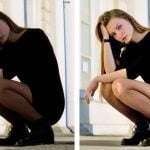
If you’ve ever struggled to achieve perfect skin tones in your portraits, you’re not alone. And while Curves are what you’ll most likely turn to, Unmesh Dinda of PiXimperfect shares an easier way to nail skin tones. In his recent video, he shares his approach to simplifying the process using Camera Raw.
Before diving into adjustments, Unmesh recommends duplicating your background layer and converting it to a smart object. This allows you to make non-destructive edits and tweak settings later. To do this:
- Press Ctrl+J (Windows) or Cmd+J (Mac) to duplicate the layer.
- Go to Filter > Convert for Smart Filters.
With this setup, you’re ready to work in Camera Raw.
Adjusting skin tones with the Color Mixer
The Color Mixer in Camera Raw is your go-to tool for skin tones. Here’s how to use it:
- Open Camera Raw through Filter > Camera Raw Filter.
- In the Color Mixer panel, activate the Hue, Saturation, or Luminance adjustment tool (HSL).
- Use the on-screen adjustment feature for precision:
- Select Hue to shift tones between green and magenta. For example, you can make skin tones warmer or cooler by dragging left or right.
- Use Saturation to enhance or tone down the color intensity.
- Adjust Luminance to brighten or darken specific tones.
To tackle challenging areas, Camera Raw’s Point Color tool is a game-changer:
- Select the Color Grading panel and enable Point Color.
- Use the eyedropper tool to sample specific areas, like highlights or shadows on the skin.
- Adjust Hue, Saturation, and Luminance for the sampled areas independently. For example, you can reduce yellow tones in shadows or add vibrancy to highlights.
You can also visualize the selected color range by toggling the range mask, making it easier to see which areas are being targeted. If you use Lightroom, then this is already pretty intuitive for you. In Lightroom, this is my go-to method for enhancing colors, but I never thought of it for skin tones (I don’t shoot many portraits).
Additional tweaks and final touches
Unmesh also demonstrates how to add depth and interest to your photos with a few additional tweaks. First, you can use Camera Raw’s masking feature to isolate and adjust the background colors, creating more dramatic effects that draw attention to your subject. Next, you can add subtle tonal changes using the Curves tool, allowing you to fine-tune the background and enhance the overall composition. Lastly, he highlights the power of adaptive presets, such as the “Enhance Eyes” feature, which can automatically refine specific features and add a polished look to your portraits.
Wrap up your edits with texture, clarity, and dehaze adjustments to add sharpness and depth to your portraits. Since the adjustments are made on a smart object, you can revisit and tweak your edits anytime by double-clicking the Camera Raw filter in Photoshop.
[Point Color: The Best Way to Get PERFECT Skin Tones! – Photoshop Trick | PiXimperfect]
See more from DIYPhotography.net on Google
Add DIYPhotography.net as a trusted source. This makes
our stories more likely to appear in your Google Search results.
 Add as a preferred source on Google

Dunja Đuđić Kalinin
Dunja Djudjic is a multi-talented artist based in Novi Sad, Serbia. With 15 years of experience as a photographer, she specializes in capturing the beauty of nature, travel, concerts, and fine art. In addition to her photography, Dunja also expresses her creativity through writing, embroidery, and jewelry making.


Join the Discussion
DIYP Comment Policy
Be nice, be on-topic, no personal information or flames.