

















A simple 3-step formula for creating stunning HDR images
Jul 16, 2019
Shreyas S. Yadav

We love it when our readers get in touch with us to share their stories. This article was contributed to DIYP by a member of our community. If you would like to contribute an article, please contact us here.
Share:

A simple 3-step formula for creating stunning HDR images
This article is a step by step guide to creating stunning HDR images. This guide will help you to photograph and post-process High Dynamic Range images effectively.
In this post, I am going to tell you Secrets for Stunning HDR images.
This simple 3-step formula will help you to create beautiful High Dynamic Range (HDR) images.
Let’s dive right into it!
What is High Dynamic Range (HDR) Image?
HDR or High Dynamic Range is a photography technique in which a wide range of luminosity or light tones is captured in an image.
Generally, this is achieved by photographing multiple images at different exposure values and merging them in Digital post-processing software.
Here are 3-steps to creating HDR images
- Photograph a scene using bracketing option
- Merge bracketed images in Adobe Lightroom
- Fine-tune the merged image using Adobe Lightroom
Step # 1: Photograph a scene using Bracketing option
On your DSLR or Mirrorless camera, turn ON the bracketing option.
In the Bracketing option
Select the number of frames as three
Select the exposure step as 0.7 or 1
For Nikon DSLR cameras, press the BKT button located below the flash button. While the BKT button is pressed using main and sub-command dial ( Dial used to set a shutter speed and aperture ) select the number of frames and exposure steps. For your specific camera refer the camera manual on how to set the camera for bracketing.
Now with bracketing mode option ON – you will photograph three frames.
- One frame will have nominal exposure. ( or the exposure which you set).
- The second image will be overexposed with exposure step of 1
- The third image will be underexposed with the exposure step of 1
Set shutter release mode to Continuous High ( CH )
Set the exposure mode to Aperture priority. Set the aperture and ISO as per the scene.
Compose the image. Hold the camera steady. Preferably use stable support such as Tripod or monopod. If the use of support is not possible then hold the camera steady.
Press the shutter release button. Three images will be captured.
One image will be with nominal exposure.

One image will be underexposed.

One image will be overexposed.

( Note -While photographing an image, capture RAW pictures with Adobe RGB as color space. Set the bit depth to 14-bit. Use lossless compression. Picture control should be set to standard )
Step # 2: Merge bracketed images in Adobe Lightroom
Its time to take your images for post-processing in Adobe Lightroom
In Adobe Lightroom go to Library module. Import the three images captured earlier ( Three Bracketed images )
In the develop module, select three bracketed images. ( Press Ctrl and selected three images )

Click on Photo button in the top panel of Adobe Lightroom Develop module. Select Photo Merge > HDR

In HDR Merge Preview window, check the Auto Align and Auto Settings checkboxes. Auto-align option will automatically align three images. Auto settings will apply Tonal and color adjustment for the merged HDR image.
Check the Show Deghost Overlay checkbox. It will show the areas in an HDR image which are replaced as that of original images. Apply Deghost Amount as Medium or High.
To creating a stack image with merged images, click the, Create Stack.
Click the Merge button. HRD image will be created with name as [ImageName]-HDR.dng
Note that Adobe Lightroom will add -HDR to the end of the image name. Extension of merged HDR is .dng
An HDR image is created based on three bracketed images.

Note – Do not apply any crop, local or global corrections to the bracketed images. Because, when you merge the images using HDR, all the earlier image adjustments are overridden by HDR Merge.

With the merged HDR image ready, let’s look into the third step
Step # 3: Fine-tune Merged image using Adobe Lightroom
In this step, you will apply tonal and color adjustments to the merged HDR image to create a final HDR image
In the develop module, open the merged HDR image. ( You have already created this image in step # 2 )
In the Global settings, I recommend you adjust.
- Black and white point
- Shadows and highlights
- Dehaze, Vibration, and Saturation
- Exposure
In the targeted adjustments, start with following adjustments.
- Black and white point
- Shadow and Highlights
- Luminance and Saturation
- Use Graduated filters, Radial, and Adjustment brush for targeted adjustments.

There you go! This is a secret of creating stunning HDR images.

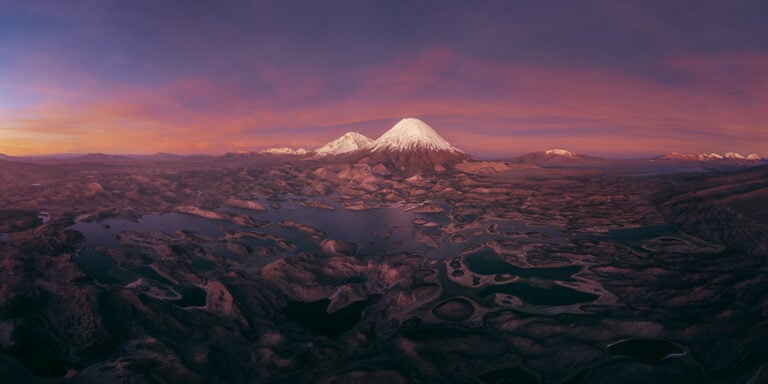
Image on Right : After ( Final )
Now I would like to hear from you.
Do you find this 3-step formula useful for creating beautiful HDR images?
Let me know by leaving a comment below right now.
Also, don’t forget to share this article on Facebook.
About the Author
Shreyas S. Yadav is an engineer, wildlife and nature photographer from India. He is also a writer and lifelong adventure explorer. Through his writings, he teaches about digital post-processing and nature photography. He shares field techniques about nature photography, post-processing and wildlife photo stories on his website.
You can also follow Shreyas on social media: Instagram, Facebook , and 500px.
See more from DIYPhotography.net on Google
Add DIYPhotography.net as a trusted source. This makes
our stories more likely to appear in your Google Search results.
 Add as a preferred source on Google

We love it when our readers get in touch with us to share their stories. This article was contributed to DIYP by a member of our community. If you would like to contribute an article, please contact us here.



Join the Discussion
DIYP Comment Policy
Be nice, be on-topic, no personal information or flames.
10 responses to “A simple 3-step formula for creating stunning HDR images”
Three steps: just take three frames of different exposure
Three steps:
– don’t read this article
– Google for “creating stunning HDR”
– use that guide instead
Michael Estwik too many steps, mine is just three clicks. Lol
Actually, that photo didn’t even need HDR. If you want to show an example with HDR, then go to place where you really need HDR to bring back shadows and highlights.
What you have created is a waste of someones time and I got a headache of those out of the world blue sky.
And seriously, that photo isn’t even stunning. Why does guides like this use the word stunning when it obviously isn’t stunning.
1. Don’t do it.
2. Don’t do it.
3. Don’t do it.
HDR is the Kardashian of photographic techniques.
HDR is like throwing plastic in the ocean.
HDR is a vaping smartass wearing a backwards ball cap and white sunglasses.
HDR is the $500 2001 Hyundai with $600 exhaust system.
?
„While photographing an image, capture RAW pictures with Adobe RGB as color space. Set the bit depth to 14-bit. Use lossless compression. Picture control should be set to standard“
? good one!
1. Take 3 photos at different exposure levels.
2. Choose a good one and forget all this HDR nonsense.
3. Adjust in Lightroom if you must.
As others have said, this article is not good because the scene didn’t need HDR. All you accomplished is over-saturating it.
What HDR is for is when you really can’t capture the full dynamic range of a scene with one exposure because the dynamic range is too big. Like, if you are trying to photograph a solar eclipse. Or the stained glass in a cathedral and the interior of the cathedral that’s poorly lit. That’s when you use HDR. But just because it’s HDR doesn’t mean you should blow the saturation like this author did.
I expected nothing less from the comment section.