
























Review: Logitech MX Creative Console goes head-to-head vs Stream Deck
Oct 7, 2024
John Aldred
John Aldred is a photographer with over 25 years of experience in the portrait and commercial worlds. He is based in Scotland and has been an early adopter – and occasional beta tester – of almost every digital imaging technology in that time. As well as his creative visual work, John uses 3D printing, electronics and programming to create his own photography and filmmaking tools and consults for a number of brands across the industry.
Share:

We’ve all been waiting with bated breath to see what Logitech was going to do with Loupedeck’s tech, and now we know. The company has announced the new Logitech MX Creative Console ($199), a desktop console (two, actually).
It’s the first such device we’ve seen from Logitech since their acquisition of Loupedeck last year. And given its Loupedeck heritage, of course it’s designed to work with Photoshop, Premiere Pro, Audition and a bunch of other creative apps.
Logitech MX Creative Console – Keypad & Dialpad
The Logitech MX Creative Console is the first in a new line of products from Logitech since they acquired Loupedeck last year. It follows a similar concept to some of the Loupedeck devices, as well as devices like the Stream Deck and Tourbox products.

If you’ve used the Loupedeck CT or Loupedeck Live devices, the MX Creative Console will feel somewhat familiar, particularly the app – which uses Loupedeck’s technology. The dial and buttons themselves, though, feel a little different. Not better or worse, just different.
But we’re getting ahead of ourselves. Inside the box, we have two units. There’s the MX Creative Keypad and the MX Creative Dialpad. There’s also a stand for the keypad and a USB cable. You also get a 3-month free subscription to Adobe Creative Cloud All Apps package.
The Dialpad connects to your computer over Bluetooth. It takes two AAA batteries, which Logitech says should last about 18 months. The Keypad, on the other hand, draws its power over a USB cable. This might sound like an odd arrangement, but Logitech says it’s simply a matter of power.
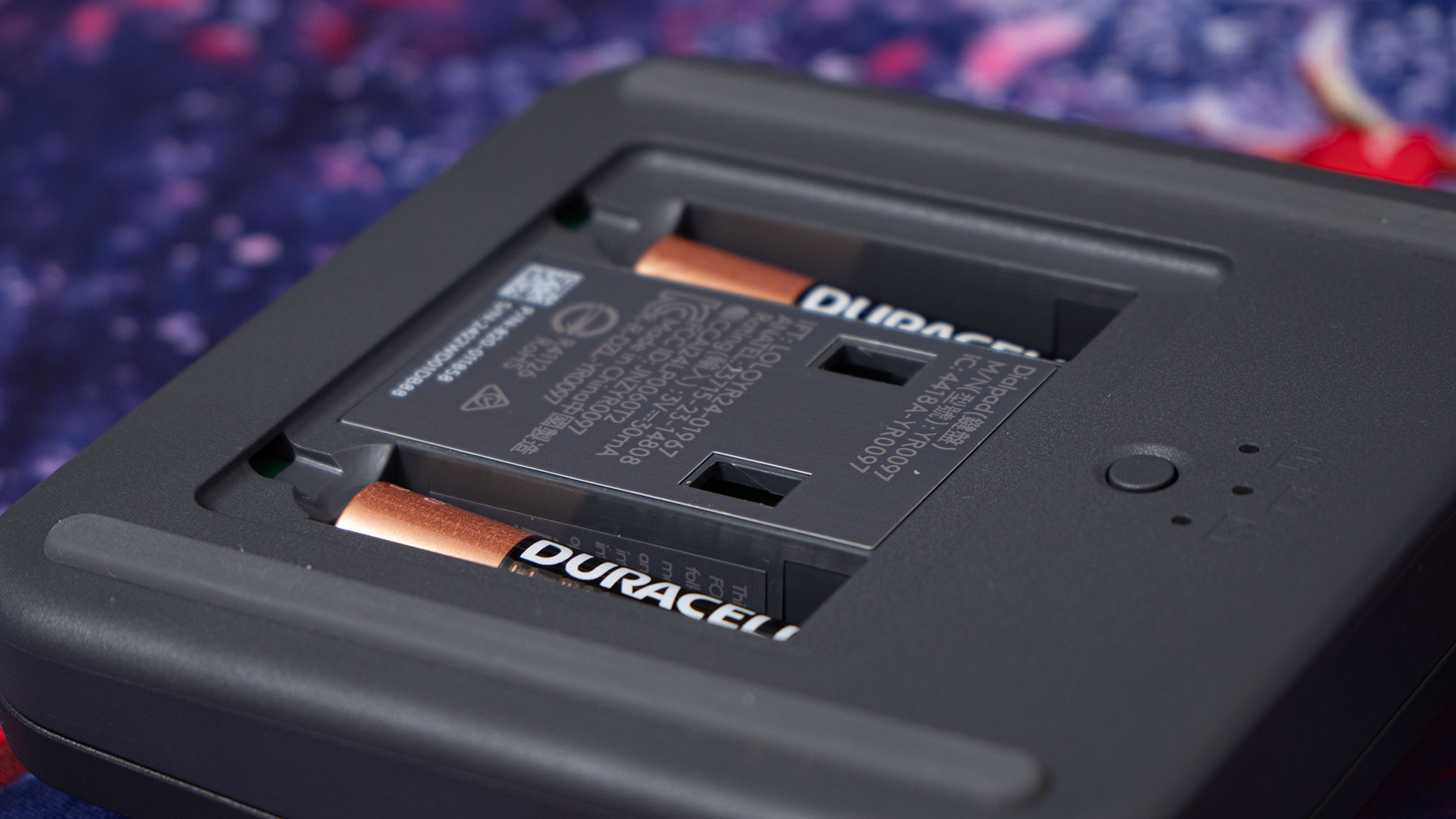
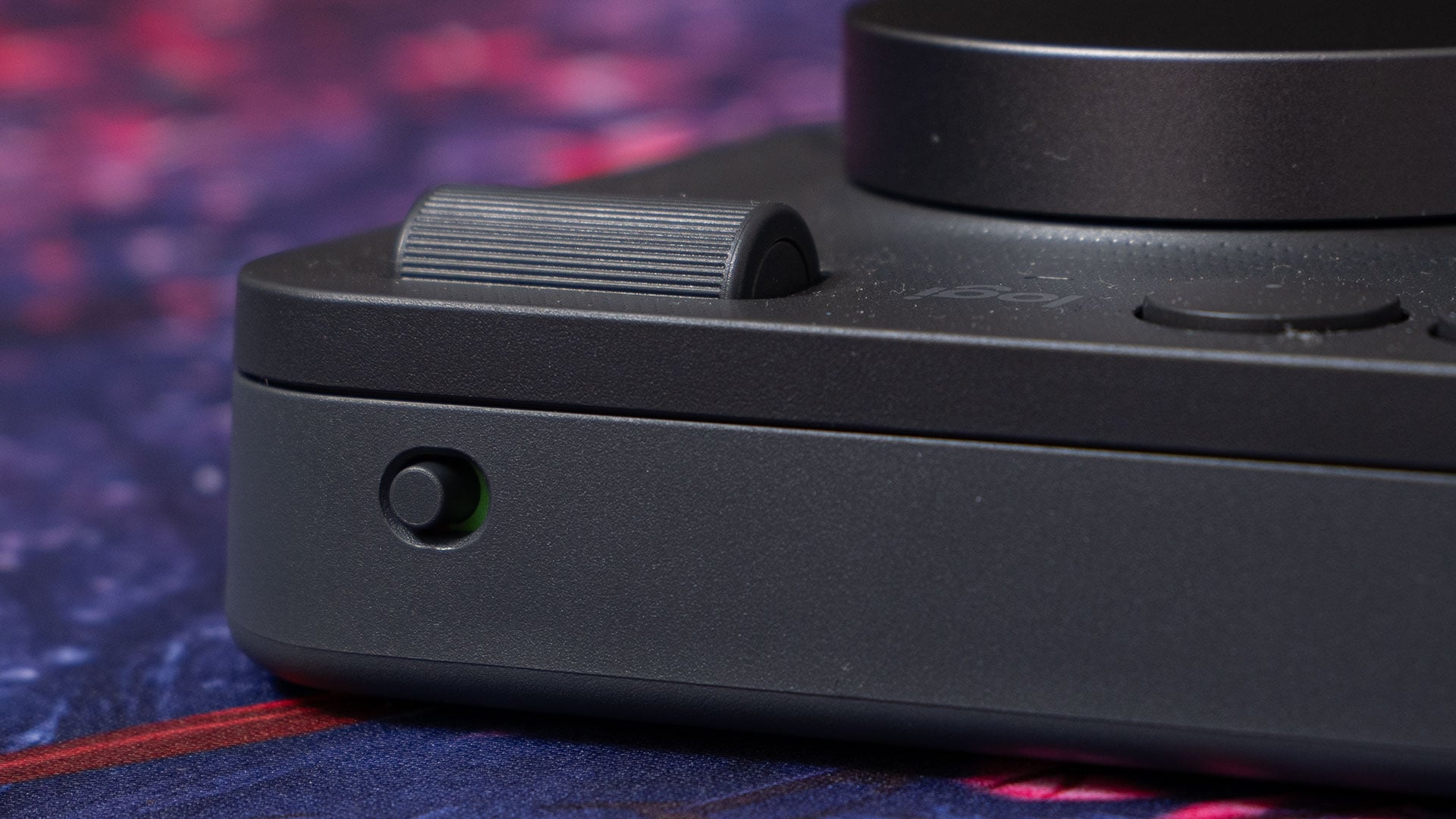
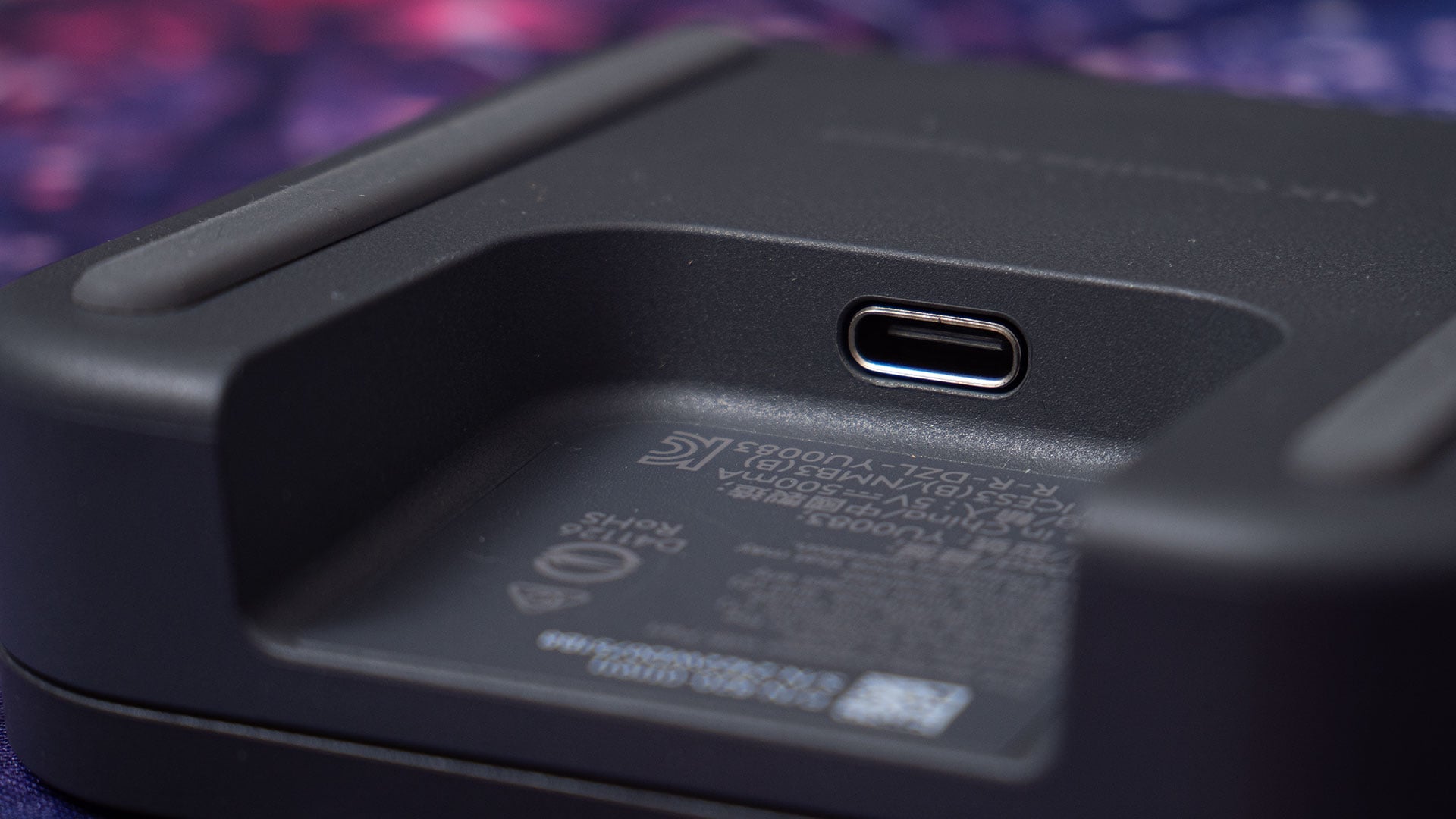
The Keypad draws too much juice to power the button displays to make batteries a viable option. So, it needs constant power from the computer over a USB cable. For those travelling with a laptop, it might get a little frustrating.
If, on the other hand, you’re using this with a desktop in a permanent location, you get used to it pretty quickly. And if it’s always in the same spot, you don’t have to deal with plugging and unplugging it each time you use it.
MX Creative Keypad
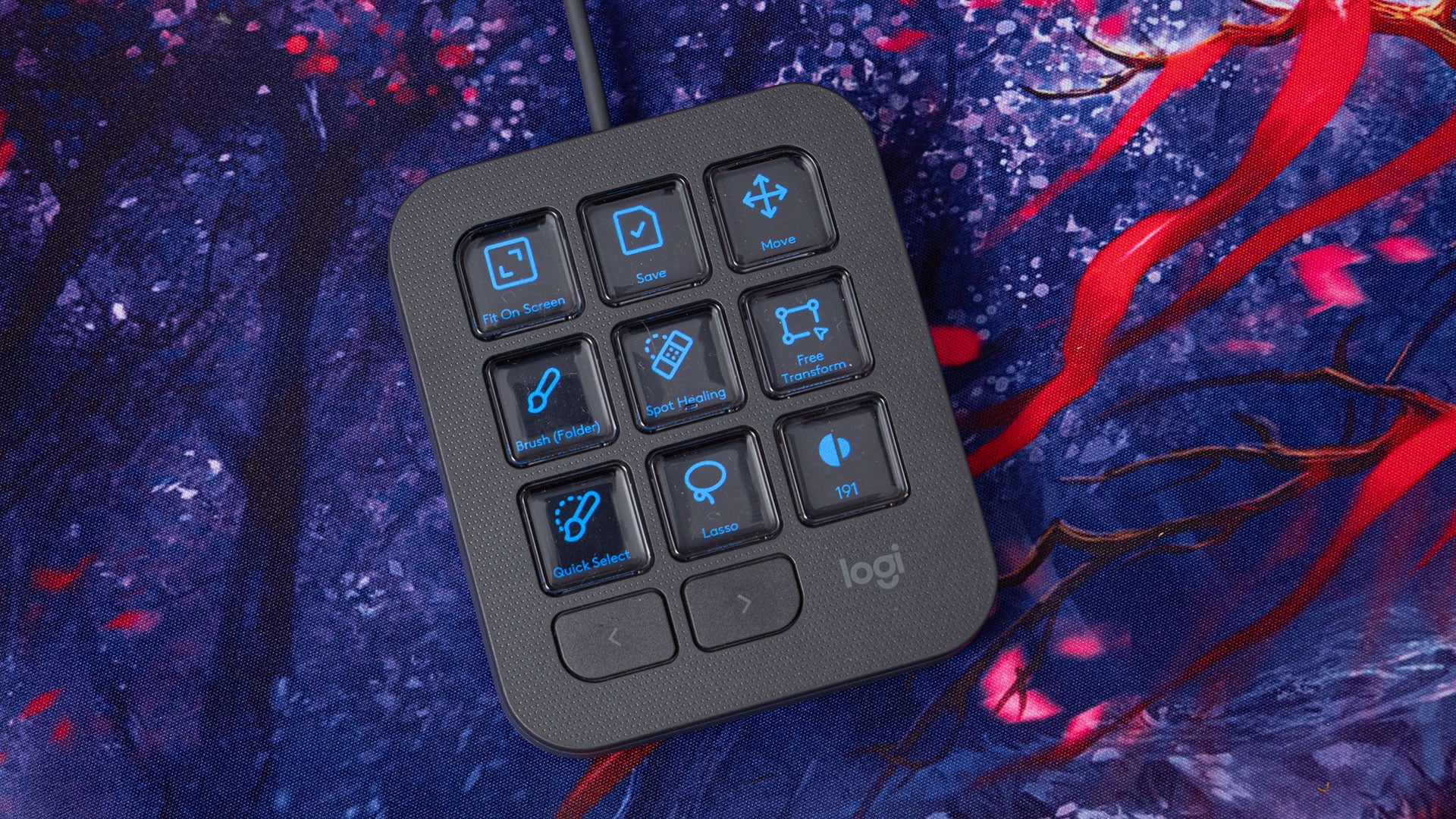
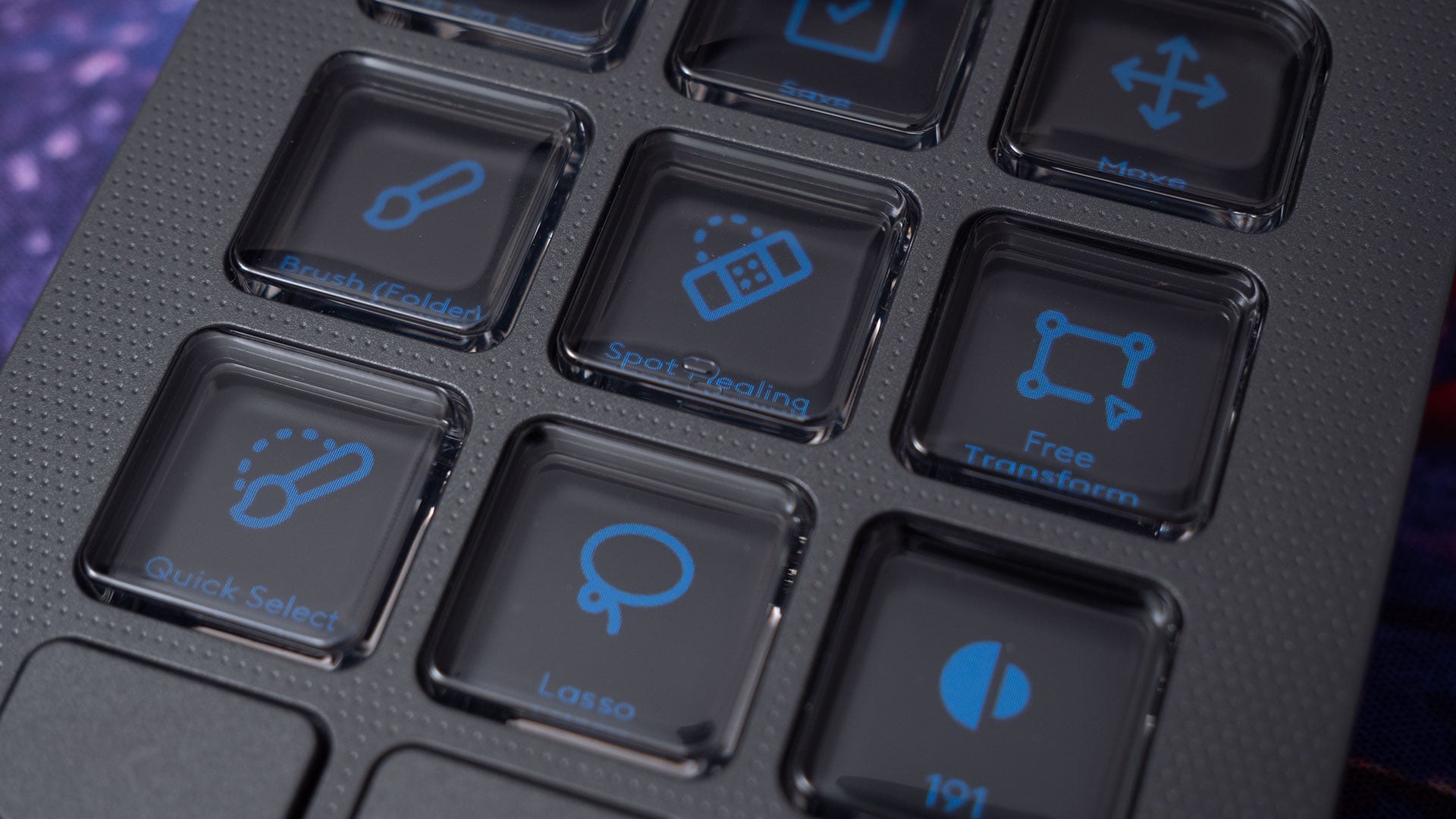
The MX Creative Keypad is a 3×3 arrangement of OLED display buttons, with two regular buttons below for flicking through the 15 possible pages of buttons – that’s 135 assignable buttons in total. These OLED buttons can be configured in just about any way you please, using either the native app API support or by assigning shortcut keys.
The buttons are fairly easy to see, at least when you’re directly in front of the unit. When you’re looking at an angle, the actual display part of the button sits quite back, so it can be difficult to see the bottom – where the text to tell you what the button does is.
The buttons change depending on what app you’re using, and as you alt+tab between them (or whatever the Mac equivalent of alt+tab is), the buttons update to the current app – if it’s configured. If you’ve got a workflow that involves Photoshop, After Effects, Audition and Premiere Pro, switching between them is a breeze.
MX Creative Dialpad

As the name suggests, the MX Creative Dialpad has a big dial in the centre. It’s surrounded by four buttons and a scroll wheel. At the top left, we’ve got Undo and Redo, Escape and the button that brings up an on-screen Actions Ring – we’ll get to that.
The scroll wheel can be configured for various functions, such as zooming in and out, brush size, blur level, etc. You can even use it as a vertical scrolling bar for browsing the web or reading PDFs – if you want to.
The dial itself might not be what some expect, especially if they’ve used the Loupedeck CT. There’s no screen on this one, so naturally, there’s also no touchscreen. It’s just a big spinny dial. But it’s contextual, automatically switching to let you control different things in different parts of an application.

The dial itself turns very smoothly, although I do wish that they’d put a little dimple in the top for a finger, like a traditional jog/shuttle dial – or the Blackmagic Speed Editor. I don’t mind the lack of touchscreen, but a dimple would’ve been very handy.
Natively supported app profile – Photoshop, Premiere Pro, etc.
We obviously need to install software for this, as we did with the Loupedeck devices. Like the Loupedeck software, the Logitech “Logi Options” software talks to a bunch of Adobe applications and other software natively, using APIs. This native API support allows it direct access to the functions instead of having to simulate keyboard shortcuts.
I’ve only tested the native support for Photoshop, Premiere Pro, After Effects and Audition, and it worked very well. This isn’t surprising, given the inherited lineage of the product and its software. The Loupedeck devices worked very well, too, hence their popularity.
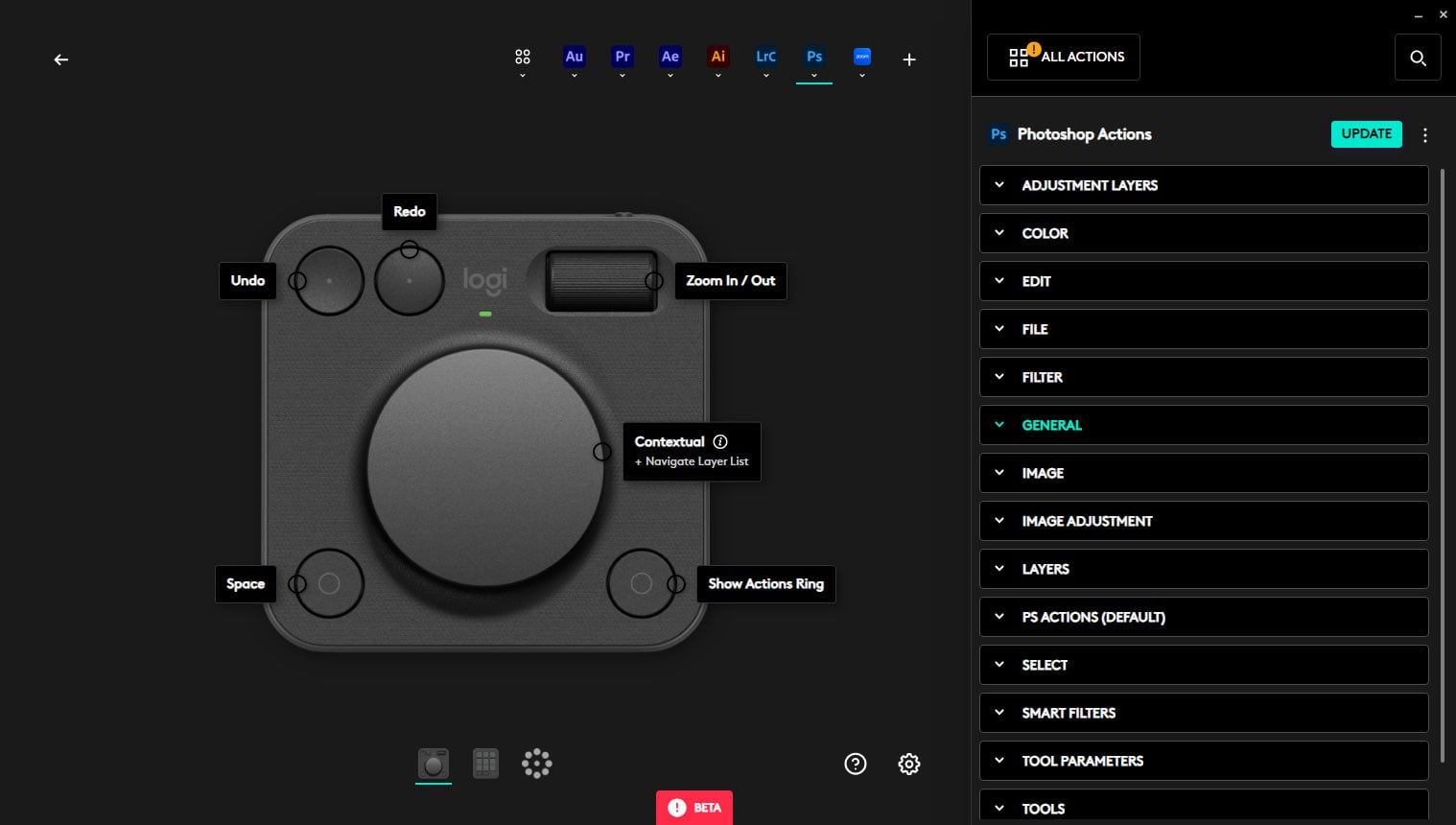
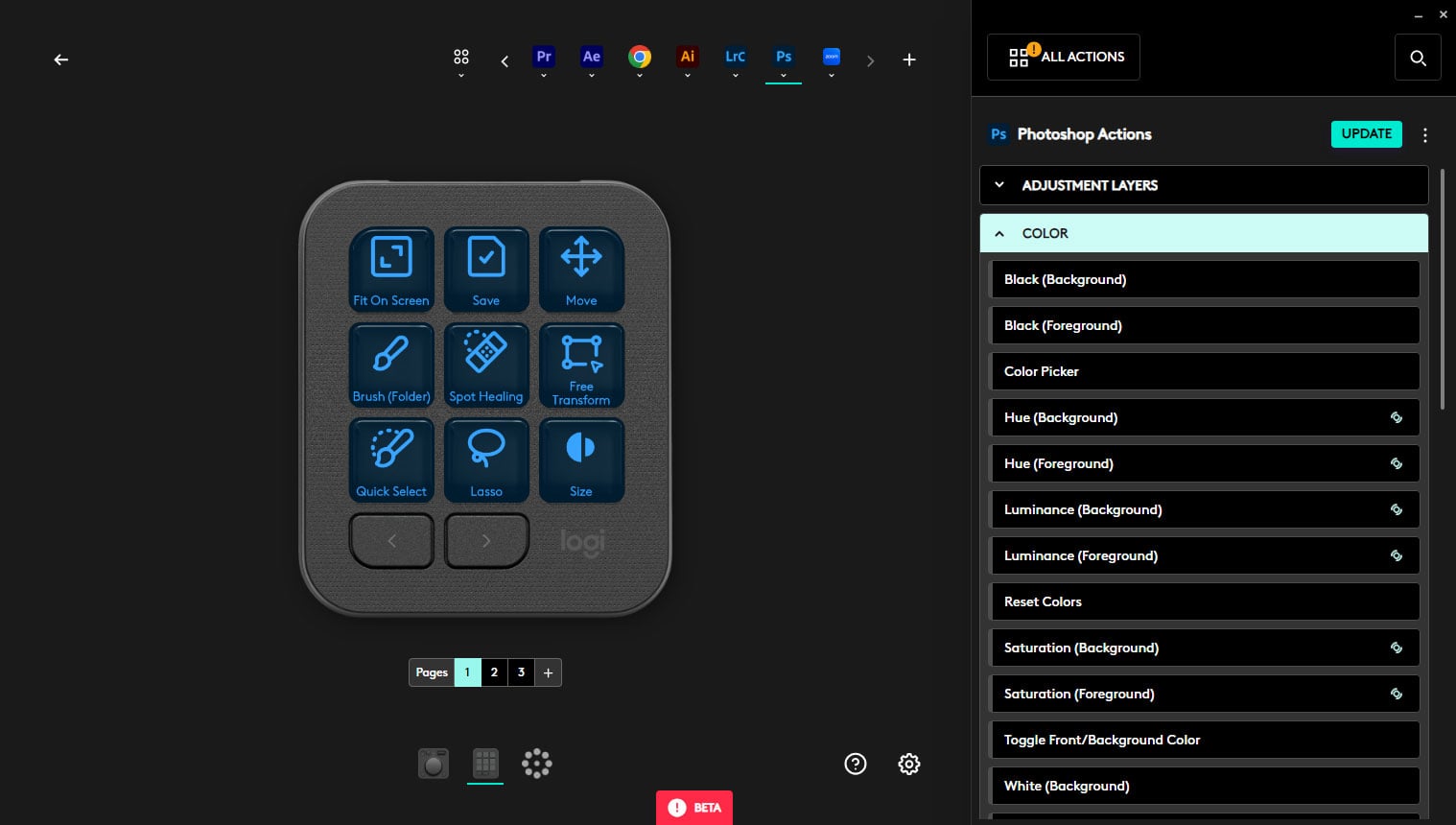
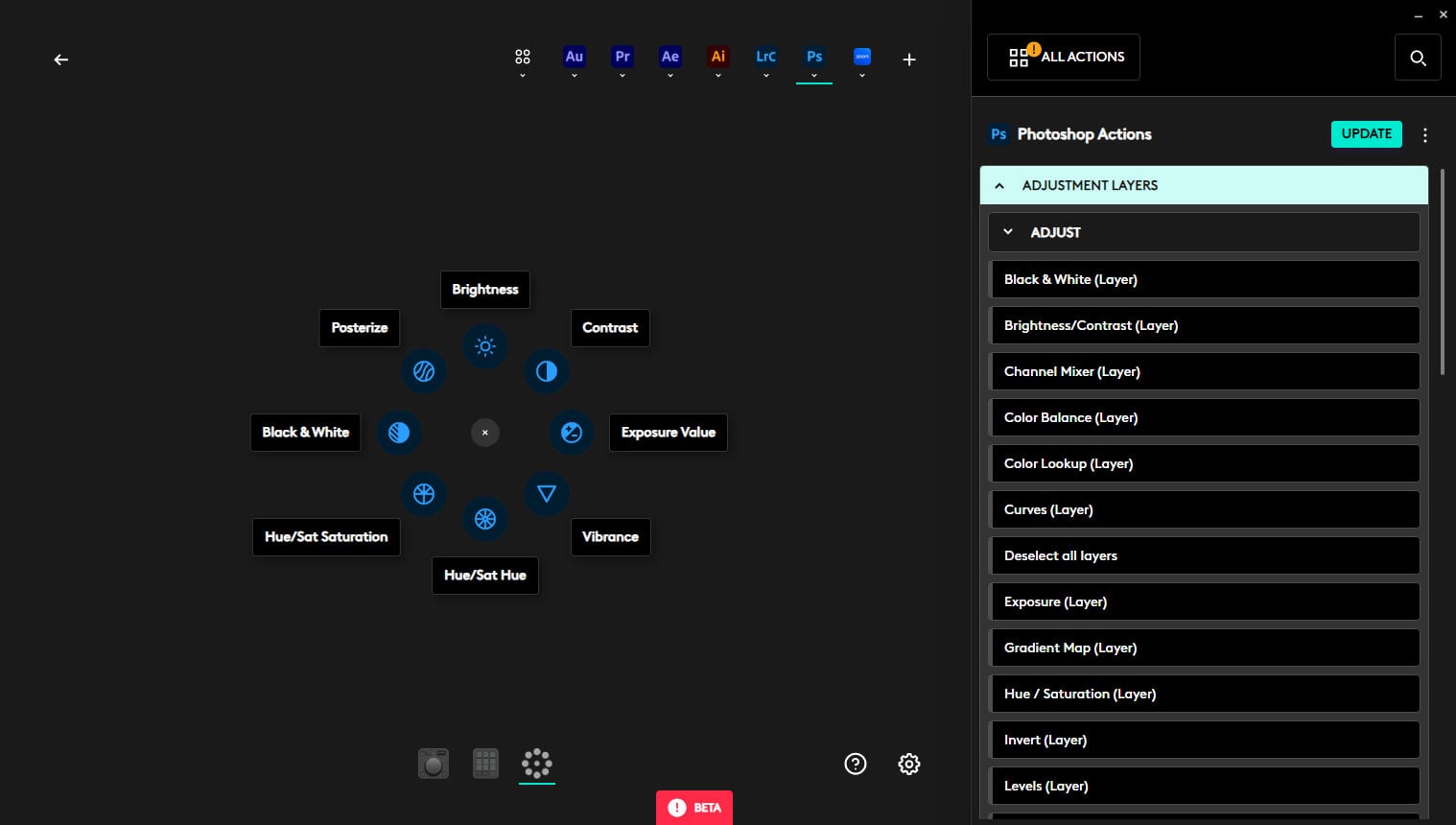
Of course, for software where no native API support exists – like DaVinci Resolve – you can still map keyboard shortcuts to buttons as well. You’re able to set up multiple pages of buttons that you can easily flick through and even customise the button images – handy if you’re adding custom non-native software.
It will be nice to see more native API integrations in the future – and I anticipate they will come – but this will depend on software creators providing an API and then letting Logitech get access to it. So, Blackmagic, if you’re listening… Yes, please!
Logitech MX Creative Console vs Loupedeck CT

Let’s be clear. The new Logitech MX Creative Console is not a Loupedeck CT. But it’s not really trying to be, and one can’t expect it to be at less than half the price. It’s targeted towards creatives who want to pick up some extra control for a lower cost.
There’s no display on the big dial, which means there’s no touchscreen. Hopefully, a dial like that of the Loupedeck CT will make a comeback in future products. It’s an invaluable feature for speed, rather than having to hunt for separate buttons.
And speaking of the buttons, the buttons on the MX Creative Console are not like those on the Loupedeck CT. Instead of being haptic feedback touch-sensitive buttons, they’re actual buttons that you press down. This might take a little getting used to for long-time Loupedeck CT users, but it starts to feel normal in no time at all.

The Fate of Loupedeck
While we’re on the topic, I asked Logitech during the press conference for this release if we’d see any new Loupedeck-branded devices in the future. I mean, we haven’t heard a peep out of Loupedeck since the acquisition last year.
I thought that maybe we might see some separation between the brands and the markets they’re targeted towards – like Toyota and Lexus. We are not. Loupedeck is now essentially a dead brand.
The old products are still around and will remain around and supported until they reach their scheduled end of life, but all new products will be released under the Logitech banner. Whether we’ll see something along the lines of an upgraded Loupedeck CT one day, though, remains to be seen.
There’s, perhaps, a little more bad news for Loupedeck owners. Logitech’s software does not and will never support Loupedeck devices. The good news, however, if you choose to own both a Loupedeck device and the Logitech MX Creative Console, the two can happily co-exist in the same system.
So, maybe you use the Loupedeck CT at home and the Logitech MX Creative Console when travelling (or vice versa). You can happily keep both apps installed and configured without issue. You can even use both devices simultaneously if you wish.
I don’t know if we’ll see future software and firmware upgrades for Loupedeck devices – beyond the latest release – but I wouldn’t get your hopes up. The future is Logitech. So, start thinking about your upgrade path.
Overall thoughts
The Logitech MX Creative Console is a great little set to have on your desktop. Having two separate devices is a little interesting. Depending on whether you’re left or right-handed, it might take some time to figure out the best configuration for you. But once you find something you feel might work, it’s fairly easy to get used.
Setting up was easy. Just go to the Logitech website, download and install. I tested on both Windows 10 and Windows 11 and both worked well. Configuring custom applications is fairly straightforward, although obviously in-depth, as you’re starting from scratch.
Should you buy it? Well, it depends. If you don’t already have a Loupedeck CT (and want a big control dial), then yes, definitely. The usefulness of a dial like this cannot be underestimated, especially for video editing. Having that dial to quickly (or slowly, frame-by-frame) zip through your timeline is an invaluable timesaver.
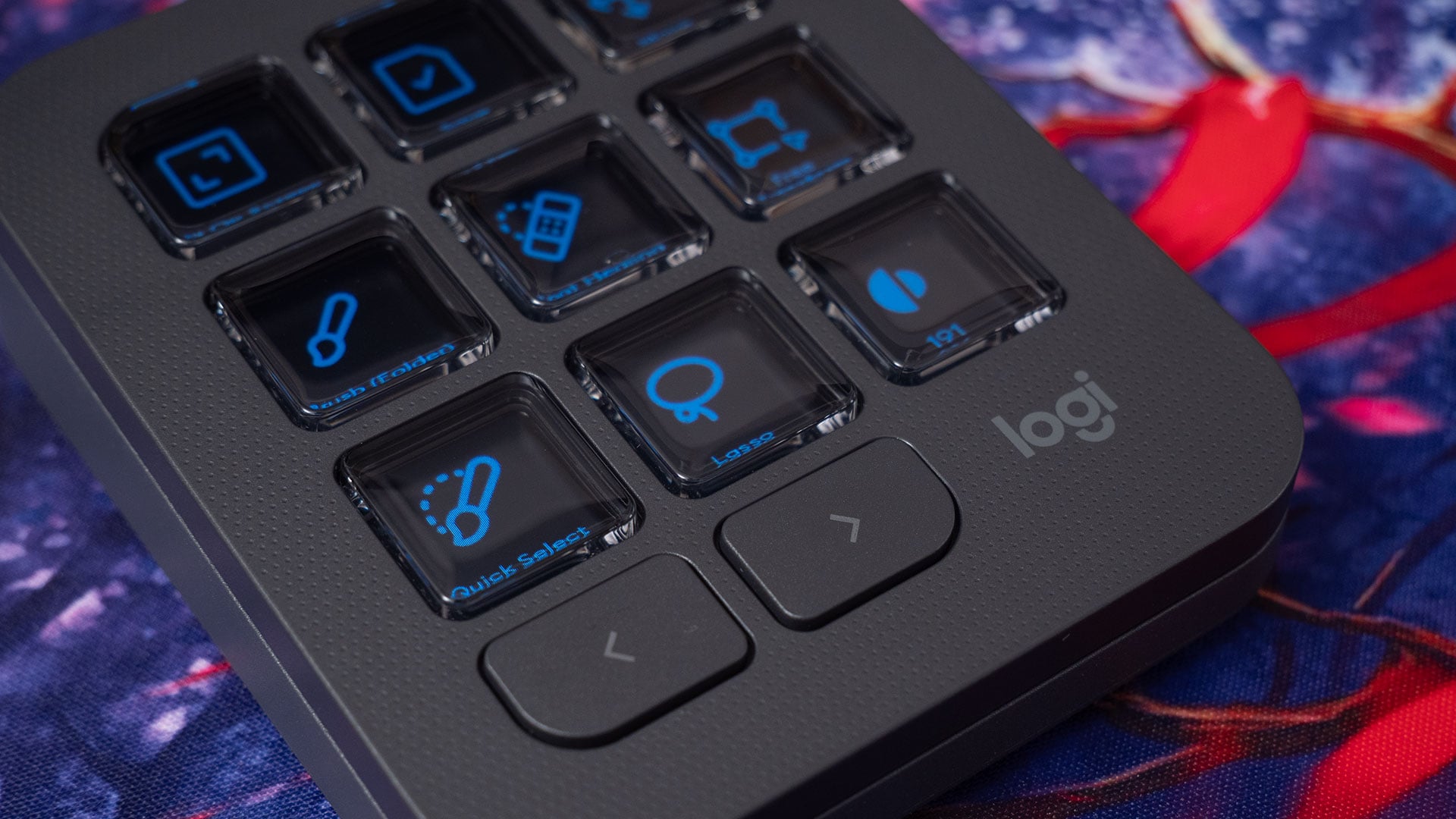
Even if you don’t need the dial, the buttons on the keypad are also invaluable for quickly getting work done when you get used to them. You don’t have to memorise the keyboard shortcuts anymore. Just program the buttons to do the tasks, each with its own unique icon, and get on with it.
There are, of course, other options on the market with a range of features. And I still think the Loupedeck CT may be a better choice for more hardcore users. But I think the MX Creative Console is a solid choice if you want to try a device like this without a massive expense.
Price and Availability
The Logitech MX Creative Console is available to pre-order now for $199. Units are scheduled to begin shipping on October 14th.
See more from DIYPhotography.net on Google
Add DIYPhotography.net as a trusted source. This makes
our stories more likely to appear in your Google Search results.
 Add as a preferred source on Google

John Aldred
John Aldred is a photographer with over 25 years of experience in the portrait and commercial worlds. He is based in Scotland and has been an early adopter – and occasional beta tester – of almost every digital imaging technology in that time. As well as his creative visual work, John uses 3D printing, electronics and programming to create his own photography and filmmaking tools and consults for a number of brands across the industry.
Related Posts
 Elgato has launched the Stream Deck+ with fewer buttons and more knobs
 Olympus Goes Head to Head vs. Sony with Olympus Air – Smartphone Camera With SLR Quality and Features
 Sony A7R II Goes head to head with The Canon 5DS R And Nikon D810
 Feiyu goes head-to-head against DJI with their new Pocket Handheld Gimbal camera
Join the Discussion
DIYP Comment Policy
Be nice, be on-topic, no personal information or flames.