






















How to Resize Images in Preview for Any Use: Web, Docs, and Presentations
Nov 19, 2025
Darlene Lleno
Darlene Lleno brings a unique perspective to DIY Photography as someone who grew up surrounded by camera gear but chose words over lenses. With five years of writing experience, she specializes in photography content that’s both technically informed and genuinely passionate. Growing up with a photographer twin brother meant camera talk was everyday conversation in her household. While he mastered capturing moments, Darlene discovered she preferred being the subject and the storyteller behind the scenes. As a travel enthusiast and mother of two, she understands the importance of preserving life’s precious moments. When not exploring new destinations or writing for DIY Photography, you’ll find her reading or tending to her garden. Her approach to photography writing is refreshingly authentic, she may not be behind the camera, but she knows exactly what it takes to help others capture the shots that matter most.
Share:

Learning how to resize images in Preview gives you fast control over your photo dimensions without opening complex software. Mac users already have this powerful tool sitting right there in their system. You can change dimensions for web uploads, adjust sizes for presentations, or prepare photos for documents.
Preview offers simple adjustments that take seconds. The app handles everything from maintaining proper proportions to reducing file sizes. You won’t need expensive programs for basic resizing tasks.
Why Resize Images in Preview
Preview saves time compared to launching heavy editing programs. The app opens instantly and processes changes quickly. Most photographers need fast solutions for simple tasks.
File size matters for web performance. Large photos slow down page loading and frustrate visitors. Smaller dimensions mean faster uploads and better user experience.
Different platforms need specific sizes. Social media has size requirements. Email attachments have limits. Print projects demand certain resolutions. Preview handles all these situations.
When preparing images for printing, getting the dimensions right from the start prevents quality problems. Our free print size calculator helps you determine exactly what pixel dimensions you need for any print size before you start resizing. Preview handles all these situations efficiently once you know your target dimensions.
Opening Your Image
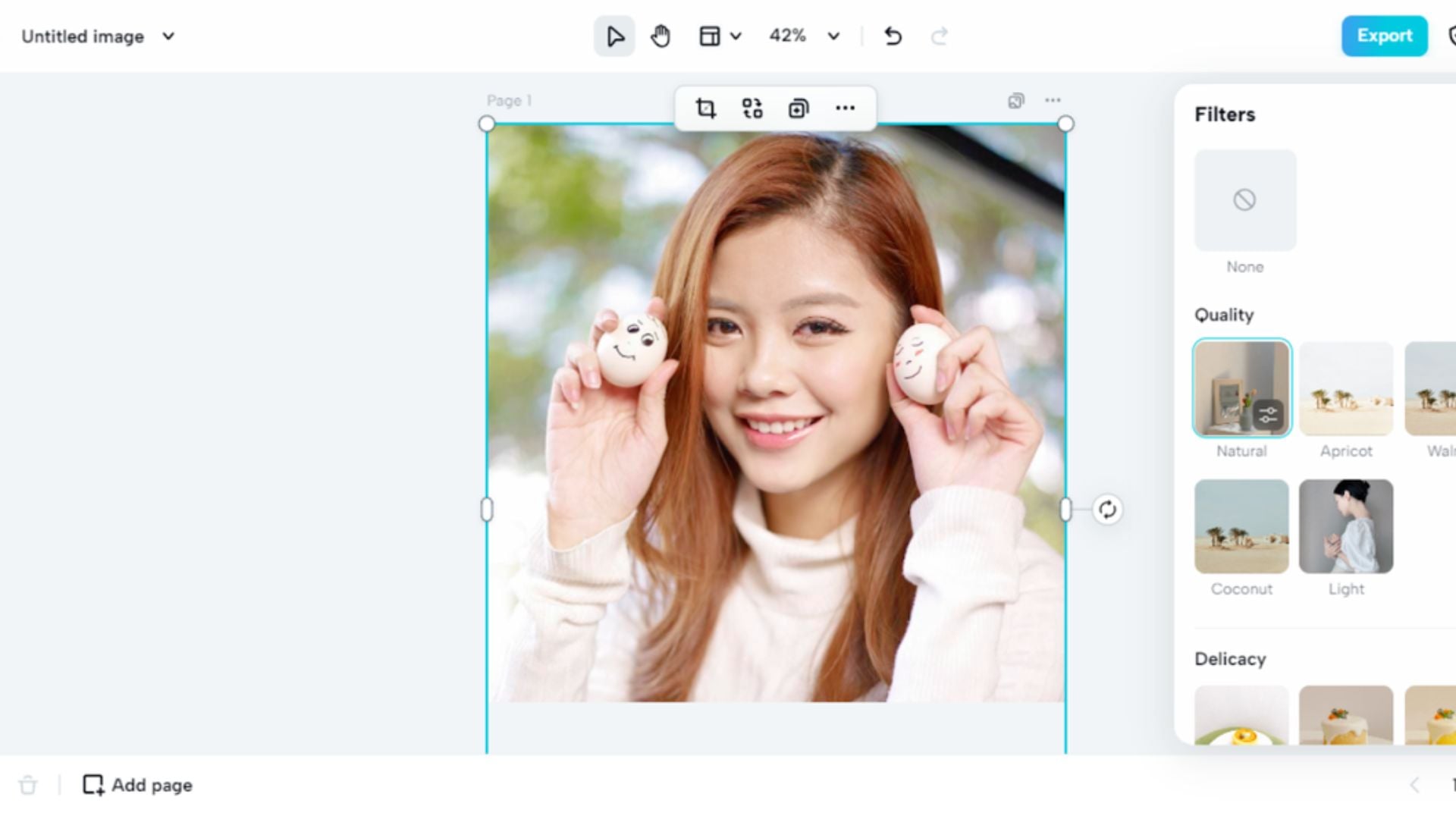
Double-click any image on your Mac. Preview launches automatically as the default viewer. Your photo appears ready for editing.
Some files might open in other programs. Right-click the image instead. Select “Open With” from the menu. Choose Preview from the list of applications.
You can also drag images directly onto the Preview icon. The app sits in your Applications folder or dock. Drop multiple photos to open them all at once.
Step-by-Step Guide to Resize Images in Preview
Follow these simple steps to resize any image quickly and accurately.
Step 1: Open the Image
Double-click the image file to launch Preview automatically. Your photo appears in the Preview window ready for editing. You can also right-click the image and select “Open With” then choose Preview if another app opens by default.
Step 2: Access the Adjust Size Tool
Go to the Tools menu at the top of your screen. Look for “Adjust Size” in the dropdown list. Click it to open the sizing dialog box. This window shows all your current image settings and options.
Step 3: Set New Dimensions
Enter your desired width in pixels. The height field updates automatically if “Scale proportionally” is checked. This checkbox sits at the bottom of the dialog box and prevents distortion by maintaining aspect ratio.
Alternatively, choose “percent” from the dropdown menu next to the dimension fields. Type 50 to reduce your image by half. Type 200 to double the size. Percentage scaling works great for quick proportional adjustments.
Step 4: Maintain Proportions
Make sure “Scale proportionally” stays checked. This ensures your image doesn’t stretch or squash unnaturally. Unchecking this box lets you set custom width and height independently, but usually creates distorted results.
Step 5: Adjust for Web Use (Optional)
Check the “Resample image” box if you need smaller file sizes for web use. This option reduces the actual pixel count in your image. You can also enter a lower resolution value like 72 dpi for screen display. Web images don’t need high resolution since monitors display at fixed pixel densities.
Step 6: Apply Changes
Click OK to process your resize. Preview applies the changes instantly. Your image updates to the new dimensions you specified. The entire operation takes just seconds to complete.
Step 7: Save Your Resized Image
Go to File and choose either Save or Export. Save overwrites your original file with the resized version. Export creates a new file and preserves your original untouched. Export gives you more control over file format and quality settings too.
Save Your Resized Image
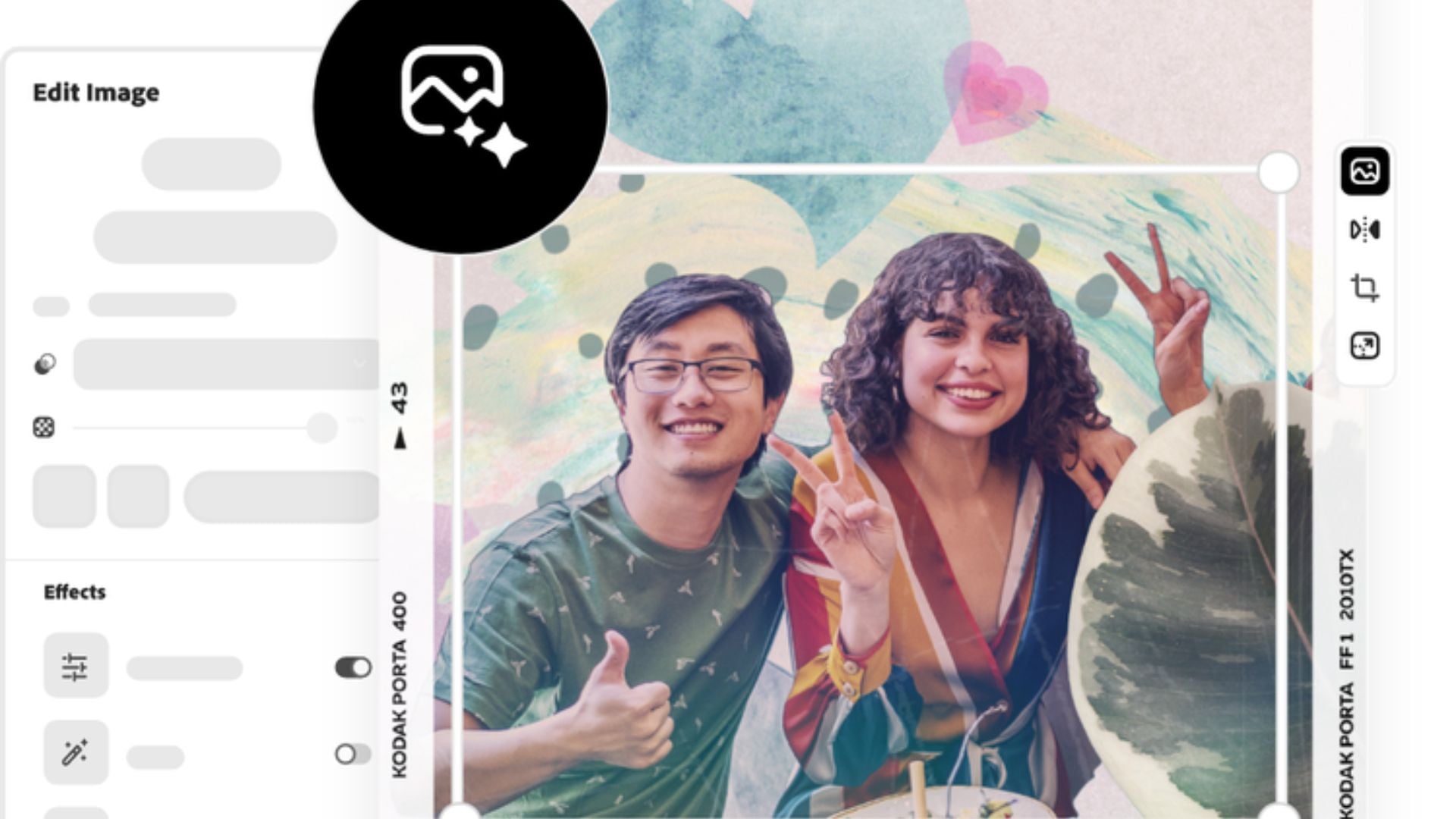
Go to File and select Save to overwrite the original. This replaces your photo permanently. Make sure you want to keep these changes before saving.
Choose Export instead to create a new file. This preserves your original photo untouched. You get both versions to work with.
Pick your file format during export. JPEG works well for photos. PNG suits graphics with transparency. The format affects final file size and quality.
Resize Images in Preview for Web Use
Web photos need smaller dimensions than originals. Most websites display images at 1920 pixels wide or less. Larger sizes waste bandwidth and slow loading.
Check the “Resample image” box for web optimization. This reduces the actual pixel count. Your file size drops significantly without visible quality loss.
Lower resolution settings help too. Web images only need 72 dpi. Higher resolutions add unnecessary file weight. Keep dimensions practical for screen viewing.
Test different compression levels when exporting. JPEG quality settings balance file size against image quality. Start at 80 percent for good results. Adjust up or down based on your needs.
Preparing Images for Documents
Documents need consistent image sizes for professional appearance. Measure your layout space first. Size photos to fit without awkward scaling.
Keep resolution at 150-300 dpi for print documents. This ensures sharp text and clear photos. Lower resolution looks pixelated on paper.
Use exact pixel dimensions when possible. This eliminates guesswork about final appearance. Your document software won’t need to resize anything.
Match aspect ratios across multiple images. This creates visual harmony in reports and presentations. Uniform sizing looks more polished than mixed dimensions.
Resizing for Presentations
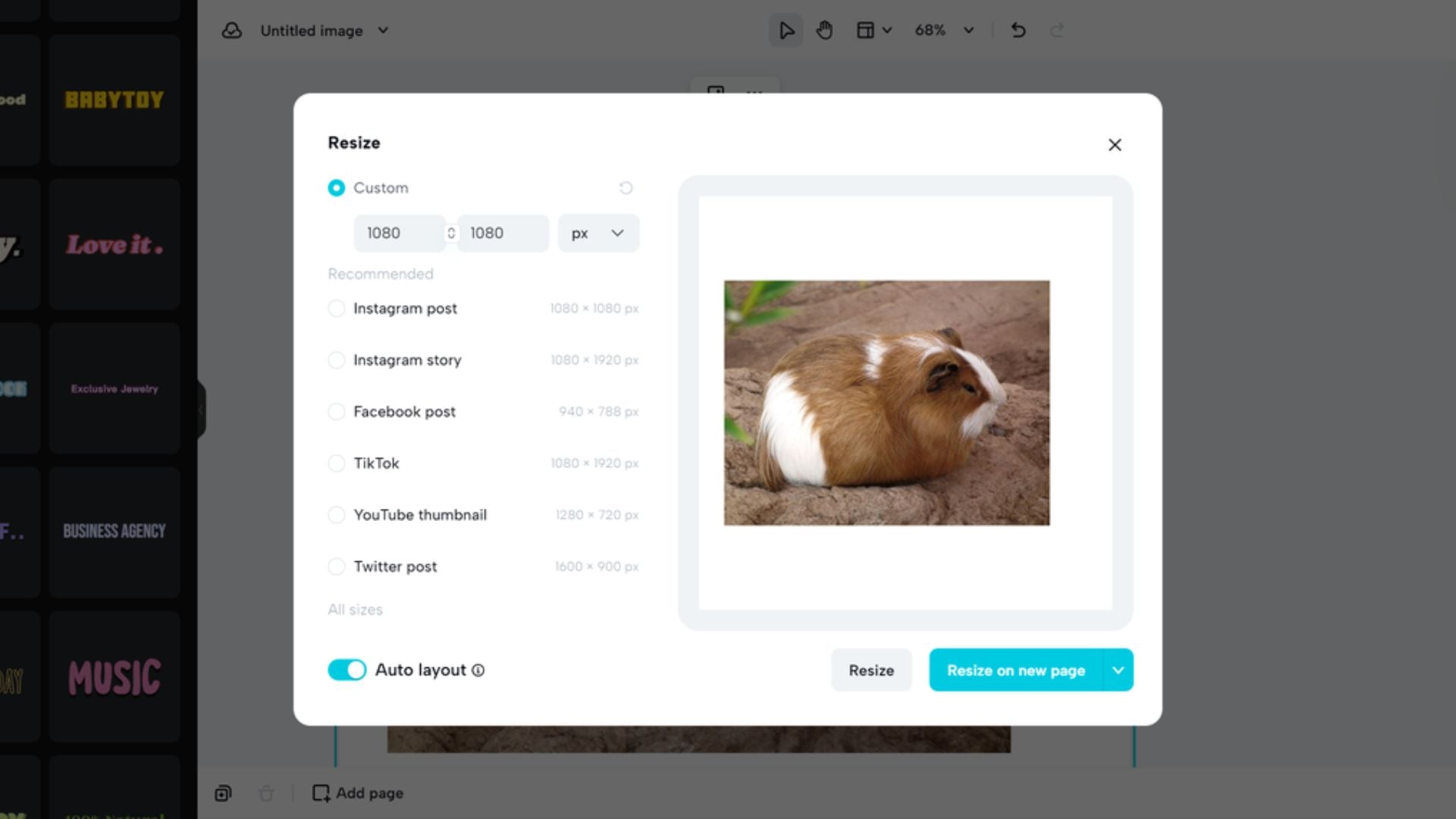
Presentation software has specific dimension requirements. PowerPoint and Keynote handle photos differently. Check your slide dimensions before resizing.
Standard presentations use 1920×1080 pixels for full-screen images. Smaller photos need less space. Size according to their layout position.
Maintain consistent image sizes throughout your deck. This creates smooth transitions between slides. Varying dimensions look choppy and unprofessional.
Consider your display resolution too. Higher resolution screens benefit from larger images. Standard displays work fine with moderate sizes. Test on your actual presentation setup.
Working with Multiple Images
Select all images you want to resize. Preview displays them in the sidebar. You can process batches efficiently this way.
Click the first image in your sidebar. Hold Shift and click the last one. This selects everything in between.
Go to Tools and choose Adjust Size with all images selected. The same settings apply to every photo. This saves enormous time on bulk operations.
Different photos might need different treatments. Process similar images together in groups. Separate landscape photos from portraits for better results.
Understanding Image Resolution
Resolution determines detail level in your photos. Higher numbers mean more information per inch. This affects print quality mainly.
Web images need minimal resolution. Screens display at fixed pixel densities. Extra resolution doesn’t improve appearance online.
Print requires higher resolution for clarity. Professional printing uses 300 dpi typically. Home printers work well at 150-200 dpi.
Don’t confuse resolution with dimensions. Resolution affects quality at a given size. Dimensions control actual image size. Both matter for final results.

Maintaining Image Quality
Always work from original files when possible. Each resize operation loses some data. Starting with high-quality sources gives better results.
Avoid enlarging images significantly. Preview can’t create detail that doesn’t exist. Upscaling produces soft, blurry results.
Save master copies before resizing. Keep originals untouched for future needs. You might want different sizes later for various projects.
Check your output carefully after resizing. Zoom in to inspect details and sharpness. Make adjustments if results don’t meet expectations.
Common Mistakes to Avoid
Never uncheck “Scale proportionally” unless you specifically need distortion. This maintains proper aspect ratios. Unchecking it stretches images unnaturally.
Don’t resize repeatedly from the same file. Each operation degrades quality slightly. Start fresh from originals for each new size needed.
Avoid extreme compression settings. Lower quality sliders too far and artifacts appear. Find the balance between file size and acceptable appearance.
Remember to consider your final use before setting dimensions. Different platforms need different sizes. What works for Instagram fails on a billboard.

Advanced Preview Features
Preview offers more than basic resizing. You can crop images to specific dimensions. The selection tools let you choose exact areas.
Color adjustments help optimize photos for different displays. Web images might need different treatment than print versions. Preview’s color tools handle these variations.
Annotation features work well with resized images. Add text or arrows after sizing photos. This works great for tutorials and documentation.
Batch processing saves time on large projects. Combine resizing with other operations. Process hundreds of photos efficiently using Preview’s automation.
When to Use Preview vs Other Tools
Preview excels at quick, simple resizing tasks. Professional editing requires more powerful software. Know your project’s demands before choosing tools.
Complex adjustments need Photoshop or similar programs. Color correction, retouching, and advanced effects go beyond Preview’s capabilities. Use the right tool for each job.
Preview works perfectly for everyday photo management. Prepare images for email, resize for social media, or adjust for basic documents. These tasks don’t require expensive software.
Batch operations with many images benefit from Preview’s simplicity. More complex programs often overwhelm users for basic tasks. Stick with Preview when appropriate.
Checking Your Results
Always review resized images before finalizing projects. Open them at actual size to check quality. Zoom out to see overall appearance too.
Test images in their intended context. Upload web photos to see loading performance. Print document images to verify clarity. Place presentation photos in actual slides.
Compare file sizes before and after resizing. Web optimization should significantly reduce file weight. Check that quality remains acceptable at smaller sizes.
Get feedback from others when possible. Fresh eyes catch problems you might miss. Different monitors show images differently too. Multiple viewpoints help ensure good results.

Your Next Steps with Preview
Resizing images in Preview handles most everyday photo adjustment needs. The process takes seconds once you understand the basic steps. You can prepare photos for any purpose without complicated software.
Start with the Tools menu and Adjust Size option. Enter your desired dimensions while keeping proportions locked. Check the Resample option for web images to reduce file size. Export to save a new version while preserving your original.
Practice with different images and settings. You’ll quickly develop efficient workflows for common tasks. Preview becomes your go-to tool for fast image adjustments. The built-in power saves time and simplifies your photo management.
See more from DIYPhotography.net on Google
Add DIYPhotography.net as a trusted source. This makes
our stories more likely to appear in your Google Search results.
 Add as a preferred source on Google

Darlene Lleno
Darlene Lleno brings a unique perspective to DIY Photography as someone who grew up surrounded by camera gear but chose words over lenses. With five years of writing experience, she specializes in photography content that’s both technically informed and genuinely passionate. Growing up with a photographer twin brother meant camera talk was everyday conversation in her household. While he mastered capturing moments, Darlene discovered she preferred being the subject and the storyteller behind the scenes. As a travel enthusiast and mother of two, she understands the importance of preserving life’s precious moments. When not exploring new destinations or writing for DIY Photography, you’ll find her reading or tending to her garden. Her approach to photography writing is refreshingly authentic, she may not be behind the camera, but she knows exactly what it takes to help others capture the shots that matter most.




Join the Discussion
DIYP Comment Policy
Be nice, be on-topic, no personal information or flames.