

















ProRAW vs HEIF vs JPEG: Complete iPhone Photo Format Comparison
Nov 12, 2025
Darlene Lleno
Darlene Lleno brings a unique perspective to DIY Photography as someone who grew up surrounded by camera gear but chose words over lenses. With five years of writing experience, she specializes in photography content that’s both technically informed and genuinely passionate. Growing up with a photographer twin brother meant camera talk was everyday conversation in her household. While he mastered capturing moments, Darlene discovered she preferred being the subject and the storyteller behind the scenes. As a travel enthusiast and mother of two, she understands the importance of preserving life’s precious moments. When not exploring new destinations or writing for DIY Photography, you’ll find her reading or tending to her garden. Her approach to photography writing is refreshingly authentic, she may not be behind the camera, but she knows exactly what it takes to help others capture the shots that matter most.
Share:
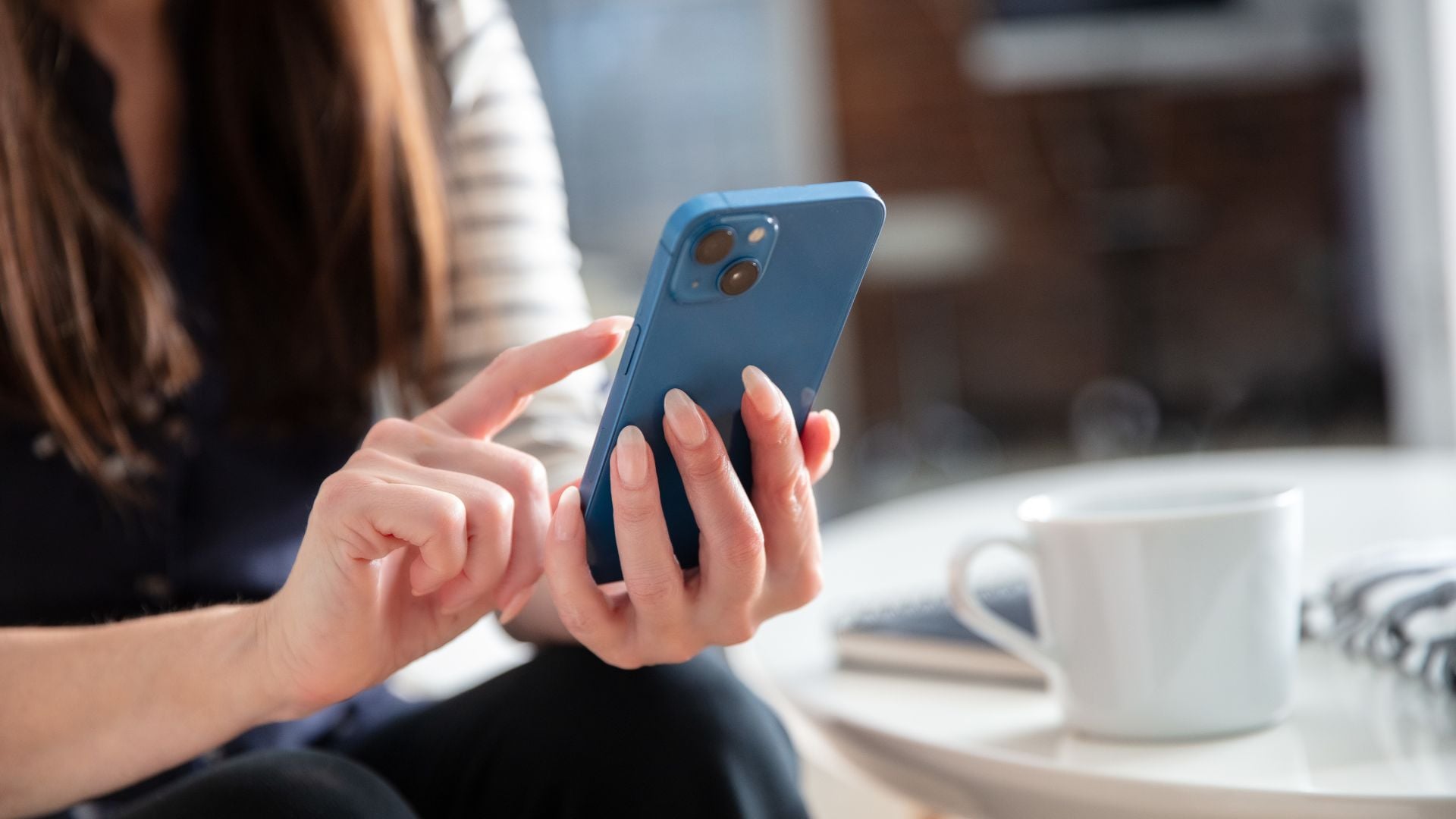
ProRAW vs HEIF vs JPEG represents the choice between maximum editing control and efficient storage on your iPhone. Apple offers three distinct photo formats in 2025, each serving different photography needs. ProRAW delivers professional-grade flexibility, HEIF balances quality with storage efficiency, and JPEG ensures universal compatibility.
Most iPhone users stick with whatever format their phone defaults to. They never understand the tradeoffs between formats. Professional photographers shoot everything in ProRAW unnecessarily and waste storage. Casual shooters sometimes enable ProRAW and wonder why their phone fills up.
Understanding ProRAW vs HEIF vs JPEG helps you choose the right format. You’ll know when raw flexibility matters and when efficient compression serves better. Your storage won’t fill up with massive files you never edit. Your workflow becomes faster and more intentional with smart format choices.
What Each iPhone Photo Format Does
iPhone photo formats differ in how they capture and store image data. ProRAW records raw sensor information with minimal processing applied. HEIF applies Apple’s computational photography while compressing efficiently. JPEG uses decades-old compression that works everywhere without issues.
Each format makes different tradeoffs between file size, image quality, and editing flexibility. No single format wins in every category or situation. The best choice depends on your specific needs and shooting situation.

ProRAW: Professional Control
Apple ProRAW combines raw sensor data with computational photography benefits. Available only on Pro model iPhones, this format captures everything. You get raw flexibility plus features like Deep Fusion and Smart HDR.
ProRAW files contain unprocessed sensor data in all three color channels. This preserves maximum information for post-processing adjustments later. You can push exposure several stops without breaking the image. White balance adjustments work perfectly because color information stays separate.
The format captures up to 48 megapixels on newer Pro models. This resolution provides exceptional detail for large prints or aggressive cropping. You can crop to a small section and still have enough resolution.
ProRAW disables Live Photos when active unfortunately. You can’t capture the short video clips that Live Photos create. This limitation forces you to choose between raw flexibility and that feature.
HEIF: Modern Efficiency
HEIF (High Efficiency Image Format) became Apple’s default format years ago. Also called HEIC, this format compresses images much better than JPEG. You get high quality in significantly smaller files than other formats.
The iPhone applies computational photography to HEIF images automatically. Deep Fusion, Smart HDR, and Photographic Styles all work with HEIF. These enhancements happen during capture and get baked into the file.
HEIF supports advanced features JPEG can’t handle at all. Live Photos, depth information, and HDR data all store in HEIF files. This makes it more versatile than traditional formats for Apple users.
File sizes stay remarkably small compared to both ProRAW and JPEG. An HEIF photo might be 2-3MB where the same JPEG would be 4-5MB. ProRAW would balloon to 25-40MB for the same scene captured.
JPEG: Universal Standard
JPEG has existed for decades as the photography standard worldwide. Every device, platform, and software understands JPEG files perfectly. This universal compatibility remains its biggest strength in 2025.
The iPhone generates JPEG files using lossy compression techniques. The camera discards some image data to reduce file size. Most viewers can’t see the quality loss in normal viewing conditions.
JPEG files contain processed images with Apple’s computational photography applied. Like HEIF, the enhancements get baked in during capture. You can’t undo Smart HDR or adjust how Deep Fusion processed the image.
Editing flexibility stays limited compared to ProRAW significantly. Push a JPEG too far in editing and it falls apart quickly. Highlight recovery works poorly in JPEGs. Shadow lifting introduces visible noise throughout.
ProRAW vs HEIF: When to Choose Each
ProRAW vs HEIF comes down to whether you need editing flexibility or storage efficiency. Professional work demanding extensive post-processing requires ProRAW always. Everyday shooting where you share photos directly benefits from HEIF.
The file size difference between these formats is dramatic in practice. ProRAW consumes 10-12 times more storage than HEIF for the same scene. This impacts how many photos fit on your iPhone and iCloud.
ProRAW Advantages and Use Cases
ProRAW shines when you plan to edit images extensively later. The raw data gives you room to adjust exposure, color, and white balance dramatically. Professional portrait retouching benefits from this flexibility significantly.
High-contrast scenes need ProRAW’s dynamic range preservation capabilities. Shooting into sunlight or capturing dark interiors with bright windows works better. You can recover blown highlights and lift crushed shadows effectively.
Large prints demand ProRAW’s resolution capabilities without question. The 48-megapixel capture on Pro models provides enough detail. You won’t see pixelation or loss of sharpness in prints.
Commercial photography work requires ProRAW almost universally nowadays. Clients expect maximum quality and editing flexibility from professionals. Stock photography submissions often require raw files or highest quality images.
HEIF Advantages and Use Cases
HEIF works perfectly for social media photography without any issues. Instagram, Facebook, and other platforms compress images anyway during upload. Starting with efficient HEIF files saves storage without affecting final quality.
Vacation and everyday snapshots rarely need ProRAW’s flexibility at all. HEIF captures beautiful images straight from the iPhone camera. The computational photography makes them look great without editing work.
Live Photos require HEIF format to function properly on iPhones. You can’t capture those moment-before-and-after clips in ProRAW. Family photos and candid moments often benefit from Live Photos greatly.
Storage-conscious users should stick with HEIF for most shooting. You’ll fit many more photos on your device this way. iCloud storage costs drop because you’re not filling it with massive files.
Switching Between Formats
iOS makes format switching easy but not obvious to most users. You don’t need to dive into Settings for every shot. The Camera app offers quick format changes when you need them.
Enable ProRAW in Settings under Camera then Formats first. Then you can toggle it on and off in the Camera app. Look for the RAW indicator in the upper right corner.
Tap the RAW indicator to switch between ProRAW and your default format. This lets you shoot some photos raw and others in HEIF. Mix formats based on what each scene needs specifically.
Consider your workflow before every shoot you plan. Planning a photo walk where you’ll edit everything later demands ProRAW. Casual family gathering where you’ll share immediately suggests HEIF instead.

HEIF vs JPEG: Compatibility Considerations
HEIF vs JPEG matters primarily for sharing and compatibility between devices. HEIF offers better quality at smaller sizes but sometimes causes problems. JPEG works everywhere but wastes space compared to HEIF unnecessarily.
Most modern devices and services handle HEIF without issues in 2025. However, older computers and some professional workflows still expect JPEG. Understanding these compatibility issues prevents problems before they happen.
Where HEIF Works Perfectly
Apple ecosystem users face zero HEIF compatibility problems at all. Mac computers, iPads, and other iOS devices all handle HEIF natively. Photos sync seamlessly across your Apple devices without conversion.
Social media platforms accept HEIF uploads without any issues. Instagram, Facebook, Twitter, and others convert HEIF to their format automatically. You don’t need to manually convert before sharing anything.
Modern Windows 10 and 11 computers support HEIF with proper codecs. Microsoft includes HEIF support in recent Windows versions now. Some users might need to install the HEIF codec from Microsoft Store.
Cloud storage services like Google Photos and Dropbox handle HEIF fine. These services recognize the format and display HEIF images correctly. Backup and storage work smoothly with HEIF files uploaded.
Where JPEG Still Wins
Older computers and devices need JPEG files to display properly. Windows 7 and older operating systems can’t read HEIF at all. Some older Android phones lack HEIF support as well.
Professional printing services sometimes require JPEG for their systems. Print labs might not accept HEIF files directly through their ordering. Converting to JPEG before uploading ensures smooth ordering every time.
Certain editing software doesn’t support HEIF yet unfortunately. Older versions of Adobe Lightroom and other programs need JPEG. Check your editing software’s capabilities before committing to HEIF completely.
Email recipients might struggle with HEIF attachments they receive. Some email clients display HEIF images as unreadable attachments only. JPEG ensures your photos display correctly for everyone you email.
Converting Between Formats
iOS converts HEIF to JPEG automatically when sharing with incompatible devices. The conversion happens transparently in the background automatically. Recipients get JPEG files without you doing anything extra.
You can force JPEG conversion in Settings for all transfers. Go to Photos and select “Automatic” or “Most Compatible” settings. This ensures all shared photos become JPEG when leaving your device.
Third-party apps convert formats when needed for various uses. Apps like HEIF Converter or Photo Investigator handle batch conversions. These tools help when you need many files converted at once.
Lightroom and Photoshop handle HEIF files directly without conversion needed. Import HEIF images and export as JPEG when needed later. This workflow preserves quality better than converting before editing.
File Size and Storage Impact
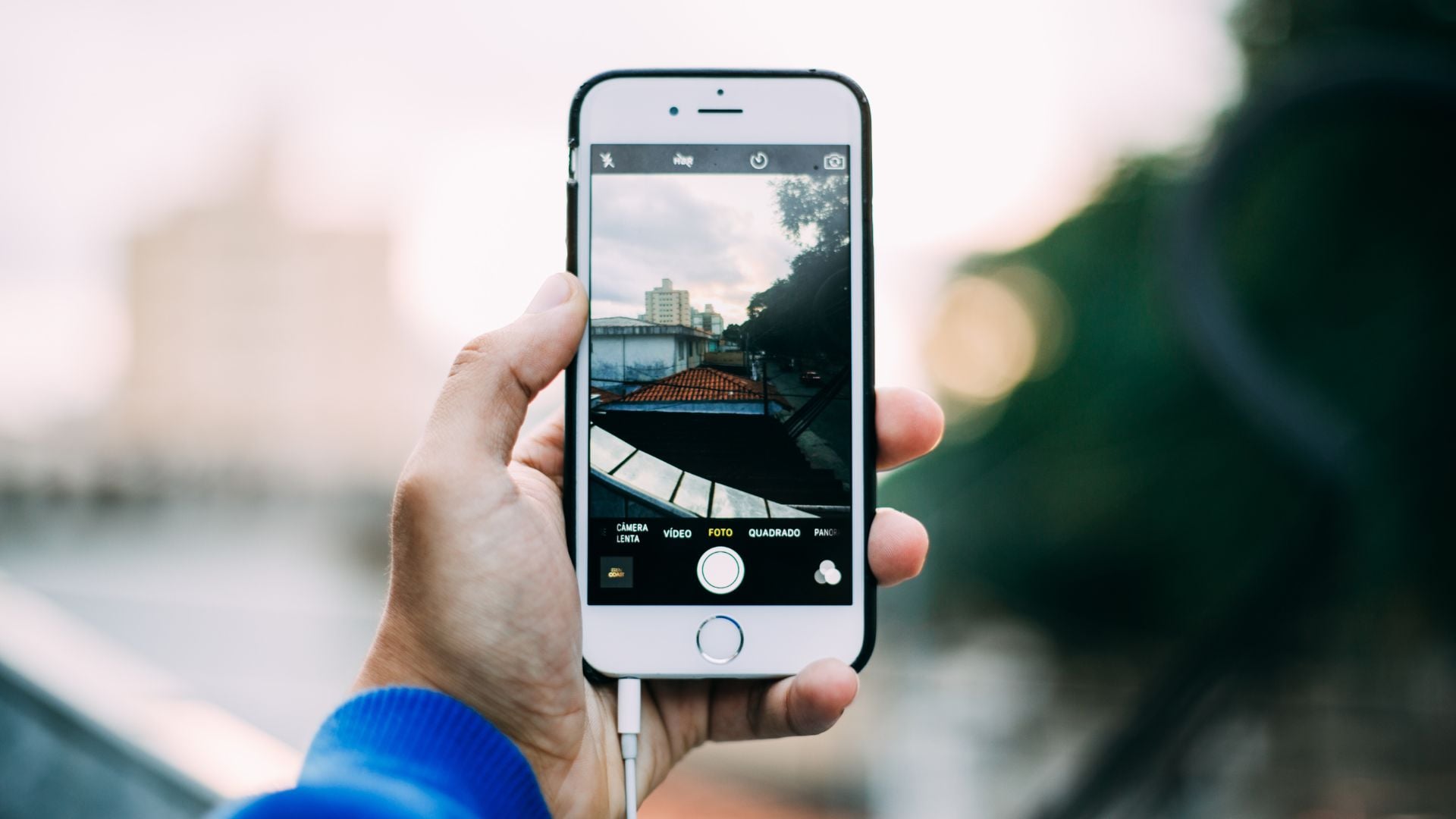
File size differences between ProRAW vs HEIF dramatically affect your storage capacity. ProRAW files consume massive amounts of space incredibly quickly. HEIF maximizes efficiency without sacrificing visible quality to most viewers.
Understanding these storage implications helps you plan your iPhone capacity needs. Shooting everything in ProRAW fills even 1TB iPhones eventually. Smart format choices extend your available storage significantly over time.
ProRAW Storage Requirements
A single ProRAW photo occupies 25-40MB depending on scene complexity captured. High-detail scenes with lots of texture create larger files. Simpler scenes compress slightly better but still stay massive compared.
Shooting 100 ProRAW photos consumes approximately 3GB of storage space. A day of serious shooting can fill 10-15GB easily. Week-long trips in ProRAW demand enormous storage capacity from your device.
iCloud storage costs add up quickly with ProRAW files backing up. The 200GB plan holds maybe 5,000-7,000 ProRAW photos maximum. Serious ProRAW shooters need the 2TB plan minimum for backups. These costs compound over time with continued shooting.
ProRAW workflow requires aggressive culling and archiving from your device. You can’t keep every ProRAW photo on your device long-term. Move edited files to external storage and delete originals regularly.
HEIF Efficiency Benefits
HEIF photos average 2-3MB per file typically in most situations. Some simple scenes compress under 2MB cleanly. Complex scenes might reach 4-5MB but rarely exceed that.
You can store thousands of HEIF photos on modest iPhone storage. A 128GB iPhone holds 30,000+ HEIF photos theoretically without other data. Real-world usage with apps still allows tens of thousands of images.
iCloud’s free 5GB tier holds approximately 1,500-2,000 HEIF photos. The 50GB paid tier stores 15,000+ images comfortably. Most casual photographers find this sufficient for years of shooting.
Backup and transfer happen faster with HEIF files than others. Smaller files upload to iCloud quicker without timing out. Sharing multiple photos by email or message works smoothly. Large batches don’t timeout or fail due to size limits.
JPEG Middle Ground
JPEG files typically measure 4-6MB per photo from iPhone cameras. They’re larger than HEIF but much smaller than ProRAW files. This middle ground works for some workflows but not most.
The storage difference between HEIF and JPEG adds up over hundreds. A thousand HEIF photos might be 2.5GB while the same photos as JPEG total 5GB. That’s doubled storage usage for essentially the same images.
Most users should prefer HEIF over JPEG for storage reasons alone. JPEG only makes sense when compatibility absolutely demands it. The quality difference favors HEIF while using less space too.
Image Quality Comparison
ProRAW vs HEIF vs JPEG quality differences become visible in specific situations. Casual viewing on phone screens shows minimal differences between formats. Editing, printing, or pixel-peeping reveals each format’s characteristics clearly.
ProRAW contains the most image information by far of all formats. HEIF and JPEG both discard data during capture processing. This information loss limits what you can do in post-processing.
ProRAW Quality Characteristics
ProRAW captures complete sensor data across all brightness levels possible. Highlight detail that HEIF and JPEG lose completely remains recoverable. Shadow information stays clean and adjustable without introducing excessive noise.
Color information in ProRAW remains separate and adjustable in post. You can shift white balance dramatically without color breaking apart. Push the temperature slider 2000K either direction and images still look natural.
Sharpening happens in post with ProRAW files only. The iPhone doesn’t apply sharpening during capture at all. You control exactly how much sharpening suits each image specifically. This prevents oversharpening that plagues some computational photography results.
Noise reduction stays adjustable with ProRAW files completely. The camera doesn’t bake in noise reduction during capture. You decide how much to apply based on your output needs. Print-bound images need less reduction than web images typically.
HEIF Quality Characteristics
HEIF benefits from Apple’s computational photography processing automatically. Deep Fusion combines multiple exposures for better detail throughout. Smart HDR balances highlights and shadows automatically during capture. These enhancements often look great straight from the camera without editing.
The processing bakes into HEIF files permanently during capture. You can’t disable Deep Fusion after capture is complete. You can’t adjust how aggressively Smart HDR blended exposures. What you see is what you get mostly with HEIF.
HEIF compression stays remarkably transparent at normal viewing distances. Most people can’t distinguish HEIF from uncompressed images easily. The efficient compression preserves quality while dramatically reducing file size.
Heavy editing reveals HEIF’s limitations compared to ProRAW clearly. Push exposure too far and you see compression artifacts appearing. Aggressive color grading can introduce banding in gradients. The format works best with moderate adjustments only.
JPEG Quality Characteristics
JPEG quality from iPhone cameras looks good under normal conditions. Apple’s processing creates pleasant images that most users find satisfactory. Colors look punchy and contrast feels appropriate for sharing.
Lossy compression discards some image data permanently during capture. Areas of similar color get compressed heavily to save space. Fine texture can disappear or look smudged in JPEGs. This loss becomes visible when editing aggressively later.
Multiple save operations degrade JPEG quality progressively over time. Each time you open, edit, and save a JPEG, quality drops. This generational loss makes JPEG poor for iterative editing workflows.
JPEG works fine for sharing and viewing on screens though. Most people can’t see the quality difference between JPEG and HEIF. The format’s main downside is larger file size compared to HEIF.
Choosing Your Default Format
Setting your default iPhone photo format affects every casual shot you take. Most photos happen spontaneously without format consideration beforehand. Your default choice should match your typical photography needs.
ProRAW as default only makes sense for dedicated photographers shooting professionally. The storage demands and editing requirements make it impractical for casual shooting. Most users should never set ProRAW as the default format.
HEIF as Default for Most Users
HEIF should be most iPhone users’ default format without question. It delivers excellent quality straight from the camera every time. Storage efficiency lets you keep more photos on the device longer. Apple’s computational photography works beautifully with HEIF files.
Casual photographers never need more than HEIF provides them. The quality exceeds what Instagram or other platforms display anyway. File sizes stay manageable even with thousands of photos stored. Everything works smoothly within Apple’s ecosystem automatically.
Family photography works perfectly with HEIF for everyday moments. Live Photos capture those moments before and after the shot. Kids and pets benefit from computational photography’s speed and accuracy. Storage doesn’t fill up after one weekend of shooting.
Travel photography suits HEIF well for most situations you encounter. You’ll shoot hundreds of photos that rarely need extensive editing. Efficient storage means you won’t run out of space mid-trip. Sharing photos from the road works smoothly with HEIF.
ProRAW for Specific Situations
Keep ProRAW disabled by default and enable it selectively when needed. Toggle it on for scenes you plan to edit extensively. This hybrid approach maximizes flexibility while managing storage intelligently.
Landscape photography often benefits from ProRAW’s capabilities significantly. High-contrast scenes with bright skies and dark foregrounds need the range. You’ll likely edit these photos carefully anyway for best results.
Portrait sessions demand ProRAW when you’re doing serious retouching work. Commercial portraits require maximum quality and editing flexibility. Client work generally justifies the storage and workflow costs involved.
Low-light photography works better in ProRAW for recovering details. You’ll want to adjust noise reduction precisely for each image. The ability to recover shadow detail without artifacts helps significantly. Flexibility matters more than convenience in challenging conditions like these.
JPEG Only for Compatibility
Set JPEG as default only if compatibility issues plague you regularly. Most users in 2025 never encounter HEIF problems at all. JPEG wastes storage without providing benefits for typical iOS usage.
Some professional workflows require JPEG throughout for various systems. If your industry or clients specifically demand JPEG, setting default makes sense. This prevents accidentally shooting in formats you’ll need to convert.
Testing compatibility with your specific devices and software matters here. Shoot some HEIF samples and verify they work everywhere you need. Only switch to JPEG if you discover actual compatibility problems.
Optimizing Your iPhone Photo Workflow
ProRAW vs HEIF decisions become easier with a clear strategy in place. Understanding when each format serves you best prevents confusion daily. Your workflow becomes more efficient and intentional with practice.
Monitor your storage usage patterns over time to learn trends. If you constantly run out of space, reconsider shooting everything in ProRAW. If you regularly wish you had more editing flexibility, use ProRAW more.
Consider your editing workflow capabilities and available time realistically. ProRAW demands time and skill to process properly every image. Shooting raw but never editing wastes the format’s benefits completely. HEIF makes more sense if you rarely edit beyond basic adjustments.
Test each format extensively before committing to a workflow long-term. Shoot the same scenes in ProRAW, HEIF, and JPEG. Edit them and compare results honestly on various devices. This hands-on experience teaches you more than reading specifications alone about formats.
See more from DIYPhotography.net on Google
Add DIYPhotography.net as a trusted source. This makes
our stories more likely to appear in your Google Search results.
 Add as a preferred source on Google

Darlene Lleno
Darlene Lleno brings a unique perspective to DIY Photography as someone who grew up surrounded by camera gear but chose words over lenses. With five years of writing experience, she specializes in photography content that’s both technically informed and genuinely passionate. Growing up with a photographer twin brother meant camera talk was everyday conversation in her household. While he mastered capturing moments, Darlene discovered she preferred being the subject and the storyteller behind the scenes. As a travel enthusiast and mother of two, she understands the importance of preserving life’s precious moments. When not exploring new destinations or writing for DIY Photography, you’ll find her reading or tending to her garden. Her approach to photography writing is refreshingly authentic, she may not be behind the camera, but she knows exactly what it takes to help others capture the shots that matter most.
Related Posts
 Comparing the Canon R5 and R6 file formats (RAW, CRAW, JPEG, HEIF)
 Side By Side Comparison Of Nine Generations Of iPhone Cameras Including The iPhone 6S
 Photographer Takes an iPhone 5s, iPhone 6, & iphone 6+ to Iceland: This Is How They Compared
 Everything you need to know about Apple’s new ProRAW feature
Join the Discussion
DIYP Comment Policy
Be nice, be on-topic, no personal information or flames.