


























5 AI Culling Tools That Will Speed Up Your Photo Workflow in 2025
Nov 21, 2025
Alysa Gavilan
Alysa Gavilan has spent years exploring photography through photojournalism and street scenes. She enjoys working with both film and mirrorless cameras, and her fascination with the craft has grown over the decades. Inspired by Vivian Maier, she is drawn to capturing everyday moments that often go unnoticed.
Share:

If you’ve ever returned from a shoot with hundreds or even thousands of images, you know that culling can be a major headache. That’s why AI-assisted culling is becoming such a valuable part of modern workflows: these tools use machine learning to analyze your photos for focus, facial expressions, sharpness, and more, helping you quickly highlight the strongest frames. With the right AI tools, you can spend less time sorting and more time editing.
Culling traditionally means going through every image in a shoot and picking the ones worth editing or keeping. You check for technical flaws like blur or exposure problems and also more subjective criteria like whether the subject’s eyes are open or the composition is compelling.
AI‑assisted culling speeds up this process. The AI offers suggestions, but you still have full control to review, override, or refine the picks in your own style.
Here are five of the most prominent editing tools right now that offer strong AI‑assisted culling capabilities:
1. Adobe Lightroom Classic / Lightroom (Assisted Culling)
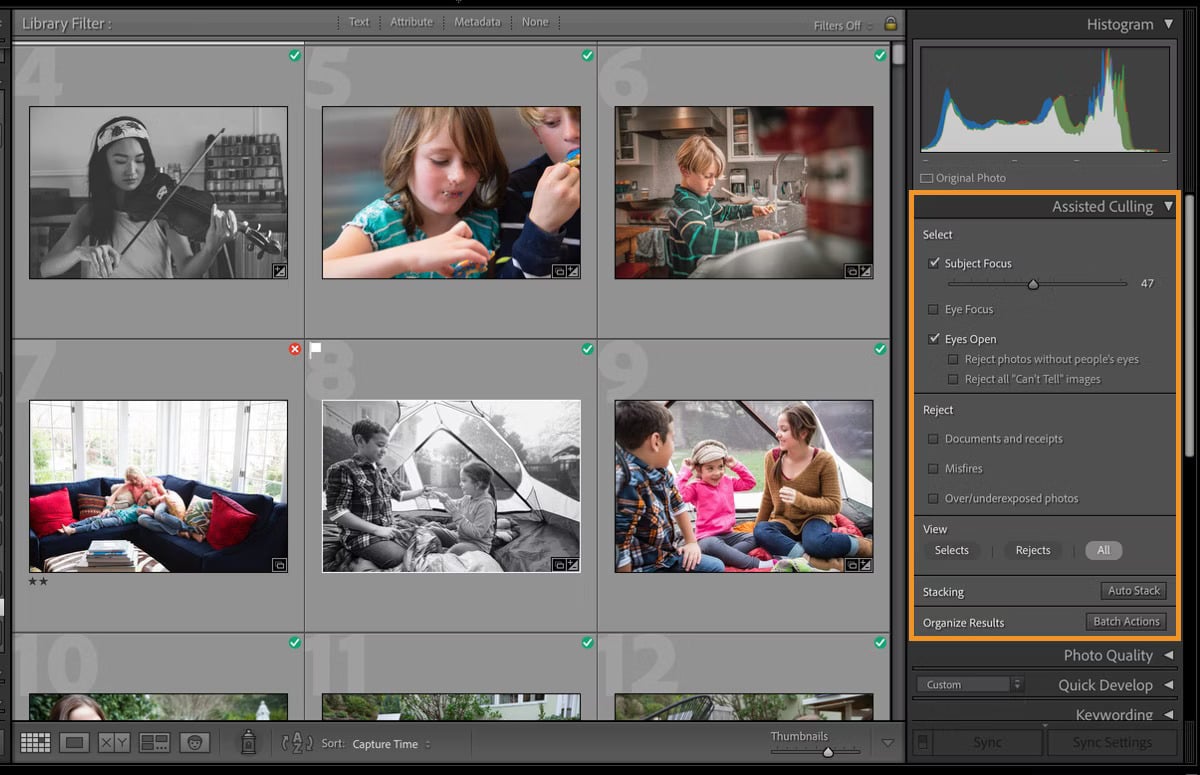
Adobe’s Lightroom Classic recently introduced a built-in Assisted Culling feature, powered by AI, to help photographers sort their imports more intelligently. You can enable this feature in your preferences (Catalog Settings → Metadata → Assisted Culling), and Lightroom will analyze your folder or collection for you.
Once analysis is complete, you can use sliders to adjust how strict the AI is about criteria like Subject Focus, Eye Focus (whether people’s eyes are sharp), and Eyes Open (flagging images where eyes are closed). You also have options to reject images with exposure issues or misfires, such as accidental shots or documents.
Lightroom then groups images into “Selects” and “Rejects” based on your settings. You can review them, apply flags or labels, and move forward with editing. This feature is still in early access, but for many photographers, it’s already cutting down the tedious task of initial selection.
2. Imagen AI Culling Studio
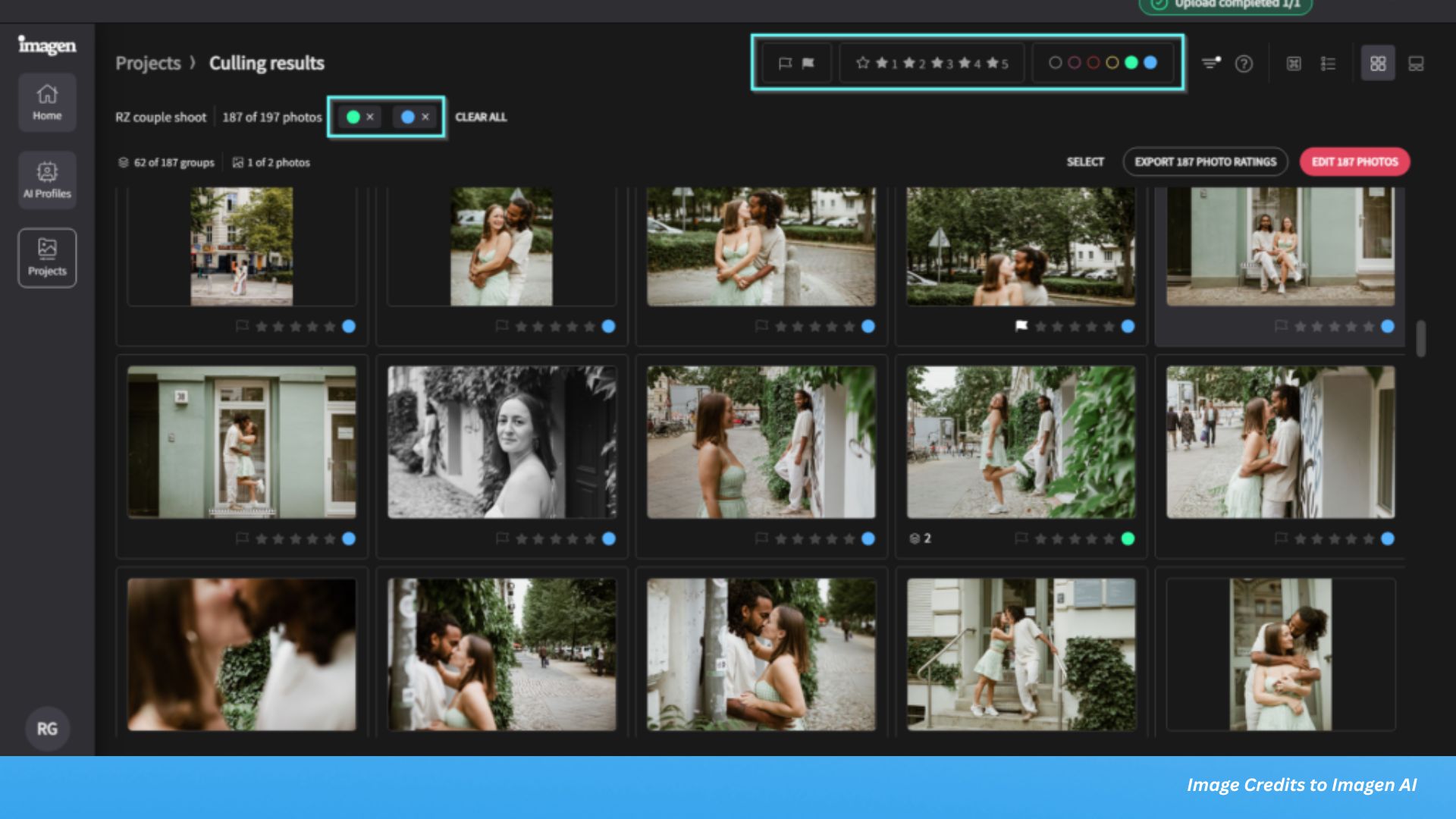
Imagen has become very well-known for its AI-powered editing, and its Culling Studio brings that intelligence to the selection process. You upload your shoot to Imagen’s platform and then choose a culling method: either “Keep the Best of Each Group” or “Cull to an Exact Number” (like keeping 15‑30% of photos).
Its AI evaluates images based on sharpness, exposure, duplicates, blurry shots, and even facial expression (including closed eyes or kisses). You also get “edited previews,” which are AI‑profiled versions of your photos, before you finalize the cull, so you see them with the style you plan to apply later.
Once the AI does its job, you review and adjust. Kept photos are labeled “Keepers,” similar-but-lesser ones as “Extras,” and problematic or duplicate shots are rated lower. This process keeps you in control, but cuts out a huge amount of repetitive manual work.

3. Narrative Select
Narrative’s Select tool includes an AI culling assistant called “First Pass.” It doesn’t pick everything for you, but rather labels images as Potential Picks, Unlikely Picks, or Undesirable.
When you import a session, First Pass analyzes faces, sharpness, and eyes, and then ranks images within scenes so the best ones are easy to find. You can filter to show only the “Potential Picks” if you’re in a hurry, or dig into the “Unlikely” or “Undesirable” categories if you want to double-check creatively.
This tool is well-suited to photographers who want AI to do the heavy lifting, but still want the final decision in their hands. Narrative emphasizes that you remain the creative expert and that the AI just helps you get there faster.

4. Optyx
Optyx is designed specifically for culling, and its AI Autocull feature is very fast and purpose‑built.
One of its strengths is face analysis: Optyx can detect faces, check for blinking, evaluate expressions, and decide which frame is the strongest from a burst or series. It also marks out-of-focus shots so you can spot technical misses.
When it’s done, Optyx writes metadata (ratings and color labels) to XMP sidecar files. That means you can pass your selected photos easily into Lightroom or other software without losing your picks. The fast previews help too, so you can make decisions quickly, even with large RAW libraries.

5. Aftershoot (Adobe-Integrated)
Aftershoot remains one of the more established names in AI culling. While we’re focusing on more famous tools, Aftershoot integrates tightly with Adobe Lightroom, making it attractive if you’re already invested in Adobe’s ecosystem.
Its AI considers dozens of factors, like blur, duplicates, eye closure, similarity, lighting, then offers a ranked selection. After the AI analysis, you can review your “kept” images in a survey‑style layout to compare near-duplicates side by side.
One helpful feature is that Aftershoot learns from your feedback: if you override its picks, it adapts over time. That makes it more accurate for your own style. Once you finalize, you can export the selected images back into Lightroom for further work.
Things to Consider Before Using AI Culling
AI culling is powerful, but there are trade‑offs. Some emotionally meaningful or creatively experimental images may be underrated by the AI. For example, a slightly blurred frame with artistic motion might be rejected even though you want to keep it. That’s why it’s essential to review AI picks carefully.
Also, not all tools work the same way or integrate into your existing workflow. Adobe’s Assisted Culling is built into Lightroom, while Imagen Culling Studio requires uploading images to the cloud. Optyx and Aftershoot save metadata locally so you can sync with your Lightroom catalog. Choose a tool that fits how you work and your privacy needs.
Finally, AI culling is constantly evolving. Some features are in early access, and models improve over time. Use these tools as assistants, not replacements. After all, they offer speed, but your creative judgment still matters most.
AI-assisted culling is no longer a niche tool since it’s becoming mainstream in professional workflows. These tools let you focus on the creative parts of photography while leaving the initial heavy lifting to the AI. If your post-shoot workflow is taking too long, exploring these AI culling tools could be a game‑changer.
See more from DIYPhotography.net on Google
Add DIYPhotography.net as a trusted source. This makes
our stories more likely to appear in your Google Search results.
 Add as a preferred source on Google

Alysa Gavilan
Alysa Gavilan has spent years exploring photography through photojournalism and street scenes. She enjoys working with both film and mirrorless cameras, and her fascination with the craft has grown over the decades. Inspired by Vivian Maier, she is drawn to capturing everyday moments that often go unnoticed.




Join the Discussion
DIYP Comment Policy
Be nice, be on-topic, no personal information or flames.
2 responses to “5 AI Culling Tools That Will Speed Up Your Photo Workflow in 2025”
I’ve been using Aftershoot with Lightroom Classic for at least a couple of years, maybe longer. I have a love-hate relationship with it. I am now 83, so I am slow on the uptake. I have to use a set of written instructions that I follow each time I use it, as my memory is kinda shot, and I find it has a lot of mandatory steps that, if you miss one, mess everything up and send you into the go-back-and-start-over phase. The algorithm learns more of my style and preferences each time I use it. I shoot events pro bono for nonprofits. Last week I shot over 800 frames at a Gala; Afterhshoot culled it to 200 in about four minutes, I kid you not. Over time, I have found that Aftershoot picks what I would pick well over 90% of the time. You can go over the culling in Aftershoot’s screens, choosing thumbnails to resize or view in full screen. Changing a pick is one-click. Duplicates are shown on the right side. Press A and you add one to the whole job. Press S to swap the photos. It was initially designed for wedding photographers, but it is perfect for any high-volume shooter. They now offer a complete package that includes editing, but I like to stick with Lightroom editing because I am used to it and comfortable with it.
I guess AI will get there eventually, but I really wish these programs did more than just event and photo session shoots where people are the subject. They would be very helpful for pet, bird, and wildlife photography, but that doesn’t appear to be a valid use case for any of them.