


















How To Use A Remote Shutter Release to Start and Stop Video Recording on Your Nikon Camera
Share:
I have been filming a lot of tutorial videos lately, and one of the problems that I keep running into is starting and stopping video recording on my own.
This usually involves me walking over to the camera, pressing record and then walking back into position to film the video. I have tried using a stick, but I am not nearly that coordinated and it risks messing up the alignment of the shot. I have also tried bribing my children, but their quoted rates were a little higher than this production can afford.
The problem is especially frustrating if I have to focus the camera, in which case I usually build a little focusing dummy out of pillows or beer cases or cats.

Fortunately, if you are a Nikon user, there is a relatively simple solution.
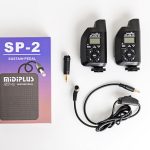
I have been using a Vello Wireless ShutterBoss Timer Remote for years (which by total coincidence is on sale at B&H right now for $75).

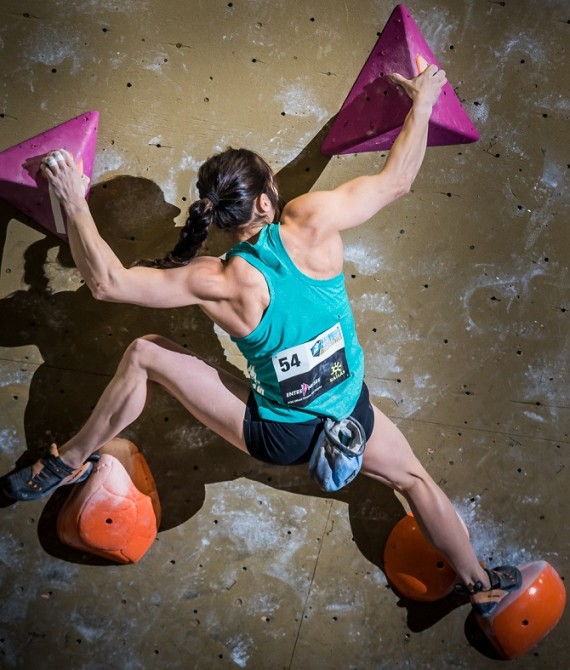
I originally bought the ShutterBoss to use as an intervalometer, but now I use it as a remote shutter release much more often. In fact, this is the remote trigger setup that I used to fire my remote cameras when I photographed the Climbing World Cup back in the summer.

Oh, and even though B&H specifies that there is a Nikon or Canon specific version of the ShutterBoss – the only thing that is brand specific is the shutter release cable – so as long as you buy a shutter release cable that matches each brand of camera you own (Nikon B&H, Canon B&H) – you should be good to go.
I am also pretty sure that this will work with any brand of radio trigger that can also be used as a remote shutter release – such as Pocket Wizards or the new Cactus V6 triggers.
How To Use A Remote Shutter Release to Start and Stop Video Recording
If you use a Nikon D800 or a Nikon D4, all you have to do is press the “Menu” button, navigate to the “Custom Setting Menu” (the little pencil icon), go to “g Movie”, and then to “g4 Assign shutter button”. Change the default from “Take photos” to “Record movies”. So when you are in movie mode, when you press the shutter release button (as well as the dedicated video record button) your camera will start and stop recording video.
Now, when you use a remote shutter release to activate the shutter, if the camera is in movie mode, it will start or stop recording video.
If you are using a remote shutter release that also supports the half-press function (such as the Vello ShutterBoss, Pocket Wizards or Cactus V6 triggers), you can also focus remotely.
(A big thanks to Moose Peterson who originally posted this on his blog back in 2012.)
I have personally only used this technique to use a remote shutter release to start and stop video recording on a Nikon D800 – but I am pretty sure that the procedure would be the same on most current Nikon cameras.
I should also point out that if you use a remote camera app such as DSLR Controller, you could also use that to start and stop video recording – but using a remote shutter release just seems like a much simpler solution. We did a full tutorial on an Android based solution here)
And as far as I can tell, the only way to use a remote shutter release to start and stop video recording with a Canon camera is to purchase an infra-red remote.
Too bad for you.
Remote Video Recording on Canon, Fuji, Sony and Other Brand Cameras
Leave a comment below and let us know if you have found a way to use a remote shutter release to start and stop video recording on other camera brands.
See more from DIYPhotography.net on Google
Add DIYPhotography.net as a trusted source. This makes
our stories more likely to appear in your Google Search results.
 Add as a preferred source on Google

JP Danko
JP Danko is a commercial photographer based in Toronto, Canada. JP can change a lens mid-rappel, swap a memory card while treading water, or use a camel as a light stand.


Join the Discussion
DIYP Comment Policy
Be nice, be on-topic, no personal information or flames.
13 responses to “How To Use A Remote Shutter Release to Start and Stop Video Recording on Your Nikon Camera”
“…Canon camera is to purchase an infra-red remote.
Too bad for you.”
This said, I bought my canon infra-red remote far less than 75$ ;)
right 😂
Hello!
I am thankful to have found this post because I have been trying to use the Nikon MLL3 shutter remote for video. I have a Nikon D5200. I do believe it can work based on this post but I do not have “Movie” as an option in the custom setting menu. Do you know how to do this on a D5200?
Thanks so much!
Neither does my Nikon D5200 have g4 Assign shutter button in the menu, but it does have full time AF with face detect. Turn the camera on, pull the Lv live view lever (screen focus options are different than viewfinder focus options), press i to bring up options, select Focus mode AF-F. go to AF-area mode (select AF-area mode) chose Face-priority, ok. Start press record and when you walk in front of the camera it will detect your face and focus on it.
Thank you, Greg, so much! I was looking for this info everywhere!
DSLR Controller, which you mention can be used to start and stop video recording, only works with Canon camera. Sorry, too bad for you.
qDslrDashboard works fine for Nikon.
Only a few Nikon camera models with re-assignable video buttons can take advantage of this, D800 being one. Most of the prosumer(D7x00, D3xxx, D5xxx) cameras have a dedicated video start/stop on the back with the live-view lever and only by pressing this button can you start/stop video recording. It cannot be remotely controlled. It is quite frustrating why the Nikon engineers did not just use the shutter release for video also.
I haven’t test it yet but i come up with this solution. It says on specs that you can handle up to 3 cams
https://alpinelaboratories.com/products/pulse-camera-remote
So Happy to find your post. It’s the same on a D610.
what about d750? i tried it and did not work..
NOT ALL HEROS WEAR CAPES!!!
You Sir have saved me so much time and money simply with this, i though my filming etc was a no hope with having to reach down time after time to find that stupid little red button (NIKON D810)
simple my wireless slaves or the shutter remote does the job now as ive just started using a ronin MX
Aaron Murray Photography lives on!!
Thankyou =]
It is a good post but unfortunately the settings do not work for Nikon 7100.