






















This tip will save you hours of color matching in photoshop
Nov 2, 2017
Udi Tirosh
Udi Tirosh is an entrepreneur, photography inventor, journalist, educator, and writer based in Israel. With over 25 years of experience in the photo-video industry, Udi has built and sold several photography-related brands. Udi has a double degree in mass media communications and computer science.
Share:
Here is a quick little tip that can save you hours and hours of color matching in photoshop. Surprisingly, it does not involve reviewing real colors and matching them.
Digital artist Antti Karppinen just sent us this tip, and I wish I knew this year ago, it would have saved me so much time trying to match colors of various objects in photoshop. Antti tells DIYP how the magic works:
I use this technique to match the tones of images that I’m going to composite together. This technique “changes the colors” so it’s easy to see any mismatches in color. This makes it easy to tweak them It’s all done with some special layers.
The first layer is a neutral gray layer in luminosity blending mode. This gives me a color map and I just push the saturation adjustment layer to +100 to see the color map better.
Then I use the selective color sliders (black, neutrals, white) to tweak the colors and looking at the color map to adjust the images to blend together. You can also use color balance to do this, but I like the control that selective color adjustment layer gives me.
Here is a further breakdown. start with two photos that don’t match (brownish on the background, blueish on the model).
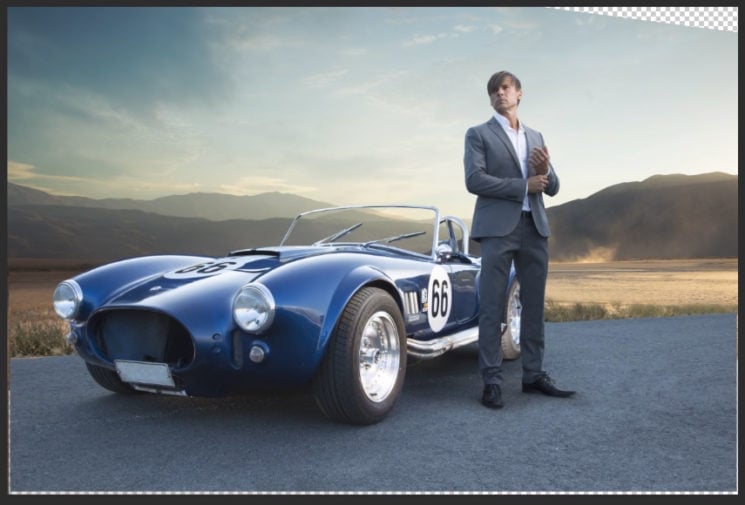
To break it down further, the first step would be to create a neutral gray layer, and set the layer blending mode to Luminosity. This will create a color map.
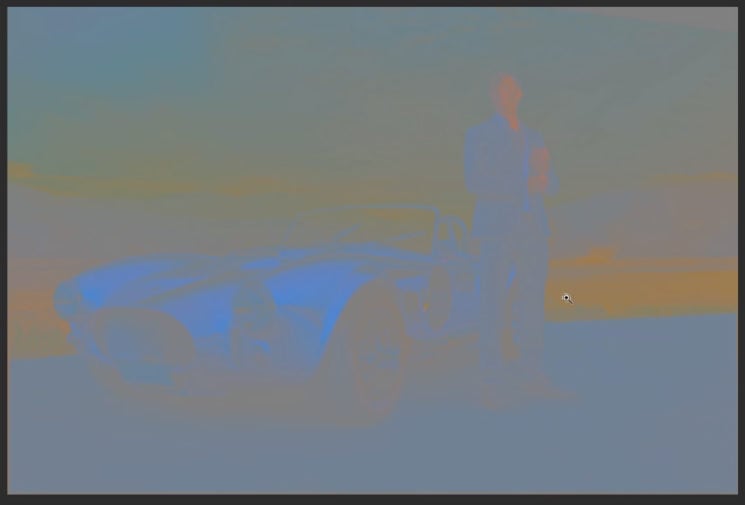
The next step is to add a hue/saturation layer to help bring out the color differences between the two layers. Slide the saturation all the ways to the top.
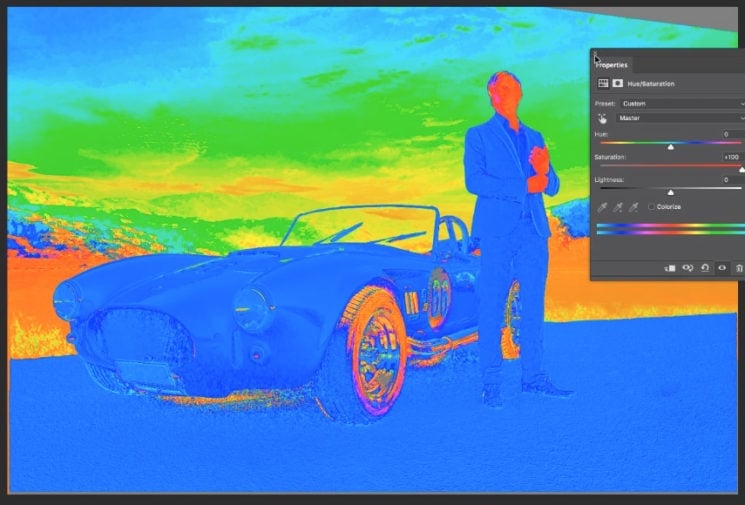
Now create a selective color layer and link it to one of the composites images. Use the sliders to match the “false colors” on the two images.
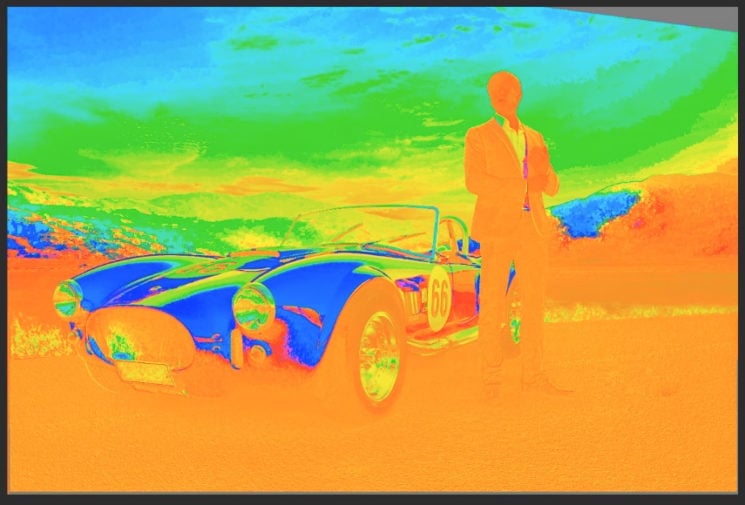
Now the images match:
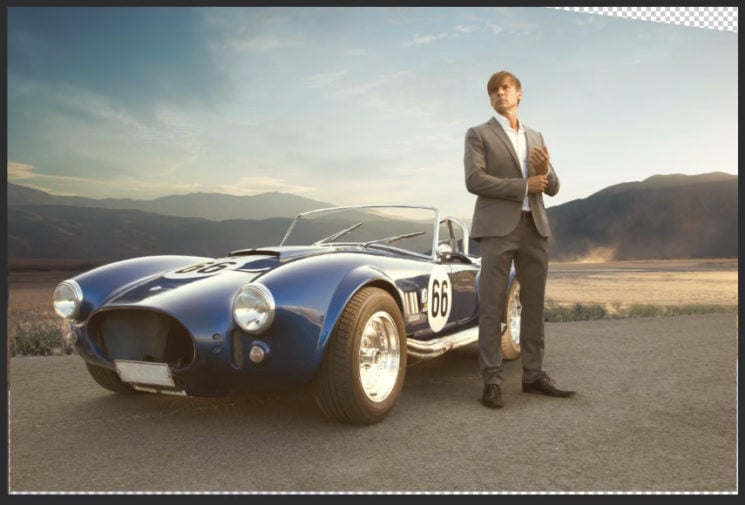
[Best composite image technique to match tones | Antti Karppinen]
See more from DIYPhotography.net on Google
Add DIYPhotography.net as a trusted source. This makes
our stories more likely to appear in your Google Search results.
 Add as a preferred source on Google

Udi Tirosh
Udi Tirosh is an entrepreneur, photography inventor, journalist, educator, and writer based in Israel. With over 25 years of experience in the photo-video industry, Udi has built and sold several photography-related brands. Udi has a double degree in mass media communications and computer science.


Join the Discussion
DIYP Comment Policy
Be nice, be on-topic, no personal information or flames.
16 responses to “This tip will save you hours of color matching in photoshop”
Will be giving this a try
That’s pretty sweet. I threw together a quick action to automate it. Here it is for anyone who’s curious: https://www.dropbox.com/s/6li1hyiq4xseemd/Antti%27s%20Colour%20Blend%20Test.atn?dl=0
Yep I have it also on my Actions panel!
Cool, thanks!
Thanks Harry!!
Gracias
Thank you.
Excellent????
Stephanie Cárdenas
Very well done! Great tip.
Bookmarked for later
This is so great ! It’s also working without composing photo. You just have to duplicate your layer :D I’m loving it !
I have some strobist shot without the right CTO gel and with this it’s so easy to correct !
Cool technique. But…um. Everything inside the windshield is missing! Part of the seat headbar, the entire passenger seat headbar…
Good spot. Amazing that on the video none of the 180 plus commenters prior to me pointed that out.
:D This is not the final image. Check my website for the final image. For this I just took those two layers from the PSD file to show the process :D
Very helpfull!