




















Struggling with Lightroom’s Subject Mask? Try This Instead
Jan 1, 2026
Dunja Đuđić Kalinin
Dunja Djudjic is a multi-talented artist based in Novi Sad, Serbia. With 15 years of experience as a photographer, she specializes in capturing the beauty of nature, travel, concerts, and fine art. In addition to her photography, Dunja also expresses her creativity through writing, embroidery, and jewelry making.
Share:
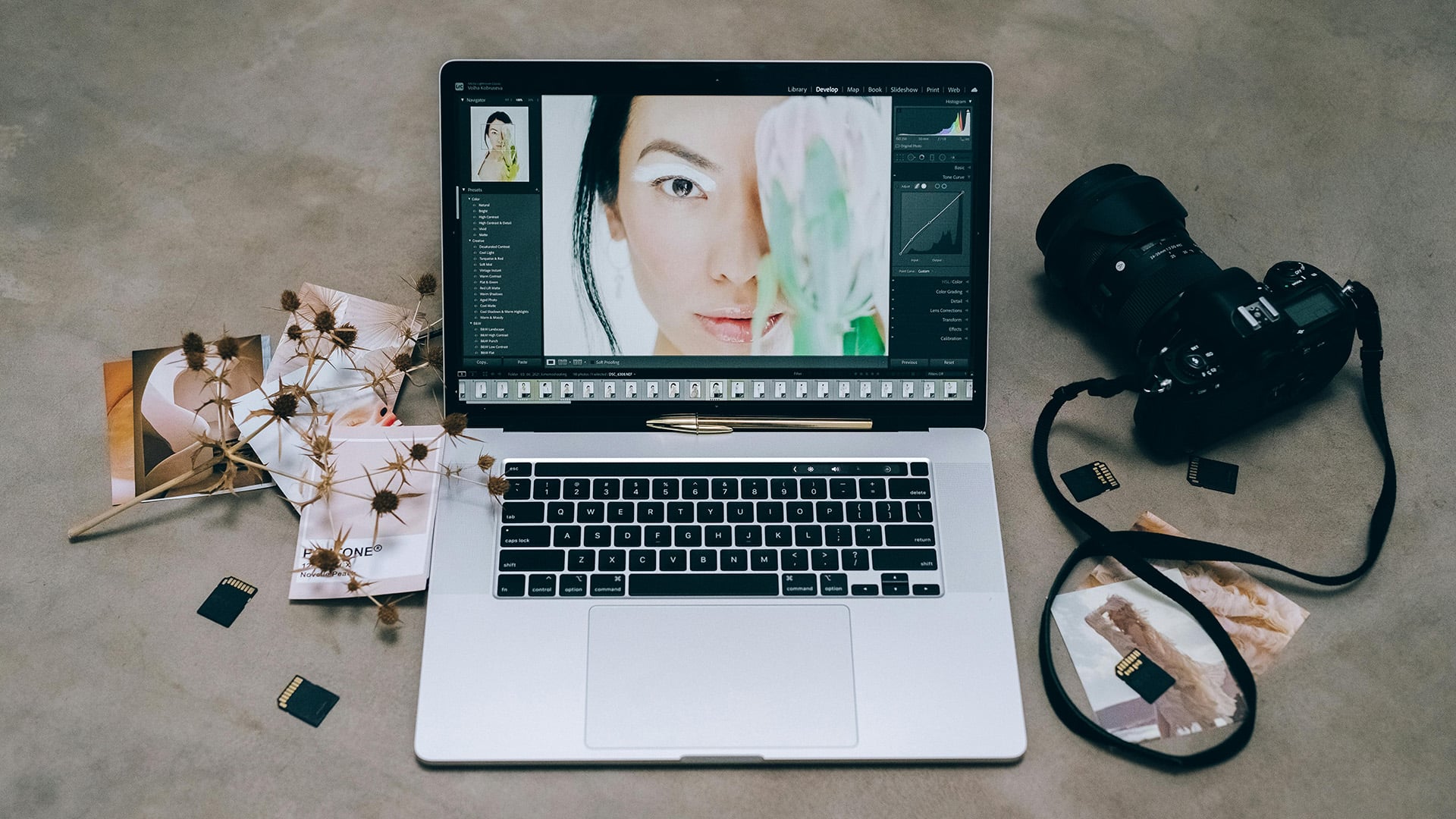
If you struggle selecting your subject using Lightroom’s Subject Mask, Christian Möhrle, aka The Phlog Photography, shares a better way: Lightroom’s Object Selection Mask. It will get you clean, accurate selections even in tricky situations. In the video, Christian walks through a full Lightroom edit from start to finish. He takes a busy, noisy photo of a bird and turns it into a vibrant, polished final image. Along the way, he shows how to crop for stronger composition, clean up distractions with generative AI, fine-tune light and color, and use advanced masking to make your subject really stand out. A whole package!
Christian begins by cropping the image into a tighter vertical format to bring focus to the bird, then applies Lightroom’s AI Denoise to reduce noise from the heavy crop. He uses the Remove Tool with generative AI to clean up distracting branches, brushing them out one at a time for natural results. From there, he sets the profile to Adobe Landscape for a more vibrant base and fine-tunes exposure, shadows, whites, and blacks while keeping an eye on the histogram. A touch of warmth in the white balance, added texture, and reduced clarity and dehaze help create a sharper yet slightly glowy look.
Why the Object Selection Mask Beats Subject Mask
Now we get to the star of this editing workflow: the Object Selection. When it’s time to enhance the bird, Christian shows how the Subject Mask struggles. So, he uses the Object Selection Mask in rectangle mode instead. Just a quick box around the bird, and Lightroom nails the selection. It’s faster, cleaner, and much easier to fine-tune.
He even adds extra object selections for fine details like the claws and feathers, giving him full control. From there, he makes targeted adjustments – lifting shadows, brightening whites, adding saturation, and cooling the tone slightly to make the bird pop.
Making the Background Work For the Subject
To really separate the subject, Christian uses linear gradients across the background and subtracts the bird using object masks again. This way, he can darken and cool parts of the scene without affecting the bird itself. He builds subtle lighting direction into the edit, adding radial gradients on the bright side of the image and subtracting the subject to keep everything realistic. There’s even a mask for the tree branch, where he tweaks the highlights for a bit more depth.
In the final steps, Christian goes into the Color Mixer to brighten yellows and darken blues, then balances saturation to keep things from getting too intense. He adds cool tones to the shadows and midtones using the Color Grading panel, and boosts all three primary channels in Calibration for a rich, punchy finish. The last step is sharpening with masked edges to avoid affecting soft background areas.
Will You Try Object Selection Mask?
Honestly, Lightroom’s Subject Mask hasn’t even been on my radar as I always use Object Selection Mask. It’s simple and intuitive enough, and it nails the selection pretty much every time. Christian’s example shows that this tool gives you cleaner results with less effort. But it also shows just how powerful Lightroom has become for selective editing.
Make sure to watch the video for the entire demonstration. What’s more, you can follow along using the RAW file linked in Christian’s video description and try the workflow yourself. It’s a great way to level up your editing and get more control over tricky selections.
Create PERFECT MASKS with THIS SIMPLE TRICK in Lightroom!
See more from DIYPhotography.net on Google
Add DIYPhotography.net as a trusted source. This makes
our stories more likely to appear in your Google Search results.
 Add as a preferred source on Google

Dunja Đuđić Kalinin
Dunja Djudjic is a multi-talented artist based in Novi Sad, Serbia. With 15 years of experience as a photographer, she specializes in capturing the beauty of nature, travel, concerts, and fine art. In addition to her photography, Dunja also expresses her creativity through writing, embroidery, and jewelry making.




Join the Discussion
DIYP Comment Policy
Be nice, be on-topic, no personal information or flames.