





















Turn Words Into Edits: Polychrome’s AI Lightroom Preset Generator
Oct 30, 2025
Alysa Gavilan
Alysa Gavilan has spent years exploring photography through photojournalism and street scenes. She enjoys working with both film and mirrorless cameras, and her fascination with the craft has grown over the decades. Inspired by Vivian Maier, she is drawn to capturing everyday moments that often go unnoticed.
Share:
Have you ever spent hours in front of your screen, adjusting Lightroom sliders one by one, trying to achieve a specific look but never quite reaching it? The Lightroom Preset Generator from Polychrome was built exactly for those moments.
That gap between vision and execution can be incredibly frustrating for many photographers. You might know exactly how you want your image to look, but translating that into Lightroom adjustments can feel like decoding a secret language. The Lightroom Preset Generator from Polychrome is designed for creators who want to focus on visual storytelling instead of technical trial and error, turning your words into ready-to-use Lightroom presets.
The idea sounds almost too good to be true. You’d just describe your desired aesthetic in text, and watch as the system produces a preset that matches your vision. No more endless slider tweaking or fumbling through tone curves. Instead, Polychrome’s Lightroom Preset Generator listens to your description, interprets your intent, and gives you an instant starting point. It is a creative shortcut for people who love photography but want to spend more time shooting and less time editing.
This tool reimagines how presets can be made. Instead of relying on other people’s styles or pre-made downloads that never quite fit your taste, you can now build your own unique looks from the ground up just by typing them out.

What Lightroom Preset Generator Does and How Different It Is from ChatGPT
At its core, Polychrome’s Lightroom Preset Generator turns plain language into functional presets. You simply write a short prompt such as “moody teal and orange tones with deep shadows” or “clean natural light portrait with soft contrast,” and the system analyzes your description.
Within seconds, it outputs an .xmp preset file that you can import directly into Lightroom. The whole process takes about fifteen seconds.
While it uses the same kind of artificial intelligence that powers ChatGPT, Polychrome’s Lightroom preset generator is far more specialized. ChatGPT can describe how to adjust Lightroom settings, but it does not actually create presets or generate valid files that you can use.
Polychrome does exactly that. It understands Lightroom’s parameters such as exposure, tone curves, HSL values, color grading, and more, and maps your descriptive language to those technical settings. You get something tangible, something that actually changes your photos rather than just talking about how to change them.
This process makes post-production more intuitive and creative, freeing you from the repetitive tweaking that often saps inspiration. In a way, it is like having an assistant who instantly understands the look you want and sets up the foundation for you to refine further.

How Do You Use the Lightroom Preset Generator
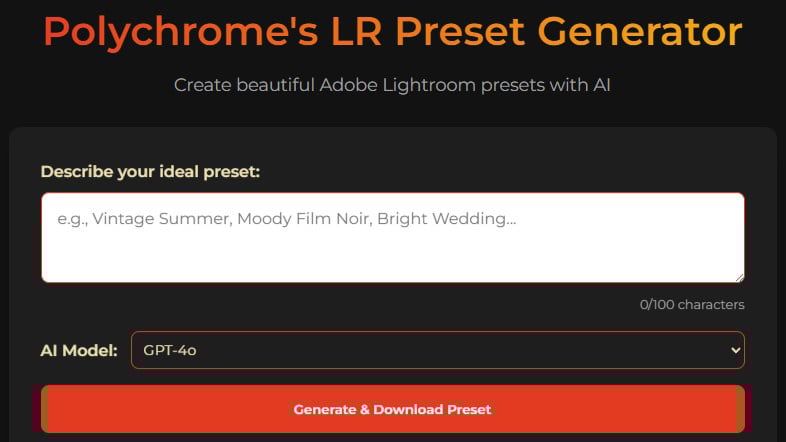
Using the Lightroom Preset Generator is as simple as describing your vision. When you visit Polychrome’s webpage, you are greeted with a text box and a drop-down menu for selecting an AI model. You start by typing what you want your preset to look like.
Once you hit the generate button, the system processes your prompt and gives you a downloadable preset file. You then import it into Lightroom, apply it to your images, and instantly see how your words translate into a visual mood.
The beauty of this workflow is that it removes the guesswork that usually comes with creating presets manually. You do not have to spend an hour fine-tuning each parameter just to get close to your vision. Instead, the Lightroom preset generator gives you a starting point that already aligns with your description. From there, you can still make small adjustments such as fine-tuning the exposure, tweaking the color balance, or shifting the contrast.
Tips When Using Lightroom Preset Generator
To get the most out of Polychrome’s Lightroom Preset Generator, it helps to think as though you are giving directions to another creative person. Be as clear and descriptive as possible. Instead of vague phrases like “make it pretty,” try something more specific, such as “soft golden light with warm midtones and subtle film grain.”
The AI responds best when you provide visual and emotional cues that translate easily into Lightroom adjustments. Over time, you will notice that certain words correspond to certain effects. For example, “cool shadows” often leans toward blue tones, “dreamy highlights” lifts exposure, and “film look” tends to soften contrast.
It also helps to use references that the AI can interpret, like mentioning film stocks or photography styles. Saying “Portra-inspired warmth” or “cinematic teal and orange” gives the model more context, resulting in a closer match to what you want. You can even treat the process as an experiment by generating a few variations of the same idea, applying them to your photos, and seeing which one resonates most with your style.
Most importantly, do not treat the generated preset as a finished product. Think of it as a launch pad. Once you have applied it, make it your own. Adjust exposure to fit your lighting, tweak contrast to enhance your mood, or shift hues until they match your signature look.
The preset is there to save you time and spark your creativity. You will also start learning how specific words relate to specific slider movements by exploring the settings the AI chose. This awareness can sharpen your skills as both a visual and technical artist over time.
Polychrome’s Lightroom Preset Generator reimagines how photographers approach editing. Instead of spending hours tinkering with numbers, you can speak directly to your creative vision and see it materialize in seconds. It makes Lightroom more accessible, more intuitive, and more personal. If you’re curious to test it out, head over to Polychrome’s website and see for yourself how it works.
See more from DIYPhotography.net on Google
Add DIYPhotography.net as a trusted source. This makes
our stories more likely to appear in your Google Search results.
 Add as a preferred source on Google

Alysa Gavilan
Alysa Gavilan has spent years exploring photography through photojournalism and street scenes. She enjoys working with both film and mirrorless cameras, and her fascination with the craft has grown over the decades. Inspired by Vivian Maier, she is drawn to capturing everyday moments that often go unnoticed.




Join the Discussion
DIYP Comment Policy
Be nice, be on-topic, no personal information or flames.