

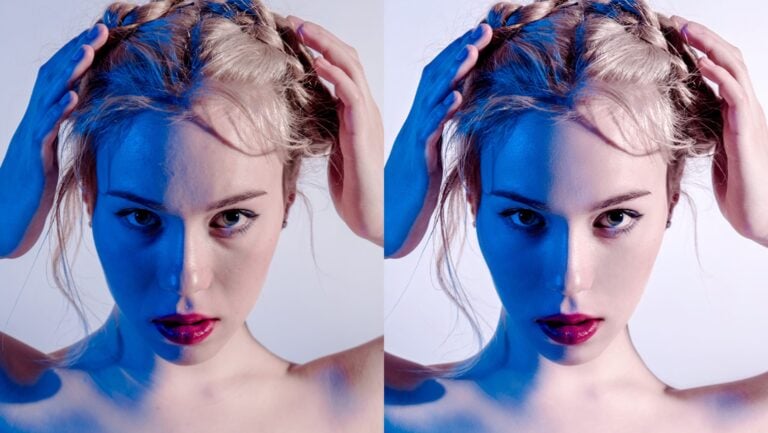







Bright skin, dark clothes, how to keep details on both
Feb 5, 2017
Joseph Parry
Joseph Parry is a Commercial and Editorial photographer based in the UK that provides cinematic photography and ounces of humour. Follow him on Instagram for stories and kick ass imagery.
Share:

This week, I have a pretty well-known tip for the manual HDR types out there.
Back in the days, landscape photographers used the shadow and highlight sliders in Photoshop to get the more details out of their files. This was kind of like making an HDR image before “HDR” existed.
In time, some started layering files with different “exposures” to bring the maximum detail out of a file.
While this is pretty common knowledge for a lot of adept Photoshop users, it’s not a particularly common technique for portrait photos.
It’s a simple method, you start by opening an image in a RAW processor. make it so you have the desired exposure on the skin, and export a copy. Raise the exposure slider until you have the right amount of details in the shadows, then export the image again.

It’s a good idea to do this processing in RAW, as opposed to simply raising the levels in Photoshop. Using the RAW file retains more information and ends up with a cleaner result.
Open both exports in Photoshop and merge the two files together. Do this by going to the brightest picture, using the move tool (V) and dragging it onto the tab of the other (darker) file.
Make sure to hold shift before you let go of the mouse so it perfectly pastes the file over the top of your base file.
Next, add an inverted mask to the top layer (hold alt while clicking the mask button). This will create an inverted mask for us (black) where we can simply paint in white where we would like to bring the shadow details back.
If you have a sharp/clean shape, I imagine “quick select” will do a fine job. Then you can simply “ALT+BACKSPACE” to fill the selection in white.
Make sure the selection is made with the image thumbnail (left) selected, then the masking (right) is done by painting/filling your selection with white.

With the masking done, we can relax knowing that we have detail in everything from the highlights to the shadows.


I find this a simple, yet effective way to keep all the detail. This method not only gives plenty of control but, if you’re like me, also allows to skip using C1 and Lightroom masking (which I think is clumsy in comparison).
Enjoy!

Joseph Parry
Joseph Parry is a Commercial and Editorial photographer based in the UK that provides cinematic photography and ounces of humour. Follow him on Instagram for stories and kick ass imagery.
Related Posts
 Infinite Skin is a new retouching plugin for Photoshop designed specifically for skin
 The new Super Dark variable ND from Syrp lets you shoot long exposure timelapse in bright sunlight
 Photographer explores subconscious mind through dark and intimate skin macro photos
 Google says its phone cameras will take more flattering photos of dark skin
Join the Discussion
DIYP Comment Policy
Be nice, be on-topic, no personal information or flames.
9 responses to “Bright skin, dark clothes, how to keep details on both”
Nice Joseph…thanks for sharing?
NP Stewart!
Out of curiosity, what about lighting on set to avoid having to “fix it in Photoshop”? A few reflectors or some fill flash could reasonably open up a lot of the darker areas… (I do understand the need for some emergency fixes.)
Good question!
Some material (like black) absorb a LOT of light, so when using a clam-shell setup like above if I ran the light bright enough to expose the clothes the underside of the subject would be overexposed and the incorrect ratio I desire.
I’d need to have 2 under lights (one for the clothes, gridded. One for the chin etc).
It’s just far more practical for me in situations like this to use RAW information and leave the skin and eyes looking great.
I see, thanks for explaining. Much appreciated.
FWIW, I’ve found that simply pulling up the Shadows slider in Lightroom has almost exactly this same look, and it’s seamless and trivially easy.
Yes, while the masking in photoshop gives you some additional control, this seems like an overly complicated way to do something that would take just seconds in Lightroom. (where you can mask as well if you need more control)
I use capture one for the phenomenal rendering of raw files. It’s masking is poor imo and thus I prefer to use this method.
Cheers!
It impacts skin tones, eyes, hair etc. You need to mask. And I’d vastly prefer to mask in photoshop, far less cumbersome to work with for me.
This is pretty quick and easy… export two files, paint a mask on where you want the higher exposure to show through.
Personal preference at the end of the day.