













Introduction To Tethered Shooting
May 13, 2013
Udi Tirosh
Udi Tirosh is an entrepreneur, photography inventor, journalist, educator, and writer based in Israel. With over 25 years of experience in the photo-video industry, Udi has built and sold several photography-related brands. Udi has a double degree in mass media communications and computer science.
Share:
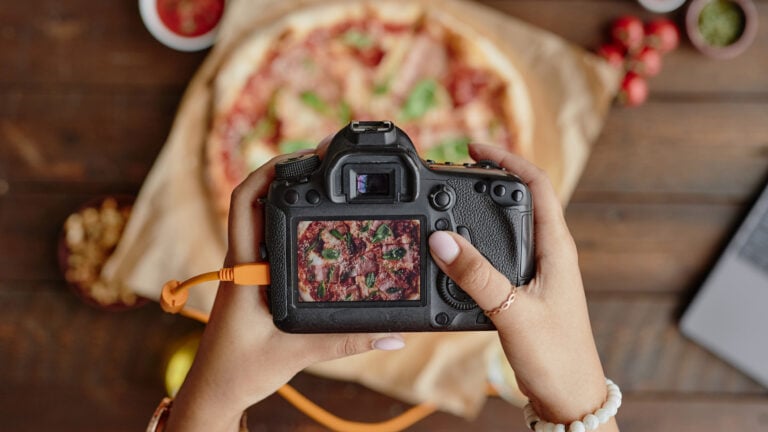
Tethered shooting is connecting a computer to the camera when you shoot so the pictures you take a downloaded to the computer rather than (or in addition) to a memory card.
Usually, the camera and computer are connected by cable, hence tethering.
In this tutorial, I am going to go over tethered shooting, why (or when) you should shoot tethered, how it is done and what is the gear involved.

Why Tether Shoot
You would probably wanna shoot tethered for the speed at which you ca n get the files onto a computer. Why would you want to do that? I can think of at least several reasons: The first of which is quickly watching the raw photographs on the computer. This means that you, the photographer, are not the only person on set and have a supervising art director, client, or other stake holders, you don’t need to interrupt the session to download images into a computer or get a huddle-up behind your back to watch your LCD. They can watch the images immediately on a big comfortable screen.
This also allows you to perform quick or verifications on the photographs you shoot (focus, exposure and so on…). Sometimes this can really ease up your workflow. for example when you are doing a composite shoot, you can stack the images and make sure everything is properly placed and ready for editing.
Lastly, this means that your files can be auto backed-up while you shoot. You have at least one level of redundancy (memory card + computer), but you can also use a raid, a portable drive or any other configuration that makes you feel good about file safety.
Set Up & Workflow
My tethered setup usually includes two tripods, one holds the camera and the other holds a laptop table. If conditions allow, I try and hook up the laptop to a power outlet. This is not necessary, but for prolonged shooting it is one less thing to worry about.
Then there is the cable that connects the camera to the computer. This is a USB cable. I have seen another photographers secure the cable to the tripods or laptop, but I just leave it free. If anyone bumps into one of the tripods (which should not happen anyways) I’d rather loose connectivity than having the camera or laptop getting knocked over, so I just plug the USB into the camera and computer. If you want to make sure the cable does not put any strain on the USB port, Tethertools sells a small buckle called JerkStopper. It does what it’s names for. it stops the cable from pulling on the socket. A similar effect can be achieved with a Velcro fastener which is way cheaper.

Once everything is setup and depending on the software you would need to “connect” to the camera. Some programs offer auto connect, while in others it is a manual process. If you camera and software combo supports live view, this is when you’ll start seeing the feed on your laptop.
Once everything is good to go. you can trigger the camera either via the shutter button or via the tethering program. Once you take a photo, it takes about 3-10 seconds to transfer to the computer, depending on the image-size settings, the connection speed, and the computer’s computation power.
On some programs you can take another photo as soon as you want, and on some you have to wait for the image to transfer first. Some, like Lightroom, you can go as fast as you want with the shutter button, but have to wait for the complete download if you use Lightroom for triggering.
Gear
If you have GAS (Gear Acquisition Syndrome), tethered shooting opens up a whole new path for you to spend money. Starting from software, through tripods, laptop tables and dedicated stands, a computer and a whole bunch of cables, remotes, grips and accessories.
I am going to go over a basic setup, but it can get wild pretty quick.
Camera
Not all camera were created even. Some cameras will support some features and some will support others, and some will support some features with one type of software and another set of features with another software. Make sure to check the compatibility of your specific camera on the software site.
Almost any modern DSLR (and some point and shoots and EVILs) supports tethered shooting, although some provide more functionality than others. Here is a list of features that sets the cameras apart
- Tethered Live View – Live view is the ability to see through your camera’s lens. Almost any Video supporting camera will have live view (which is how you shoot video if you don’t use a dedicated monitor), but not all camera are capable of feeding that live view to a tethered computer.
- Simultaneous Card/Camera save – Can the camera save a picture to the computer AND a memory card simultaneously? or does a tethered computer overrides any memory card?
- USB Cable – most cameras will use a mini or micro standard USB cable ,but Nikon uses a proprietary USB cable. It is not an expensive cable, but it is proprietary so it is a hustle to go and get one if you lose yours. (So save that cable that you got with your camera).
- Connectivity – How does the camera connects with the computer? The most common way is USB, but the Nikon D4 for example can connect via an Ethernet port or Wi-Fi.
Laptop
Connectivity: probably the first thing you wanna make sure is that the computer has a USB2 or higher interface (assuming you are using a relatively modern camera). All the benefits of tethered shooting go down the drain if you have to wait 5 minutes between shots.
Hardware: any modern desktop/laptop should be able to carry a tethering software. I have even used Breezesys software on an old Asus HE netbook and was quite happy.
Monitor: This is basically one of the mail reasons you are shooting tethered, right? you want to see the pictures on the big monitor. The rules are simple, the bigger and higher resolution the monitor is, the more details you will see. But even a 10″ laptop is a better alternative than the camera’s tiny LCD.
Another thing you wanna be aware of when selecting a monitor, and particularly a laptop, is glare. How easy it will it be using it outside. Can it be viewed in sunlight? if not will you consider a monitor hood? Or make a hood?
Tripod / table / station: If you own a big studio, there is a good chance you have a tethering station already setup. If you are doing things on a smaller scale, you’ll probably want a small table to rest the tripod on, along with a second tripod for that table.
I personally use the gear from Tabelz (including a blazing red custom painted 190XPROB Manfrotto as a second tripod). The system has all the stuff that a tethered photographer needs – a non slip table, a non slip mouse pad and a cup holder. Both the cup holder and the mouse pad are optional, but I warmly recommend using a mouse pad when you shoot. It is so much easier than fiddling with the small touch pad.
Software
Software is what drives this entire process. Without it your computer is just connected to a very expensive USB Drive. Here is a comparison of the more common software, I have personally used only 3 of those, so it is spec based
| Software | third Party? |
camera | Live View |
control settings |
Wifi | OS (W/L/M) |
Buy | Cost |
| Canon EOS Utility | X | C | V | V | X | W,M | x | 0 |
| Camera Control Pro 2 | X | N | V | V | V | W, M |
buy | $180 |
| Adobe Lightroom 4 |
V | C,N | X | X | X | W,M | buy | $119 |
| CAPTURE ONE PRO 7 | V | C,N | V | V | V | W,M | buy | $299 |
| Aperture | V | C,N | X | X | X | M | buy | $79 |
| Control My Nikon | V | N | V | V | ? | W | buy | $29.95 |
| TetherPro | V | N,C | V | V | V | W | buy | $24.95 |
| Sofortbild | V | N | V | V | V | M | x | 0 |
| Breeze Systems | V | C,N | V | V | V | W,M (p) |
buy | $175 |
| Entangle | V | C,N | x | V | x | L | X | 0 |
| gphoto2 | V | C,N | x | V | x | L | X | 0 |
| CamRanger | V | C,N | V | V | V | iOS | buy | $299 |
| digiCamControl | V | N | V | V | ? | W | X | 0 |
Workflow
The workflow really depends on what you are using for software (I usually use Lightroom 4) but the basic steps are always similar. Here is a short walk through on how it works in LR and a few slightly random tips.
First thing is plugging the camera into the computer and letting Lightroom identify the camera. You can than select the setting for the capture session.

once it is set, you can start taking pictures.
If you are using a different program, you can still have Lightroom auto import the images into the catalog, using something called “Watch Folder”. A watch folder is a folder that Lightroom keeps an eye on and takes action whenever a file is placed in that folder. So if you are using a different program for tethering, you can still automatically import to a Lightroom catalog if the watch folder matches the other program folder.
Conclusion
This is it folks. As you can see it is a pretty easy setup, and once you have a camera, (possibly free) software and a laptop you are good to go.

Udi Tirosh
Udi Tirosh is an entrepreneur, photography inventor, journalist, educator, and writer based in Israel. With over 25 years of experience in the photo-video industry, Udi has built and sold several photography-related brands. Udi has a double degree in mass media communications and computer science.
Related Posts
 Tethered Shooting – From Camera To Computer To 60″ IPS Panel
 Make your own DIY Jerk Stopper for tethered shooting with a humble rubber band
 The Sony A7RIII is the fastest camera out there for tethered shooting, moving photos in under a second
 CamFi has launched the CamFi 3 and 3 Plus for wireless tethered shooting with improved speed and 4G LTE support
Join the Discussion
DIYP Comment Policy
Be nice, be on-topic, no personal information or flames.
58 responses to “Introduction To Tethered Shooting”
Here it is my DIY thethered table for laptop
http://strobistmk.blogspot.com/2013/05/diy-laptop-tethering-stand.html
Proof read, please… this article is helpful but oh-so-painful to read with all the grammar mistakes and incorrect words.
sigh, the curse of being English Second Language… I do run everything through a spell checker but it does not catch them all. Let me know where the errors are and I’ll fix them right away
Udi, no apology necessary. It isn’t “painful” or difficult to read the articles with these errors, they don’t occur enough to make the article unreadable, and it is very easy to understand what you are trying to convey. I know you appreciate feedback, but you probably shouldn’t indulge these nit-picky types.
Have you considered asking someone to proofread the articles for you? I’d gladly help lol
Thanks Basia, lets chat :)
Are you paying for this information? If not sit back relax and enjoy the free advice. Because I know you get it. It irks me to read about people like you that has to pee on everybody’s parade. Grow up and as the Beatles said “Let it Be”.
So true, Jamie thinks he so smart that he’s lost because he doesn’t know.
Do you think Jamie can he speaks & writes other language beside english (English), like Chinese, Japanese or Russian?
Let Jamie be, they’re only trying to help.
the intent was help, the delivery was insult. I’m reading this 3 years later, and it was very helpful.
Oh no! Didn’t know there was a spelling bee officer! Udi, you were amazing in this post and helped out a bunch! Thank you SO much!
*Proofread is one word. ;-)
Always some jerks have to correct people when they are providing free tips & tutorials.
How many languages that you can read and writes, Jamie?
The guy is doing a good job, for a small issue with grammar should not be a big deal. If you are irritated. Don’t read it, simple. Focus on the topic, don’t divert it to another.
Meh, not really.
Just an FYI, the Canon EOS Utility does have LiveView and does run on the Mac
thanks, added it to the table.
Is there a tethering program that runs both Live View for Nikon video recording and is available to use on Mac? I see the only Nikon compatible program is Windows only.
Nevrmind, udi. I just saw Sofortbild and answered my own question!! LoL. Thanks!
My Setup is just a Eye-Fi SD card and iPad. No wires, No issues.
D800. Raw on CF and Jpeg on Eye-Fi.
Now definitively that is a setup I could live with… I have a D3200 and a 17″ MacBookPro i7 and the eye fi solution seems sooo elegant.
I want to shoot tethered with Lightroom, my only blocker is Lightroom captures in CR2 format and I want my images converted to DNG on capture. So im stuck with the good old capture then import as DNG until it is possible to capture to DNG from a tethered camera.
as you have only covered Canon and Nikon here is hot to tether with a Sony Alpha
http://www.scottlewisphotography.eu/?p=1286
Thanks Scott! well said.
Hey Udi,
I tried to find some software a free one, for Mac. And couldn’t find. Do u know maybe about that?
(By the way, I loved the article)
Thank u
Great article – thanks. Btw: TetherPro does support Canon cameras (a recent addition!)- cheers, Todd (TetherPro Author)
thanks Todd. I updated the table.
Thanks Udi – I just noticed the ‘buy’ button for TetherPro takes you to the wrong page, should be http://www.oxfordeye.co.uk/tetherPro/buy.aspx. Would you mind updating please? Thanks
Great post about tethering and the workflow setup! Thank you for featuring the Tether Tools JerkStopper! Much appreciated!
My pleasure Amber. Great to see you here on the blog :)
Thanks Udi and DIYP.
Anybody ever used WiFiCamTether wireless tether (www.jamlogics.com)
There’s an Android app called “DSLR Controller” that I use on my Galaxy Tab 2 plus an OTG cable, and it works wonderful with my little Canon 1100D. Fully recommended for Android users.
XtremeTether looks good too! dont know what to buy!! (www.xtremetether.com)
which software will work for tethering with a sony dslr digital carmera.I do pet and family photograpy and have been looking for some software where I can hook camera to laptop and shoot ,see photo at same time on pc then print..
tonda
Is there a software that works with a point & shoot camera? (Specifically Nikon Coolpix P330)
Once you get going shooting tethered you’ll have to add a DigiPlate to the workflow: http://digi-plate.com
As a status update : we release a new stable version for digiCamCOntrol 1.1.0 :
http://digicamcontrol.com/news/stable-release-110
which software should i get for fuji camera?
None.
Does any thethered software work with a Panasonic G3?
No.
thx for your advice
Thanks for info :-)
Pentax? You now? No? ;)
Hi ! great article ! you do not talk about the software “Darkroom” can you share your thoughts ?
Hello people… greetings from Spain. I am looking for basic technical advices on the choice of both camera and software for tethered shooting (TS). Most of what I can read is oriented towards classical photography… for which (no offense) I have very little interest. My needs are focused on unusual applications for TS for scientific purposes. I have been using PSRemote software coupled to a Cannon A85 camera in order to pick up signal from a very faint source of light placed in a black box. For a few applications, this setting is sufficient to make my point but, when the light source is really faint, I am limited by the maximum 15-second exposure offered by my system (soft+camera). I am now thinking that maybe it is time to invest a bit more money and find a better camera that will proove more robust than compact cameras and (more importantly) that will give me far more exposure time. I liked PSR very much for its ease of use during this initial phase but I could as well adapt to a new environment as long as my prerequisits are fulfilled. I do not need anything fancy or sophisticated, just something reliable, affordable, easy to use and robust… many thanks in advance for your advices…. Talk to you soon…cheers…JPG
You can buy a cheap Canon DSLR, the sensor is much bigger than Canon A85.
Then load the EOS Utility on your computer.
Canon EOS Rebel is cheap.
If you are a Sony lovers.
Here are the only cameras that can do un-tethered or USB tethered to Windows:
1. ATG Sony SLT-A99vr
2. ATG Sony A7sr IR
3. Sony SLT-A99v
4. Sony SLT-A77 Mark II
5. Sony A7 series
6. Sony SLT-A65
7. Sony A6000
8. Sony A900
9. Sony A850
X. Sony A700
Latest cameras CAN NOT do live-view un-tethered nor USB tethered.
This is a major drawback coming from Sony.
You should check your spelling and wording. It makes you look very unprofessional.
Very useful article. I learned exactly what I was searching for – the way to secure the USB cable to stop it coming out of the camera! My potential use case would be hooking up the camera to a wearable computer (Raspberry Pi, or the like) running gphoto2, and hand-holding the camera, so it’s important to avoid cable snags.
Thanks!
Oddly enough my D700 is and works fine with any USB cable being teathered though software or simply direct connect for downloading files. Perhaps you are confusing Nikon with Apple proprietary products who routinely alter connectors on new models?
I found a way to connect o digicam, but my cord is literally two feet long, which is a problem. I’m using the cord, i think, that came with my D750. It doesn’t connect to the top mouse labeled plugin, but the bottom hdmi port with a smaller size end, not an hdmi size. I’ve looked through everything. What cord do I need and how big/long do they make them. I’d rather use wifi, what the D750 advertized quite a bit. But there’s not too much info under help or on the web. Mainly just connecting to devices (via app) that are about the same size of my camera screen (like my phone.
Please help!
And don’t worry about the perfect grammer, as long as you help I have no problem, especially knowing it’s your second language.
Udi, great and helpful article. I used Lightroom and it was painful slow. Apparently, LR5 is better, let’s see.
In the Linux or Mac computer world, DarkTable is a very high end post production software designed by photographer for photographers, It also provided Tethering and it is all free open source.
Hello, I am trying to find some information,
Do you know if only Canon offers this kind of software to preview the photo before taking it ?
And does it work with all DSLR cameras ?
No chance that it works with a compact ?
I would like to find a compact camera that can be connected to the computer, but if I cannot find I will look for all DSLR brands that offer this function.
Actually I am looking for the cheapest camera that would allow me to view the photo on the computer before taking it (the purpose is ecommerce products photos, I do not need the best quality).
Thank you so much for your help.
I’m looking for a tethering program where I can connect 2 Nikon D750’s and toggle beetween them.
I love this post because I am also working in Adobe Lightroom, It has easy to use tools even for the beginner like me. Adobe Photoshop Lightroom Classic newserialkeys.com lets you easily edit, organize, and share your photos in a number of ways. You can use powerful and simple tools and advanced controls to create your photos. With Lightroom, you can organize and edit your photos anywhere, anytime. You can edit any image, from a photo that your mobile device likes to RAW images from your DSLR camera.